
Settings — Security
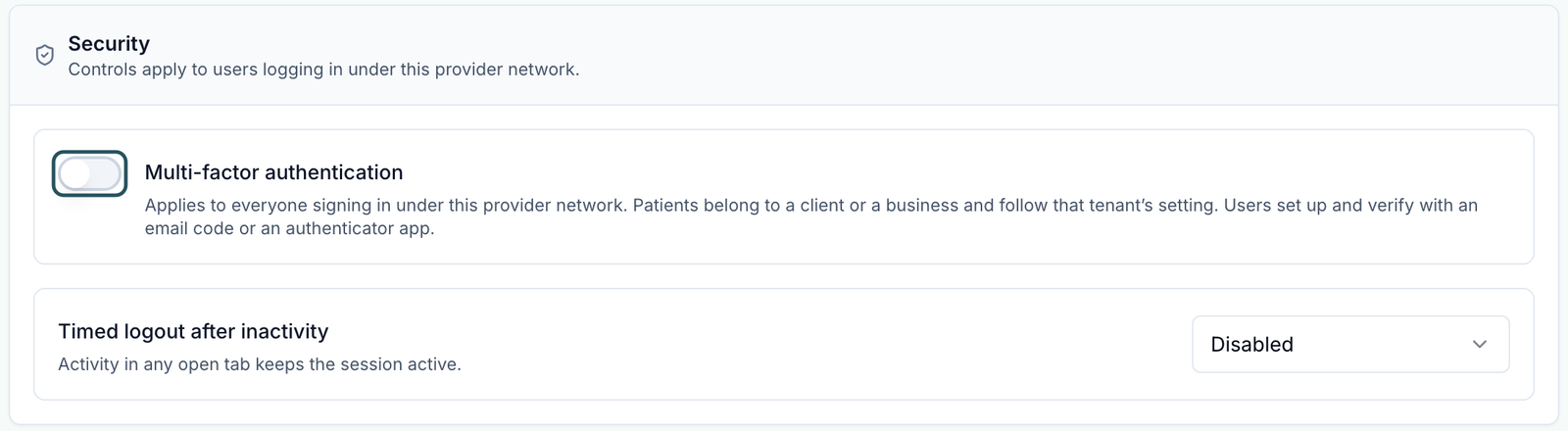
Require 2-step verification (MFA, 2FA) for everyone in your network, log out idle sessions, and help someone who is stuck at the code screen.
Settings — Security sets two sign-in rules for everyone in your network: a second step at sign-in, and logging out idle sessions. Left menu → Settings → Security. Provider Network Admin only.
What you can do here
- Require 2-step verification (MFA, 2FA) for your team
- Log out idle sessions
- Help someone who can't get past the code
- Change your own password or sign-in method
Require 2-step verification (MFA, 2FA) for your team
Use this when your compliance rules require a second factor. It covers every Provider Network Admin, Provider and Provider Delegate in the network.
Warn your team
Tell everyone first. At their next sign-in they must set it up before they can open anything.
Turn it on
Click the Multi-factor authentication switch. It saves at once; there is no Save button or confirm.
What each person sees
Set up 2-step verification: they choose Email code (then Send code) or Authenticator app (scan the QR code), enter the 6-digit code and click Finish setup. After that, every sign-in asks for a code on Verify your sign-in.
You'll know it worked when the toast reads Security settings updated and the switch stays on after a reload.
Who can do this: Provider Network Admin. You can't require one method only; each person picks.
Log out idle sessions
Use this if your team works on shared computers.
Open the list
Click Timed logout after inactivity (it starts on Disabled).
Pick a time
Choose 15 minutes, 30 minutes, 1 hour, 2 hours or 4 hours. It saves as you pick.
You'll know it worked when the toast reads Security settings updated.
Who can do this: Provider Network Admin.
Activity in any open tab keeps a session alive. Providers on long video visits without clicking are safer with 2 hours or more.
Help someone who can't get past the code
Use this when a provider lost their phone or the email code never arrives.
Switch method
On Verify your sign-in, they click Use email code instead (or Use authenticator app instead). During first set-up the link is Choose a different method.
Still stuck
Raise a ticket in Support to GEN Health under Account & access, naming the person. There is no reset for one person on this page.
You'll know it worked when they reach the Dashboard.
Who can do this: The person signing in; GEN Health support for resets.
Change your own password or sign-in method
Use this for your own account; this page only sets rules for others.
Open your account
Click your name at the bottom of the left menu. Edit Account Information opens.
Change it
Use Update Your Password, or Sign-In Methods → Add Method for Email & Password or Google, then Save changes.
You'll know it worked when you can sign in with the new password or method.
Who can do this: Everyone, for their own account.
What can go wrong
| What you see | Why | Fix |
|---|---|---|
| Providers are locked out the morning after MFA went on | Nobody warned them; they must set it up before anything opens | Walk them through Set up 2-step verification. If a shift is at risk, turn the switch off and turn it on again with notice. |
| The sign-in code email never arrives | Email filters, or a blocked sender | Use Use authenticator app instead. Otherwise raise a GEN Health ticket under Account & access. |
| A provider is signed out while charting | The idle timeout is shorter than their quiet spells | Raise the timeout. If it's Disabled and it still happens, raise a ticket with the time and page. |
| Unable to update security settings | The save failed | Reload to see what saved, then try again. |
Questions people ask
Can we require 2FA for staff but not patients?
This switch already covers only your network's staff. Patients belong to a client and follow that client's own Security setting.
Does it cover our linked clients' staff?
No. Each client sets its own on its Settings — Security.
Can I sign everyone out right now?
No. There's no sign-out-everyone control; the idle timeout is the closest.
Related
Was this helpful?