Network overview and operating hours
Network name, timezone, clinic address and operating hours — the outer boundary that every provider's availability must sit inside.
/settings/overview holds your network's identity, its timezone, its clinic address and its operating hours — and the hours here are the outer boundary every provider's own availability has to fit inside.
This page is not billing. No card, no plan and no invoice lives here. Your GEN Health bill is at Account and billing; patient card processing is at Patient payment processor.
Questions people ask about this page
A patient says no appointment times are available. Where do I start?
Here, on Network Hours. A provider's own availability is clipped to the network's hours, so a slot outside them never reaches a patient. Check the day is switched on, check the start and end times cover the slot, and check Timezone — every hour on this page is stored in it.
My provider says they cannot set availability at all.
They will be seeing one of three messages, all of which point back at this page: Your Provider Network Admin hasn't set a timezone or configured operating hours yet., …hasn't set a timezone yet., or …hasn't configured operating hours yet. Set Timezone and switch at least one day on.
Where is the Save button?
There isn't one for the card as a whole. Business Details saves per field: edit a field and a tick and a red X appear beside it. Business address shows the same pair in the card header. Network Hours saves the moment you flip a switch or change a time — no button at all.
What is the difference between Network Name and Display Name?
Network Name * is the legal or internal name and is required. Display Name is an optional public-facing alternative, placeholder Optional public-facing name. Leave it empty and the network name is used.
Why is the address described as "used when registering providers with OnlyScripts"?
Because the pharmacy network uses it to register your prescribers. A wrong address here surfaces weeks later as a failed pharmacy enrolment that will not look like an address problem.
Something auto-filled my Support Email. Why?
If Support Email is empty when the page loads it is filled from the signed-in admin's own email, with the toast Support Email auto-populated from your admin account. Change it to a shared inbox — patients see it as the reply-to address on branded emails.
How do I close for a public holiday?
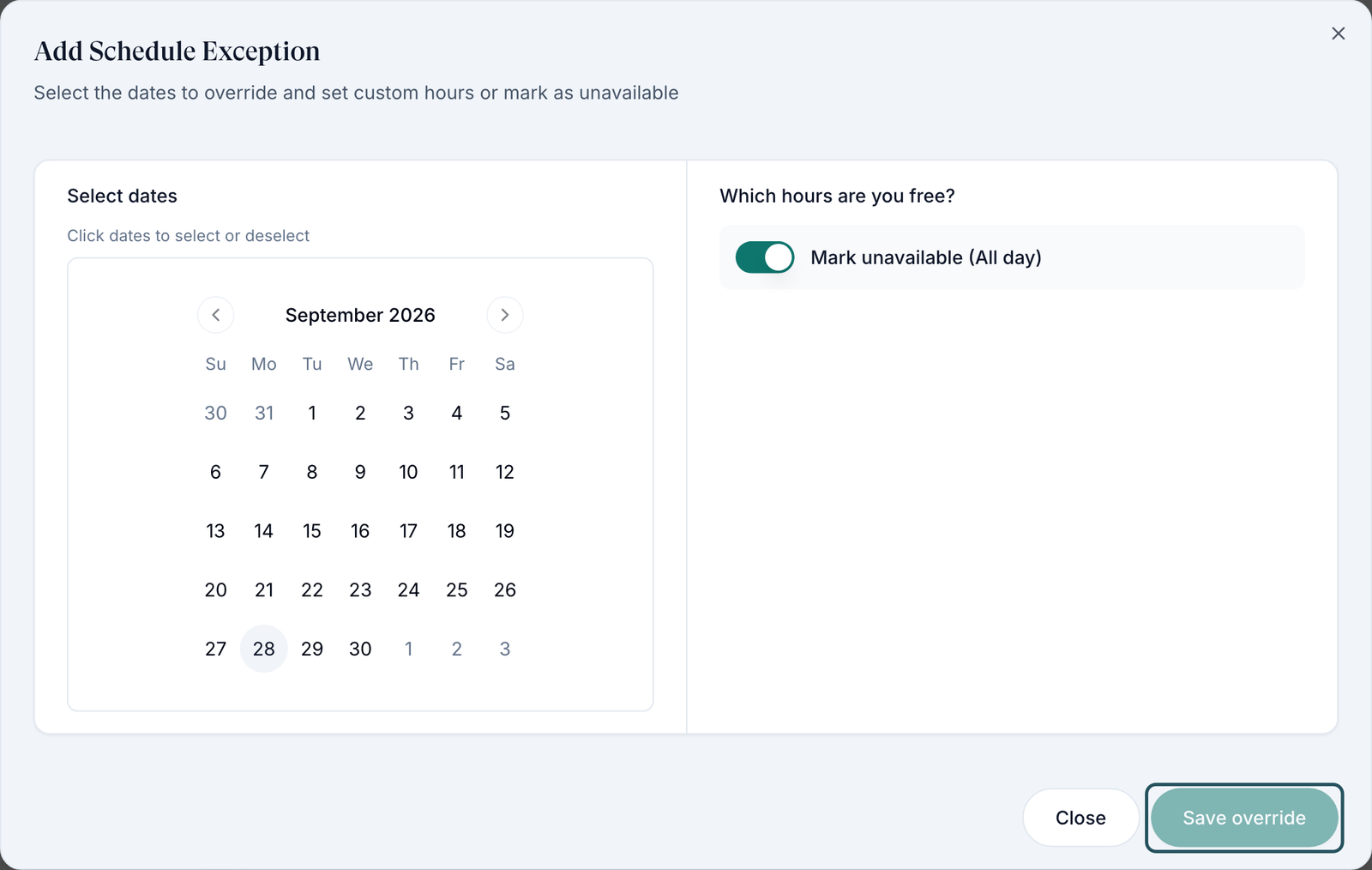
Schedule Exceptions → Add, pick the dates on the calendar, switch on Mark unavailable (All day), and click Save Override. Exceptions beat the weekly schedule for those dates only.
Where to find it
Left menu → Settings → the Network overview card. Direct link: /settings/overview. The URL /settings/hours also lands here. Visible to: Provider Network Admin only.
The short version
Set the timezone first
Business Details → Timezone. Everything else on the page is interpreted in it.
Switch on the days you operate
Network Hours → toggle each day and set a start and end time. It saves as you go.
Fill in the clinic address
Business address. Pharmacies use it.
Tell your providers they can now set availability
They could not before you did the first two.
What is on this page
| What you see | What it does |
|---|---|
| Heading Network overview | Subtitle Network totals, business details, clinic address, and operating hours. |
| Three stat cards | Network Admins, Providers, Provider Delegates — counts of accounts in this network. Not clickable. |
| Business Details | Card, subtitle Network identity, timezone, and support contact. Four fields, each saved on its own. |
| Business address | Card, subtitle Physical location used when registering providers with OnlyScripts. |
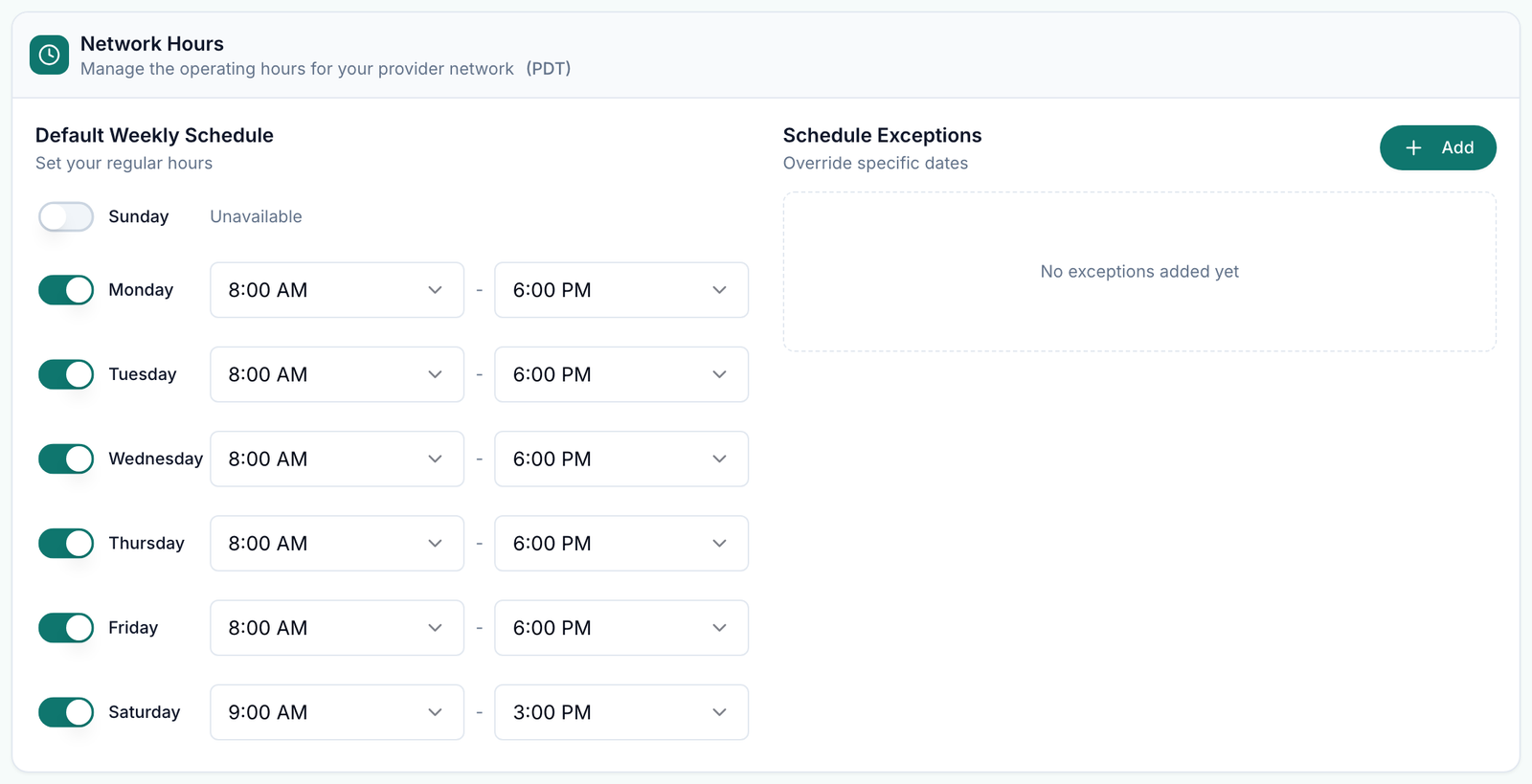
| Network Hours | Card, subtitle Manage the operating hours for your provider network followed by your timezone abbreviation in brackets, for example (PDT). |
| Default Weekly Schedule | Left column of Network Hours, subtitle Set your regular hours. One row per day. |
| Schedule Exceptions | Right column, subtitle Override specific dates, with an Add button. Empty state: No exceptions added yet. |
Every setting on this page
| Setting | What it controls | Default |
|---|---|---|
| Network Name * | The network's name across the app. Placeholder e.g., Regional Provider Network. Toast Network name updated. | Whatever GEN Health created the network as |
| Display Name | Optional public-facing name. Placeholder Optional public-facing name. Toast Display name updated. | Empty |
| Timezone | Helper: All network hours and schedules use this timezone. Placeholder Select network timezone. Toast Timezone updated. | Unset until you choose one |
| Support Email | Helper: This email will be visible to end-users as the reply-to contact for branded emails. Placeholder support@example.com. Toast Support email updated; a bad address gives Please enter a valid email address. | Auto-filled from your own email if empty on load |
| Street address *, Apt, suite, etc. (optional), City *, State *, ZIP code * | The clinic's physical address, used for pharmacy registration. Toast Business address updated. | Whatever you typed in the setup wizard |
| Day switch (Sunday to Saturday) | Whether the network operates that day. Off shows Unavailable in place of the times. | Set when the network was created |
| Day start and end time | Two dropdowns in 15-minute steps from 12:00 AM to 11:45 PM, separated by a dash. | — |
| Add (Schedule Exceptions) | Opens Add Schedule Exception. | — |
Timezone options, exactly as listed: Eastern Time (ET), Central Time (CT), Mountain Time (MT), Arizona (MST), Pacific Time (PT), Alaska Time (AKT), Hawaii Time (HT), Toronto (ET), Vancouver (PT), London (GMT/BST), Paris (CET/CEST), Dhaka (Bangladesh, UTC+6), Tokyo (JST), Sydney (AEDT/AEST), UTC.
The "Add Schedule Exception" dialog
Description: Select the dates to override and set custom hours or mark as unavailable.
| Control | What it does |
|---|---|
| Select dates / Click dates to select or deselect | A month calendar. Click as many dates as you like; each becomes a removable chip. |
| Which hours are you free? | The right-hand panel. |
| Mark unavailable (All day) | Switch. On, the network is closed on those dates. Off, the time range below applies. |
| Time range | Two dropdowns, Exception start time and Exception end time. |
| Close / Save Override | Cancel, or write the exception. Busy label Saving... |
Validation toasts: Please select at least one date, Please set both start and end times, and — if you never picked a timezone — No timezone configured for this network. Go to Network Settings and set a timezone first. Success reads N exception added or N exceptions added. Removing one toasts Exception removed.
How to set your operating hours
Open the page
Left menu → Settings → Network overview.
Choose the timezone before anything else
In Business Details, open Timezone and pick yours. Click the tick beside the field. Wait for Timezone updated.
Turn on each working day
In Network Hours → Default Weekly Schedule, flip the switch next to the day. Two time dropdowns replace the word Unavailable.
Set the start and end time
Pick from the dropdowns. The change saves immediately — a small spinner appears on the row while it writes.
Leave closed days switched off
An off day reads Unavailable and no provider can offer a slot on it.
Add holidays as exceptions
Schedule Exceptions → Add → click the dates → switch on Mark unavailable (All day) → Save Override.
Tell your providers
They set their own hours inside yours, at /providers → row action Manage Schedule, or from their own My schedule link.
How network hours and provider availability fit together
| Layer | Who sets it | Where | Effect |
|---|---|---|---|
| Network timezone | Provider Network Admin | This page, Business Details | Every hour anywhere in the network is stored and compared in it. |
| Network operating hours | Provider Network Admin | This page, Network Hours | The outer boundary. Nothing can be offered outside it. |
| Schedule exceptions | Provider Network Admin | This page, Schedule Exceptions | Override the weekly pattern on named dates. |
| Provider availability | The provider | Their profile's Scheduling tab — Manage availability | Specific dates and time blocks inside the boundary. Their panel shows the read-only block Provider network Operating Hours alongside for comparison — only the first letter is capitalised, because the label is built from the scope name. |
| Minimum advance booking | Provider Network Admin | /settings/operations → Scheduling Rules | Hides slots that are too soon, even inside the hours. |
| Google Calendar busy time | The provider | /integrations | Removes slots the provider is already booked for. |
A provider's panel prints Hours shown in your timezone: {tz} and Network timezone: {tz} side by side. When a provider in another timezone insists a slot exists, that pair of lines is where the argument ends.
Statuses you will see here
| Status | What it means | What to do |
|---|---|---|
| Unavailable (weekly row) | The day's switch is off. Nothing can be booked that day. | Flip the switch on to reveal the time dropdowns. |
| Unavailable (exception row) | That specific date is closed, whatever the weekly pattern says. | Click the X on the row to remove it. |
| No exceptions added yet | No date overrides exist. | Nothing. |
| No Network Associated | Your admin account is not attached to a provider network, so hours cannot load. Body: You need to be associated with a provider network to manage hours. | Raise a ticket at /support with recipient GEN Health. /support opens on the Incoming Requests tab, which is normally empty — click Your Support Tickets to see and raise your own. |
The three stat cards are counts, not statuses. Deactivated accounts still count.
What can go wrong
| What you see | Why | Fix |
|---|---|---|
| A patient sees no bookable times | The day is switched off, the hours are too narrow, the timezone is wrong, or the minimum advance booking window has swallowed the remaining slots. | Check the day switch and times here, then /settings/operations → Minimum advance booking time. |
| A provider set hours but the slot still does not appear | Their block falls outside the network hours, so it is clipped away. | Widen the day here, or ask them to move the block inside it. |
| Every provider is blocked with …hasn't configured operating hours yet. | No day is switched on. The admin-facing version of the warning reads No operating hours have been set for any day. | Switch on at least one day and save a start and end time. |
| Hours look an hour out for everyone | The wrong Timezone. Changing it re-interprets every existing hour, it does not shift them. | Set the correct timezone, then re-check every day row and every exception. |
| You typed in a field and nothing saved | Business Details saves per field. You have to click the tick beside the field you edited. | Click the tick. The red X discards instead. |
| No timezone configured for this network. Go to Network Settings and set a timezone first. when saving an exception | Exceptions need a timezone to anchor to. | Set Timezone in Business Details first. |
| Pharmacy enrolment fails for a provider | The Business address is wrong or incomplete. | Correct it here and re-run the enrolment from /integrations. |
| Patients reply to your emails and nobody reads them | Support Email was auto-filled with one admin's personal address. | Change it to a monitored shared inbox. |
| You are looking for logo, colours or a custom domain | Those are not on this page. | /settings/branding. |
Next
Was this helpful?