
Billing
The Billing page: connect the payment processor that charges your Affiliate clients' patients, switch processors, use test mode, turn on Apple Pay, or take payment outside GEN Health.

Billing picks the payment processor that charges patients of your Affiliate clients. Left menu → Billing. Provider Network Admin only. Clients on Review Only or Review + Prescribe charge through their own processor; this page never backs them up.
What you can do here
- Check whose processor charges a client's patients
- Connect your payment processor
- Switch the live processor, or go back to test mode
- Turn on Apple Pay (NMI only)
- Take payment outside GEN Health
Check whose processor charges a client's patients
Use this when a client asks where their patients' money goes, or checkout fails for one client.
Open the client
Left menu → Clients, then click the client.
Read the model badge
The badge under the client's name reads Affiliate, Review Only or Review + Prescribe. Affiliate means your processor on this page charges their patients. The other two mean the client's own processor does.
You'll know it worked when you know which account to check: yours here, or the client's own Billing page.
Who can do this: Provider Network Admin.
Connect your payment processor
Use this before any Affiliate client takes a real payment. Have your API keys from the processor's own dashboard ready.
Open the processor's form
Find your processor's tile (Stripe, Authorize.Net, NMI, SimPay, SlidePay, Square or Whop) and click Edit.
Paste the keys
Fill every field the form lists; for Stripe that is Publishable Key and Secret Key. Open Stripe dashboard (or your processor's) takes you to them. Sandbox and live keys are different; use live keys for real patients.
Check and save
Click Test connection, then Verify and save. The toast reads Payment processor verified and configured successfully. Saving does not make it live.
Make it live
Back on the tile, click Activate. It is greyed out until the keys are saved.
You'll know it worked when the toast reads Payment processor set to your processor and the green check moves from None to its tile.
Who can do this: Provider Network Admin. Providers and delegates don't see Billing.
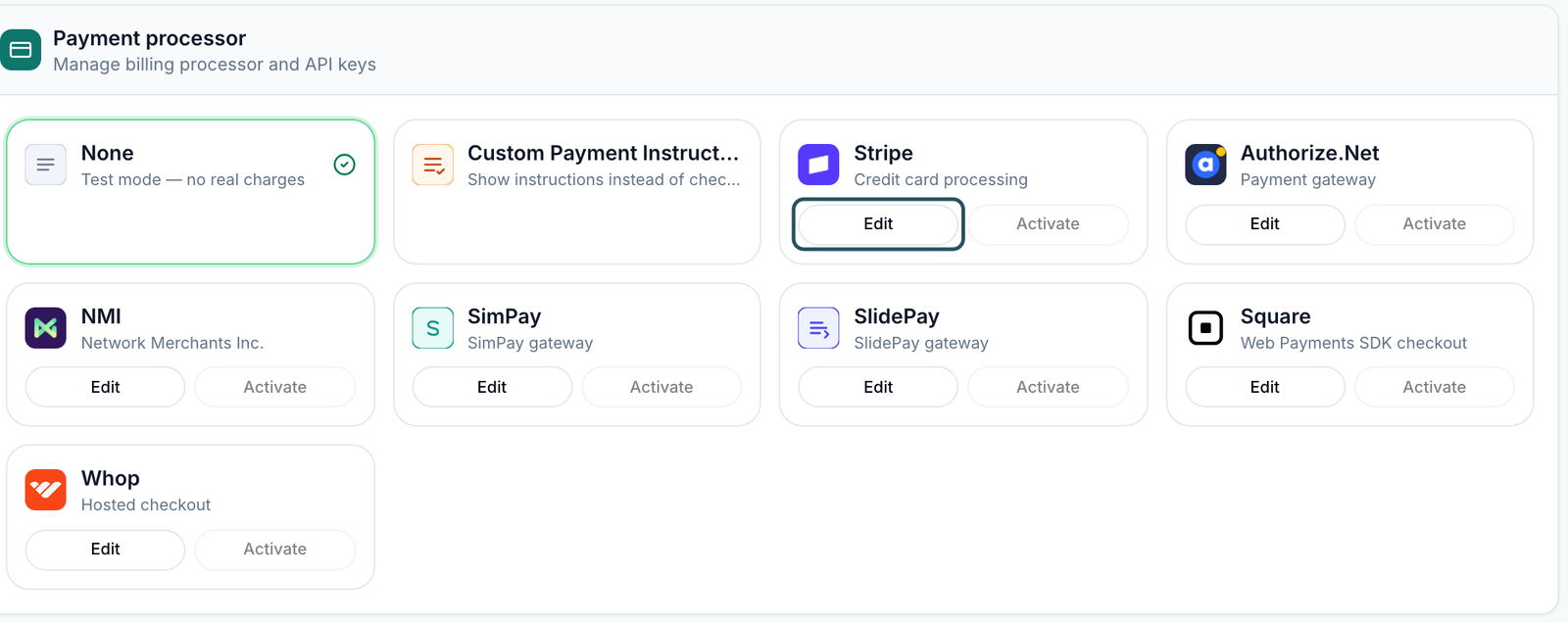
Switch the live processor, or go back to test mode
Use this when you move to a new merchant account, or want to test checkout without charging anyone.
Pick the new one
Click Activate on a tile whose keys are saved. It switches at once, with no confirm.
Or test without charging
Click the None tile (Test mode — no real charges). Checkout still completes, but nobody is charged.
You'll know it worked when the green check sits on the tile you chose.
Who can do this: Provider Network Admin.
None is the default. If it is still active when an Affiliate client goes live, orders complete and no money arrives.
Turn on Apple Pay (NMI only)
Use this to let your Affiliate clients' patients pay with Apple Pay. You need NMI keys saved and verified, an active custom domain, and the Apple Pay domain verification file from your NMI merchant portal. You can upload the file before NMI is live; patients see Apple Pay at checkout only while NMI is the live processor. You upload the file yourself; there is no need to send it to Support.
Open NMI
Click Edit on the NMI tile. The Apple Pay section sits below the key fields. Under We publish it for Apple on: it lists your network's active custom domain and each Affiliate client's, because their patients pay through your NMI account.
Add the file
Click Choose file, or paste the file's text into Verification file. It starts {"version":1,"pspId":; a hex-encoded copy also works.
Save it
Click Save file in the Apple Pay section. Verify and update saves your keys, not the file.
Register each domain in NMI
In your NMI merchant portal, add every listed domain under Apple Pay and verify it. Apple accepts only domains registered there.
You'll know it worked when the toast reads Apple Pay verification file saved, the section shows On, and each domain becomes a link that opens the file. Patients using Safari on an Apple device with a card in Apple Wallet then see Apple Pay at checkout on those domains.
Who can do this: Provider Network Admin.
Review Only and Review + Prescribe clients set up Apple Pay on their own Billing page, with their own NMI file.
Checkout on another website: GEN Health publishes the file only on custom domains it hosts. Embedded checkout loads inside your page from a GEN Health address, and Apple Pay shows only when that address is your custom domain. Apple also checks the page around it: put the same file at /.well-known/apple-developer-merchantid-domain-association on that website and add its domain in NMI too. A link or redirect to checkout needs neither. To replace the file, save a new one. To stop, click Turn off Apple Pay.
Take payment outside GEN Health
Use this if Affiliate patients pay by invoice, bank transfer or your own terminal.
Write the instructions
Click the Custom Payment Instructions tile, write what patients should do, and click Save instructions.
Mark orders paid yourself
Orders stay unpaid until your team updates them by hand. Decide who does this before you switch.
You'll know it worked when the tile shows the green check and patients see your instructions instead of a card form.
Who can do this: Provider Network Admin.
Statuses you'll see here
| Status | What it means | Who acts next | What you do |
|---|---|---|---|
| Green check | This tile is live | Nobody | Nothing |
| Saved / Verified | Keys are stored but this tile isn't live | You | Activate it when you're ready |
| Verification failed | The keys didn't pass the check | You | Edit, paste them again, Test connection |
| Missing keys / Missing content | The live tile has no keys or no instructions: patients can't pay | You | Edit and complete it now |
What can go wrong
| What you see | Why | Fix |
|---|---|---|
| An Affiliate client's checkout says it is in test mode | None is still live on your Billing page | Connect and Activate your processor. |
| Patients see Payment setup is incomplete. Please contact your care team. | Whoever owns the processor for that client (you for Affiliate, the client otherwise) hasn't finished it | Check the model badge on the client, then finish the right Billing page. |
| A test patient shows Paid, but no money arrived | Test mode lets orders through without charging | Expected with None. Switch to a real processor for live patients. |
| NMI, SimPay or SlidePay asks for two keys | They need the private security key and the public tokenization key | Copy both from the gateway's security keys page. |
| You added a card during setup and expected patients to pay | That card pays GEN Health | Connect a processor here as well. |
| No Apple Pay section in the NMI form | NMI's keys aren't saved and verified. | Edit → Test connection → Verify and save, then reopen it. |
| Apple Pay needs an active custom domain. | No custom domain is active yet. | Connect a custom domain for your network or for the Affiliate client. |
| This does not look like an Apple Pay domain verification file | The text isn't NMI's verification file. | Download it again from NMI's Apple Pay settings and paste it unchanged. |
| No Apple Pay button at checkout | NMI isn't live, the patient isn't on Safari with a Wallet card, or checkout opened on app.genhealthehr.com instead of your custom domain. | Check each. The domain link in the Apple Pay section shows whether the file is published. |
Questions people ask
Do I need a processor if my clients take the money?
Only for Affiliate clients. If none of your clients are Affiliate, leave this on None.
Is this where GEN Health bills us?
No. What you pay GEN Health is on Settings — Account and billing. This page is money coming in from patients.
Can I change the keys later?
Yes. Click Edit on the tile, paste the new keys and click Verify and update.
Where are refunds and transactions?
Not here. Refund in your processor's own dashboard; orders are on Orders.
Can Affiliate patients pay with Apple Pay?
Yes, when your processor is NMI and checkout runs on a custom domain. See Turn on Apple Pay.
Related
Was this helpful?