Knowledge base
Your network's internal library — and the switch that decides what every Provider must read before they can work.

Knowledge Base is your network's internal library of training and reference material — and the place where you decide what every Provider must read before they can work.
Questions people ask about this page
What happens when I mark a document as required?
Every Provider and Provider Delegate in your network hits a Required Knowledge Base Review dialog on their next page load. It has no working close button. They cannot open a visit, a chart, or anything else until they have opened every required item. Treat it as a scheduling decision, not a filing decision.
Can I see who has read a required item and who has not?
No. This page reads only your own progress, and there is no per-provider completion report anywhere in the app — no column, no export, no notification when someone finishes. The only way to check one person is Log in as user from that Provider's row menu on /providers and see whether the dialog appears. That action is offered for Provider accounts only, so you cannot check a Provider Delegate at all. Plan required reading as if you will never get a completion report, because you will not.
A Provider says they are locked out. How do I unblock them?
Either they open each item in the dialog and click Review, or you right-click the entry here and choose Remove Required. The dialog then clears for everyone on their next load.
Why did opening a video not count as reviewed?
Every other file type is marked reviewed the moment the viewer opens. A video is only marked complete when it plays to the end. A required video is a required watch, in full.
Can Providers upload here?
Only if you grant it. Open the Provider on /providers, stay on Overview, scroll to Access controls, and tick Provider can manage knowledge base content. Provider Delegates cannot be granted it — there is no toggle for them.
Can patients see anything in here?
No. A provider network library is staff-only and the Show To Patients action does not exist on this page — it appears only for Client and Practice tenants. Patient-facing material belongs to the Client's own knowledge base.
Where is the button to write an article without a file?
There is not one. The toolbar offers Upload Files, Add Link, and Create Folder only. Edit Text appears only on entries that are already rich text. Upload a PDF or add a link instead.
Can I put a reference document in front of a Provider while they chart?
Yes, but not from this page. On Protocols use the row action Manage knowledge base links — Choose the reference documents providers should see when reviewing {protocol name}. Forms have the same thing under Link Knowledge Base. Both pick from the library you build here.
Where to find it
Left menu → Knowledge base. Direct link: /knowledge-base. Visible to: Provider Network Admin, Provider, Provider Delegate. The page heading reads Knowledge Base with a capital B even though the menu item does not. The URL carries your position — ?folder=<id> for a folder, ?entry=<id> to open one item, ?view=grid for tiles — so any of those is shareable inside your network.
What is on this page
| Control | What it does | Default |
|---|---|---|
| Breadcrumb and count | Your network's name is the root — the round button before it is labelled Knowledge base root. Under it a line reads {Network name} (n items), or {Network name} / {Folder} (n items) inside a folder. The count is what the filters leave visible, not the size of the library. | Root |
| List / Grid | View toggle. List shows sortable columns NAME, LABELS, UPDATED, TYPE / SIZE. | List |
| Search knowledge base... | Matches name, description, and labels across the whole library, not just the open folder. | Empty |
| All Labels | Multi-select over your own free-text tags. Hidden until at least one entry carries a label. | All |
| All Types | Folders, Links, Text Entries, PDFs, Images, Videos, Files, each with a count. Options with a zero count are hidden. | All |
| All Requirements | Required or Optional, with counts. This is how you audit the required set. | All |
| Export CSV | Downloads every entry with the columns Title, Type, Folder Path, URL, Audience, Required, Labels, Status, Created. | — |
| Upload Files · Add Link · Create Folder | The only three ways to add something, and each targets the folder you are standing in. Upload Files opens your computer's file picker first; Add Link and Create Folder open in-app dialogs straight away. | — |
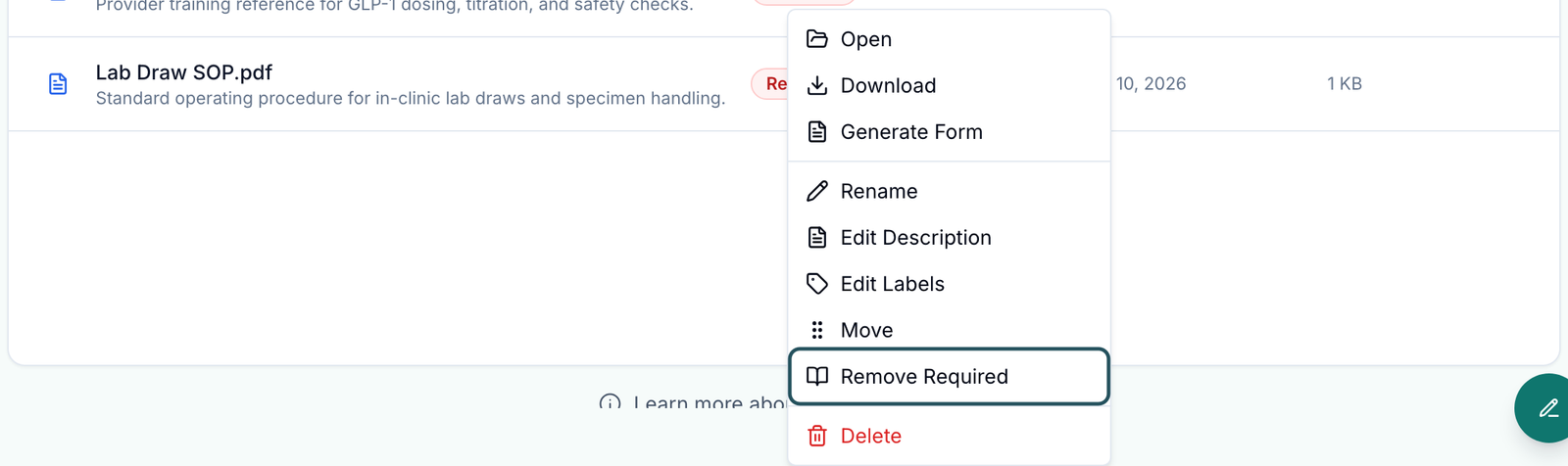
| Right-click menu | Open, Download (files), Generate Form (PDFs and images), Rename, Edit Description, Edit Labels, Edit Text (rich-text entries), Move, Mark Required / Remove Required, Delete. | — |
How to upload a document
Open the destination folder first
In the left menu click Knowledge base, then open the folder you want. Whatever folder you are standing in becomes the upload target.
Pick the files
Click Upload Files. This opens your computer's own file picker, not an in-app dialog. Choose the files and the Upload Files dialog then opens — Drag and drop PDFs, images, and videos. Dropped folders keep their nested structure. Dragging files straight onto the page opens the same dialog. It names the destination in a Target folder chip, and you can add more with Choose Files. Videos can be up to 100MB; every other file up to 10MB.
Describe the batch
Fill Description Applied To Uploaded Files (placeholder Optional description for the uploaded entries) and Labels (placeholder Optional labels, comma separated). Both apply to every file in the batch.
Leave the required box alone unless you mean it
Mark uploaded entries as required blocks your clinical team. See Required reading below before you tick it.
Upload
Click Upload. A toast reads {n} files queued for upload and a background panel tracks progress. Keep the tab open until it finishes.
How to save a web link
Open the dialog
Click Add Link: Save a web resource into this knowledge base so it shows up with the rest of the entries.
Fill both fields and save
Resource name (placeholder Coverage Policy Portal) is what shows in the list; URL (placeholder https://example.com/resource) is where it points. Click Save Link — the button stays disabled until both have a value. Toast: Link saved.
How to organise the library
Create the folders first
Click Create Folder, fill Folder name, save. Toast: Folder created. Organise by the work people do — Protocol Training, Prescribing, Lab Operations, Patient Communication — not by file type.
Open an item's menu
Right-click any row. The menu is labelled {item name} actions.
Rename, describe, tag
Rename (field Name), Edit Description (field Description), Edit Labels (field Labels, placeholder Policies, Training, Intake). Labels are free text and become options in the All Labels filter.
Move things
Right-click → Move opens Move Entry; pick a Destination folder (the top option is Root) and click Move. You can also drag a row onto a folder. Inside a folder, dragging reveals a Move Out drop panel at the bottom left reading Move to {parent folder}.
Remove what is stale
Right-click → Delete. Your browser asks Delete "{item name}"? — a browser confirm, not an in-app dialog, so it looks unlike the rest of the product. Toast: Entry deleted. There is no archive and no undo.
Required reading — the highest-stakes setting on this page
Marking an item required blocks your clinical team. Every Provider and Provider Delegate in the network hits a Required Knowledge Base Review dialog on their next page load. The dialog has no working close control: the X in the corner, the Escape key and clicking outside all do nothing, because the dialog is opened without a close handler. Until they open every required item they cannot reach visits, charting, or prescriptions. Provider Network Admins are never blocked, so you will not see the consequence yourself — you have to log in as a Provider to see what you did.
| What the blocked Provider sees | Exact text |
|---|---|
| Dialog title | Required Knowledge Base Review |
| Description | Review each required item before continuing in the portal. |
| Item not yet done | Pending review, with a Review button |
| Item done | Completed, a green check, and a Review Again button |
The click path out is: Review → the preview opens and the row flips to Completed straight away → close the preview with Close knowledge base preview → repeat for the next item. When the last one flips, the dialog disappears on its own; there is nothing to submit.
Tell people first
There is no notification and no completion report. Post in Messages first, or the first your Providers know is a dialog they cannot dismiss, mid-shift.
Mark one item required
Right-click the entry → Mark Required. Toast: Entry marked as required, and a Required badge appears. Folders cannot be marked required — only entries.
Or mark a whole batch at upload
Tick Mark uploaded entries as required in the Upload Files dialog before you click Upload.
Audit the set
Set All Requirements to Required. That list is exactly what every Provider must clear. Three documents is a coffee break; fifteen is a lost morning for the whole network.
Unblock someone
Right-click the entry → Remove Required. Toast: Required flag removed. The dialog stops appearing for everyone on their next load.
Videos complete differently. A PDF, image, link, or text entry counts as reviewed the moment the viewer opens it. A video counts only when it plays through to the end.
How to turn an uploaded PDF into a draft form
Queue it at upload, or run it later
Tick Generate draft forms from uploaded PDFs and images in the upload dialog, or right-click an existing PDF or image entry and choose Generate Form.
Name the form and keep the tab open
The Generate Form dialog asks for Form Title (placeholder Generated Form); blank raises Form title is required. Generation runs in a background panel and stops if the tab closes.
Review every question
The result lands in Forms as a draft. It is machine-extracted — check every question, answer type, and required flag before you publish it.
Who can do what here
| Role | Read | Upload, rename, move, label, delete | Blocked by required items |
|---|---|---|---|
| Provider Network Admin | Yes | Yes | No |
| Provider | Yes | Only when Provider can manage knowledge base content is ticked on their profile | Yes |
| Provider Delegate | Yes | No — and there is no toggle to grant it | Yes |
To grant it: open /providers, click the Provider's row, stay on Overview, scroll to Access controls, and tick Provider can manage knowledge base content. Untick it to take it back.
Statuses you will see here
| Status | What it means | What to do |
|---|---|---|
| Required (badge on a row) | Every Provider and Provider Delegate must open this item before they can use the portal. | Keep the required set small. Right-click → Remove Required to lift it. |
| Optional (filter value only) | Everything without the Required badge. There is no Optional badge on the row itself. | Nothing. |
| Pending review (in the blocking dialog) | That Provider has not opened this required item yet. | They click Review. You cannot complete it for them. |
| Completed (in the blocking dialog) | They have opened it — or, for a video, watched it to the end. | Nothing. Review Again reopens it. |
There is no draft, published, or approval state on an entry. An item is live for the whole network the moment it finishes uploading.
What can go wrong
| What you see | Why | Fix |
|---|---|---|
| Providers report a dialog they cannot close | You marked an item Required. The dialog has no working close control by design. | They open each item and click Review, or you right-click the entry here and choose Remove Required. |
| No items found / Try a different search or label filter. | A filter or search term is excluding everything. | Click Clear all. (An empty folder instead reads This folder is empty.) |
| The upload destination is no longer available. Open the folder and try again. | The target folder moved or was deleted while your dialog was open. | Close the dialog, open the folder you want, start again. |
| An upload stops halfway | The tab was closed or reloaded. Uploads run in the browser, not on the server. | Re-upload and keep the tab open; you can still work elsewhere in the app while it runs. |
| A file is rejected before upload | Only PDF, image, and video are accepted. Videos up to 100MB, everything else up to 10MB. | Compress it, or use Add Link to point at where it already lives. |
| No Show To Patients in the right-click menu | Patient visibility exists only for Client and Practice knowledge bases. | Put patient-facing material in the Client's knowledge base. |
| A Provider still cannot upload | Manager access is per person and off by default. | Tick Provider can manage knowledge base content on their Overview tab in /providers. |
Next
Was this helpful?