
Start your shift
What to clear at login, what the Dashboard tells you, and the order to work the queue: ASYNC Visits, SYNC Visits, On-demand, Prescriptions and Messages.

How to start a shift: what to clear at login, what the Dashboard tells you, and the queue order. Left menu → Dashboard. Provider and Provider Delegate.
What you can do here
- Clear the prompts that appear at login
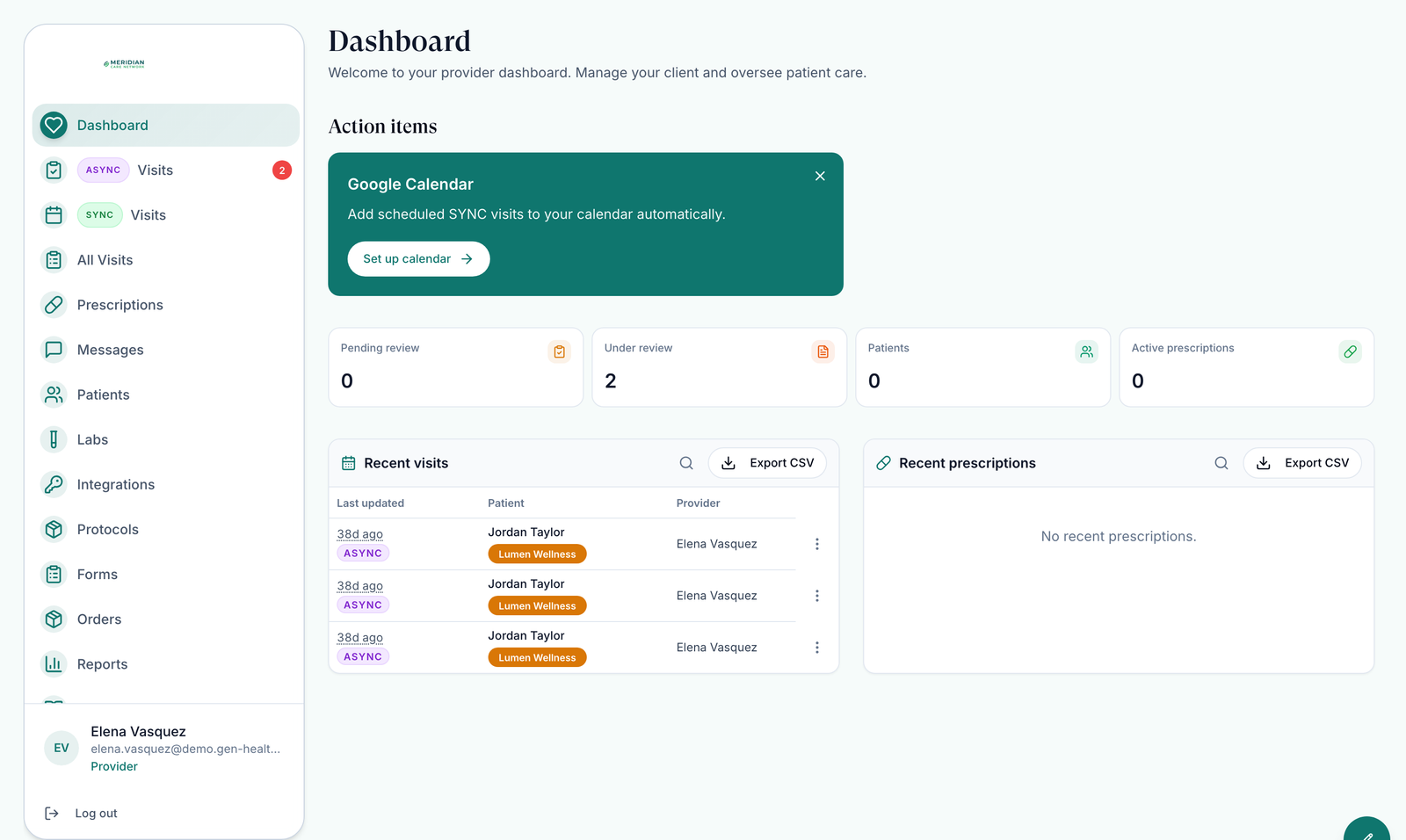
- Read your Dashboard and reopen a chart
- Work the queues in order
Clear the prompts that appear at login
Use this when a box covers the screen at sign-in.
Finish required reading first
Required Knowledge Base Review has no close button. Click Review on each item until every row reads Completed. The portal opens after the last one.
Answer the other prompts
Each means work is waiting; you can defer them.
| Prompt | Go now | Later |
|---|---|---|
| Assigned visits waiting: staff assigned visits to you | Open In Progress | Remind Me Later (24 hours) |
| Patient waiting to connect: someone is in the on-demand waiting room | Open waiting room | Not now (5 minutes) |
| Set your availability: you have few bookable hours in the 3 weeks from next week | Add availability | Remind me later (24 hours) |
You'll know it worked when the Dashboard shows Action items and the four tiles.
Who can do this: Provider. Required reading applies to Provider Delegates too.
Provider Delegates: you only get the required-reading gate. You have no My schedule and no on-demand waiting room.
Read your Dashboard and reopen a chart
Use this to get back into a chart fast.
Read Action items and the tiles
Action items shows unread patient messages (Open messages) and setup tasks. The ScriptSure setup card appears while your e-prescribing enrolment is unfinished, with a status badge such as Pending verification; click Complete setup to finish ID verification in ScriptSure through GEN Health. ScriptSure opens in a window over the dashboard, so you stay in GEN Health.Pending review counts intakes with no chart started; Under review counts charts in progress.
Reopen a chart
In Recent visits, click the row menu ⋮ → Open visit charting. In Recent prescriptions, a failed script's menu offers Fix & resubmit.
You'll know it worked when the charting window opens over the Dashboard.
Who can do this: Provider and Provider Delegate. A delegate's tables show their linked provider's work.
Work the queues in order
Use this as your running order for the shift.
ASYNC Visits → In Progress
Visits already yours, including ones staff assigned. Status → Unsigned prescription finds charts still needing your signature.
ASYNC Visits → To Do
Unclaimed visits. Claim the oldest you can take. See Visits (ASYNC).
SYNC Visits
Today's Schedule lists today's video visits. Start Visit unlocks 30 minutes before each one.
On-demand
If your menu shows On-demand, check the Waiting room between visits.
Prescriptions
Fix failed scripts, and clear any prescriptions require approval banner.
Messages
Answer patients and your team before you log off.
You'll know it worked when In Progress and To Do are empty. The ASYNC badge may still count visits you can't take.
Who can do this: Provider.
Provider Delegates: your ASYNC Visits and SYNC Visits pages show the whole network. You can assign or reassign visits and prescribe on charts your provider approved, but you can't claim, record a decision or join a call.
What can go wrong
| What you see | Why | Fix |
|---|---|---|
| The ASYNC badge shows a number but To Do is empty | The badge counts the whole network, including visits still waiting on forms and visits for states or clients you can't take | Check In Progress for visits assigned to you. Nothing else to do. |
| A patient the client says paid isn't in any tab | The order is still waiting on labs, forms or payment, or it's for a client you aren't assigned to | Search the patient in All Visits. If there is no visit yet, ask your Provider Network Admin to check Orders. |
| Unable to open ScriptSure. or ScriptSure did not return a launch URL after you click Complete setup | ScriptSure didn't return a link for your session | The ScriptSure window closes on its own. Click Complete setup again. If it repeats, raise a ticket in Support. |
| Something went wrong. We took you back to a safe page when you open a chart | Known problem | Reopen the chart from ASYNC Visits. If it repeats, raise a ticket in Support with the patient's name and the time. |
Questions people ask
Do our providers need to set availability to complete visits?
Only for SYNC (booked video) visits. Async chart reviews ignore your hours. The Set your availability prompt appears anyway; Remind me later hides it for 24 hours.
Is there a red count next to Async for consults waiting for review?
Yes. The ASYNC Visits badge counts unclaimed visits across your network plus visits newly assigned to you. Inside the page, the In Progress tab turns red when staff assign you something.
A visit assigned to me doesn't show in my queue. Where is it?
Check ASYNC Visits → In Progress with My Visits selected, then SYNC Visits. The quickest way is to search the patient in All Visits: the Assigned To column shows who has it.
Related
Was this helpful?