
Settings — Operations
The rules your providers work under: booking notice, no-show grace, the prescription review window, sign-off order, charting sections, decision questions, the state licence check and sync-visit claiming.
Operations holds the rules every provider in your network works under: booking notice, no-shows, prescription timing, state licensure, charting and reminders. Left menu → Settings → Operations. Provider Network Admin.
What you can do here
- Set booking notice, no-show grace and review window
- Choose the prescription sign-off order
- Shape the charting window
- Add a question providers answer before deciding
- Turn the state licence check off or on
- Let providers claim network video visits
Set booking notice, no-show grace and review window
Use this when patients book too close in, providers miss video visits, or scripts leave too soon.
Booking notice
Scheduling rules → Minimum advance booking time in hours (0 books immediately; 24 hides everything before tomorrow) → Save.
No-show grace
Provider no-show → Grace period, 5 to 60 minutes → Save. If no provider joins by then, the visit becomes Provider No-Show and can't be started.
Review window
Prescription review queue → Review window and Unit → Save. Queued prescriptions stay editable this long, then go to the pharmacy. Default restores 2 hours.
You'll know it worked when the toast reads Scheduling rules updated, No-show grace period updated or Prescription review queue settings saved.
Who can do this: Provider Network Admin, for the whole network. A window under 5 minutes is for testing only.
Choose the prescription sign-off order
Use this to decide whether providers sign the chart before, with, or after prescribing.
Find the Prescription row
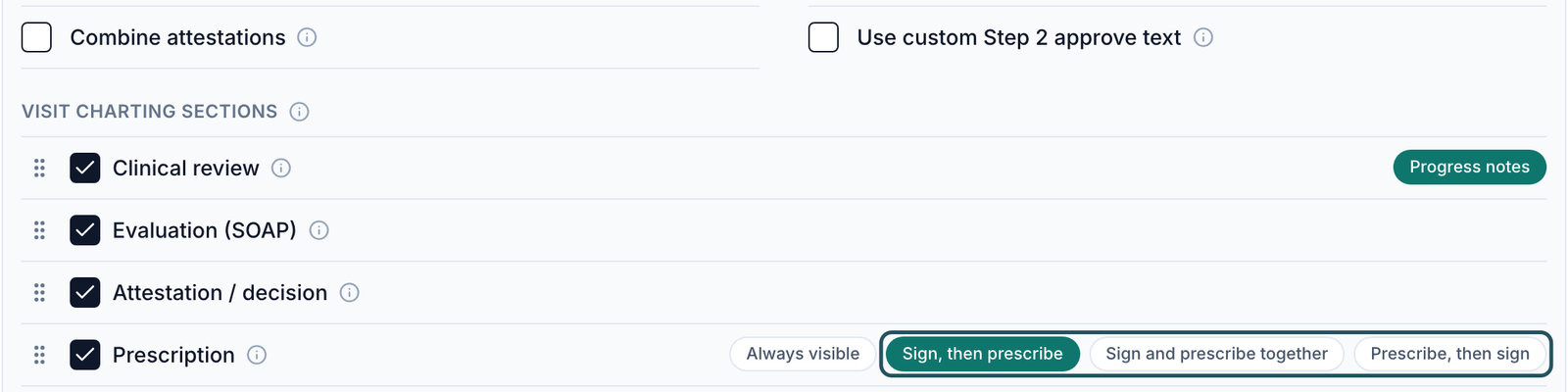
Operations controls → Visit charting sections → Prescription.
Pick one
Sign, then prescribe (default): approve first. Sign and prescribe together: one step; Provider Delegates still need a Provider's approval. Prescribe, then sign: send first; the chart stays open until signed, and Deny and Defer are gone once sent.
You'll know it worked when the toast reads Prescription sign-off set to your choice.
Who can do this: Provider Network Admin. Operations controls saves each change as you click.
Shape the charting window
Use this to change what providers see in a visit.
Sections
Under Visit charting sections, tick Clinical review, Evaluation (SOAP), Attestation / decision and Prescription on or off; drag the handle to reorder.
Section options
Progress notes adds progress-note editing to clinical review. Always visible lets providers open the prescription before approving.
Wording
Combine attestations uses one statement you write in Visit Charting. Use custom Step 2 approve text renames Approve.
Layout
Visit Charting → Step-by-step visit workflow or Single-scroll visit workflow → Save.
You'll know it worked when the toast reads Visit charting section settings updated or Charting settings updated. The next chart a provider opens uses it.
Who can do this: Provider Network Admin.
Add a question providers answer before deciding
Use this to require your own question before a provider records a decision.
Add it
Chart review decision questions → Add question → Decision question. (Patient data field prefills a patient field and saves the answer back.)
Write it
Fill Question, pick a Type (Short text, Long text, Single select, Multi select, Yes / No, Acknowledgment), and add Answer options for select types.
Save it
Tick Required to block the decision until it's answered, keep Enabled ticked, and click Save question.
You'll know it worked when the toast reads Chart review decision questions updated and the question is listed as Required or Optional.
Who can do this: Provider Network Admin.
Turn the state licence check off or on
Use this only when your network has decided providers may treat patients in states where they hold no licence.
Untick the check
In Operations controls, untick Require patient-state licensure.
Confirm
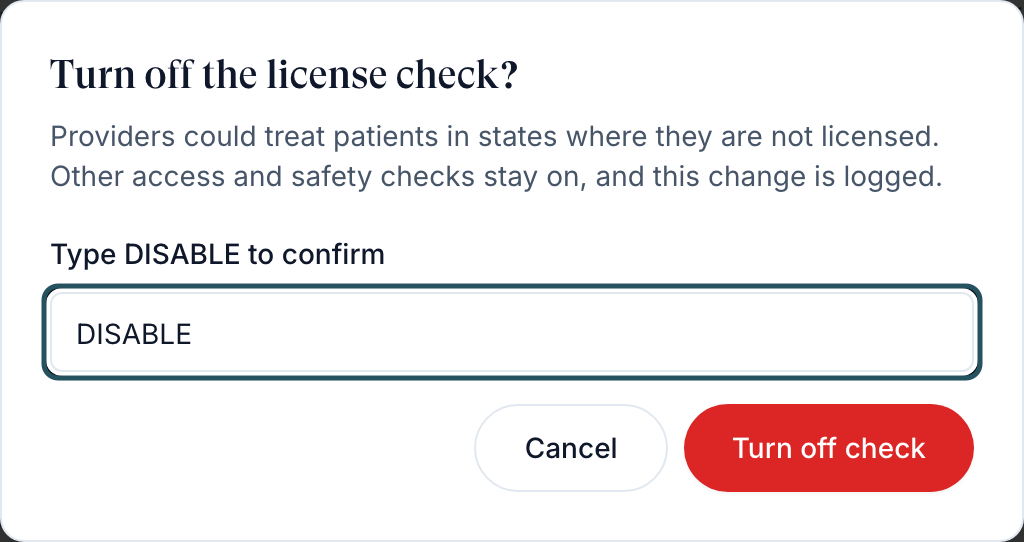
In Turn off the license check?, type DISABLE.
Turn it off
Click Turn off check.
You'll know it worked when an amber Override active badge appears. Providers can then be assigned and prescribe for patients in any state; client assignment, DEA and pharmacy rules still apply. The change is logged.
Who can do this: Provider Network Admin. Ticking it again turns the check back on at once.
Let providers claim network video visits
Use this so chosen providers can take unstarted video visits booked with others, and on-demand patients.
Turn it on
Tick Enable network sync-visit claiming in Operations controls.
Choose providers
In Sync visit claiming, tick each provider, then Save.
You'll know it worked when the card shows N granted. Those providers see a Network Visits list; claiming moves the visit, order and chart to them and notifies the previous provider.
Who can do this: Provider Network Admin, for active Providers only.
What's on this page
| Control | What it changes |
|---|---|
| Allow provider availability reductions | Off: providers' hour cuts wait for you in Notifications |
| Telehealth Visit States | Patients in the selected states must have a live video or phone visit. Click states, then Save. |
| Enable visit notifications, Visit Notifications | Reminder emails and texts before video visits, for visits confirmed after you save |
| Provider notifications | Default email and text alerts to providers for prescription requests, messages and escalations |
| Require product form coverage | Only products with an intake form can be offered. |
| Show LegitScript approval | Mark protocols approved; clients see it on their products. |
| Hide void action from providers | Removes Void from providers' async queue; admins can still void. |
| Hide last provider column | Hides Last Provider everywhere, exports included. |
| Prescribe by product | Shown with an OnlyScripts pharmacy: providers pick a product before prescribing. |
| Patient custom fields | Fields your network collects on patients; every client inherits them. |
What can go wrong
| What you see | Why | Fix |
|---|---|---|
| A change didn't stick | Cards other than Operations controls need their own Save | Redo it, then Save. |
| You can't book a same-day visit, even as admin | Minimum advance booking time applies to everyone | Lower it; 0 allows immediate booking. |
| Provider is not licensed for a state they're licensed in | The licence isn't verified or has expired, or the patient's state on file differs | Check Provider profile → Credentials. Don't turn licensure off to work around it. |
| Provider No-Show when the patient was the one missing | No provider joined within the grace period | Ask GEN Health Support to correct it; raise Grace period if providers join late. |
| No reminder for a visit | Enable visit notifications is off, or the visit was confirmed before you turned it on | Turn it on; later confirmations get reminders. |
| A provider can't finish a chart | A Required decision question is unanswered | Edit it and untick Required or Enabled. |
Questions people ask
Can we override the rules to book a same-day visit?
There's no per-visit override. Lower Minimum advance booking time for the network.
What is the no-show grace period?
5 minutes unless you change it, up to 60.
Can we text providers before their video visits?
Yes: Visit Notifications → Add Rule, audience Provider, turn on SMS, then Save.
Related
Was this helpful?