
Providers
The Providers page: invite providers, admins and delegates, find a provider and read their status, send a magic link, log in as a provider, and onboard a new provider start to finish.

Providers lists every clinician in your network: invite them, see who has finished setup, send a stuck provider back in, and open anyone's profile. Left menu → Providers. Provider Network Admin.
What you can do here
- Invite a provider
- Invite an admin or a delegate
- Find a provider and check their status
- Get a provider signed back in
- See the app the way a provider does
- Onboard a new provider, start to finish
Invite a provider
Use this for anyone who will claim visits, chart or prescribe.
Click Add Provider
Add Provider is at the top right. The Invite Provider dialog opens.
Add the email
Type the work email and press space or comma so it becomes a chip. Add as many people as you like.
Send it
Click Send Invites, then Done.
You'll know it worked when the toast reads Invitation sent and the person appears in the table as Onboarding.
Who can do this: Provider Network Admin. Add Provider always creates a Provider account.

Invite an admin or a delegate
Use this for another Provider Network Admin, or a Provider Delegate who books and preps work for providers.
Open the Users card
Left menu → Dashboard, scroll to Users, and click Add.
Choose the role
In Add new user, click Provider Network Admin, Provider or Provider Delegate.
Add the email and send
Type the email, press space, and click Send Invites. Back returns to the role choice.
You'll know it worked when the person appears in the Users table with that role under Type.
Who can do this: Provider Network Admin. Providers and delegates can't invite anyone.

Find a provider and check their status
Use this when someone says they can't get in or a provider seems to be missing.
Search
Type in Search providers…: name, email, phone, position or specialty.
Widen the status filter
The status filter opens on Active and Pending (it reads 2 selected), so switched-off providers are hidden. Tick Inactive, or click CLEAR ALL.
Read the row
Account Status and Last Login tell you where they are. Today's Schedule and Appointments Today show today's video visits.
You'll know it worked when the count above the table (for example 2 of 2) includes them.
Who can do this: Provider Network Admin. Export CSV downloads the list.
Get a provider signed back in
Use this when a provider lost the invitation, is stuck in setup, or can't sign in.
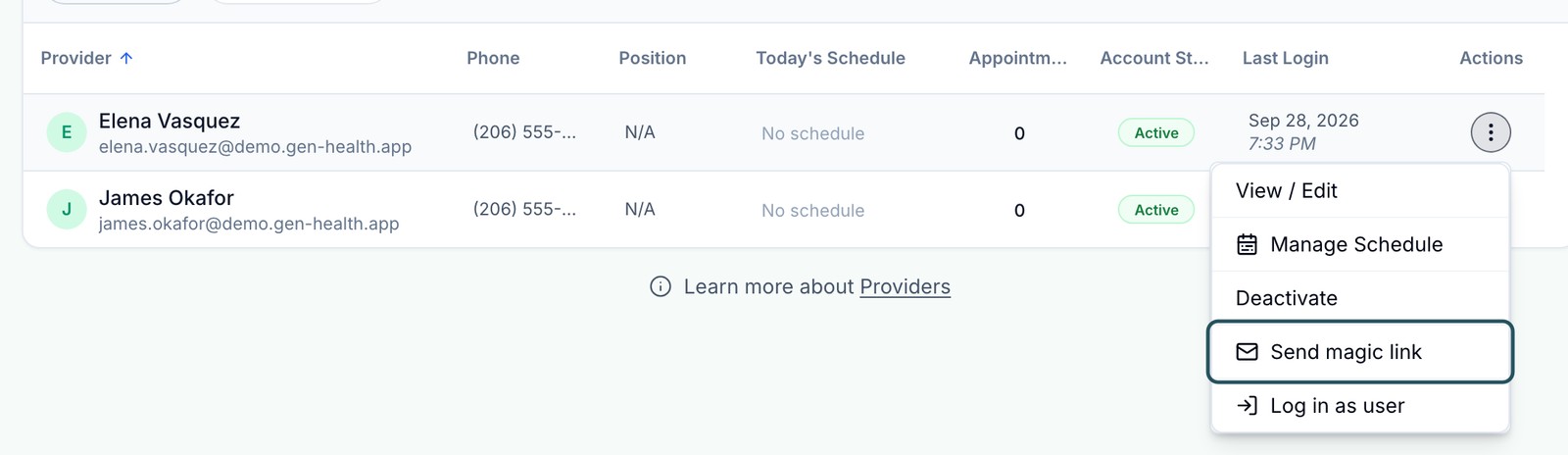
Open the row menu
Click ⋯ at the end of their row (or right-click the row).
Send magic link
Click Send magic link. They get an email that signs them in without a password.
You'll know it worked when the toast reads Magic link sent to their email.
Who can do this: Provider Network Admin. To paste a link into your own message instead, use Copy magic link in the row menu on the Dashboard's Users card.
See the app the way a provider does
Use this to check what a provider can see when they report a problem.
Choose Log in as user
Row menu ⋯ → Log in as user.
Confirm
The dialog warns that anything you do is attributed to them and the sign-in is logged for audit. Click Log in as user.
You'll know it worked when their account opens in a new tab.
Who can do this: Provider Network Admin, for providers in your network. Look only; never chart or prescribe as them.
Onboard a new provider, start to finish
Use this checklist for each new clinician. Most delays happen between steps 2 and 4.
Invite them
Add Provider, as above.
They finish setup
Send them What each provider must complete. Their status turns Active when they're done.
Verify their licences
Click their row → Credentials, check each licence, and set it to Verified.
Assign their clients
Capabilities → Assigned clients: tick each client → Save assignments.
Enrol them in ScriptSure
If you e-prescribe: Integrations → ScriptSure → Manage setup → Invite as provider.
Check their hours
For video visits they need availability: they add it in My schedule, or you use Manage Schedule in their row menu.
Confirm their first visit
Use Log in as user to check that Visits (ASYNC) shows visits they can claim.
You'll know it worked when they can claim a visit and, if you e-prescribe, their ScriptSure status reads Verified.
Who can do this: Provider Network Admin, with the provider completing step 2 and their ScriptSure identity check.
Statuses you'll see here
| Status | What it means | Who acts next | What you do |
|---|---|---|---|
| Onboarding | Invited but hasn't finished setup. The filter counts them under Pending. | The provider | A dash under Last Login means they never opened the email: Send magic link. |
| Active | Setup is finished and they can sign in. | You | Verify licences and assign clients before expecting visits. |
| Deactive | Switched off. The filter calls this Inactive. | You | Row menu → Activate to bring them back. |
What can go wrong
| What you see | Why | Fix |
|---|---|---|
| Only Provider Network Admins can access this page. | The Providers page is for Provider Network Admins. | Ask a Provider Network Admin on your network to invite or find the provider. |
| A provider you know exists isn't in the list | The status filter hides switched-off providers | Tick Inactive or click CLEAR ALL. |
| The invitation never arrived | A typo in the address, or their mail filter held it | Use Send magic link. If the address is wrong, delete the invite on the Dashboard's Users card (row menu → Delete) and invite again. |
| Send Invites stays greyed out | The email hasn't become a chip | Press space after the address. Remove or correct invalid email addresses. means a chip is mistyped. |
| You invited a delegate but they arrived as a Provider | Add Provider always creates a Provider | Delete the pending invite on the Users card and invite again with Add → Provider Delegate. |
| A provider has shown Onboarding for days | They stopped part-way through setup | Send magic link, then open their profile to see what's missing. |
| No Deactivate in the row menu | It isn't offered until the provider finishes setup | Use the Dashboard's Users card: Deactivate, or Delete for an unopened invite. |
Questions people ask
Can I change a provider into a delegate or an admin?
No, there's no role change. Deactivate the account and invite the person again at the right role, using a different email address if the old account still exists.
Can I send magic links to my providers myself?
Yes: row menu → Send magic link here, or Copy magic link on the Dashboard's Users card.
Can I invite several providers at once?
Yes. Add each email as a chip in the same Invite Provider dialog before clicking Send Invites.
How do I remove a provider who is leaving?
Move their open visits first, then deactivate. The order is in Provider profile.
Related
Was this helpful?