
Set up Good Faith Exams (GFE) and on-demand visits for a clinic
Network setup for Good Faith Exams (GFE): create treatments, make a clinic Review Only, turn on on-demand visits, and review GFE requests.
A Good Faith Exam (GFE) is a provider's sign-off that a treatment is appropriate for a patient before a clinic performs it. Your network supplies the treatments and the providers; each clinic is a Review Only client that requests the exams from its own dashboard. This guide is the whole network-side setup, including on-demand (walk-in) video visits.
The whole path, in order. 1. Create a treatment for each service that needs clearance. 2. Make sure the clinic is a Review Only client. 3. Optional: turn on on-demand visits. 4. The clinic adds its locations and chooses its treatments. 5. Clinic staff request a GFE for each patient. 6. Your providers review and record a decision. You do steps 1–3 and 6; the clinic does 4 and 5.
Questions people ask about GFE setup
Is there a GFE link I can put on a clinic's website?
No. Every Good Faith Exam starts with clinic staff clicking Request clearance on their dashboard and entering the patient. The patient then gets a private link by email, or completes the forms on the clinic's own device. There is no public “start your GFE” page for a website or a QR code.
Where is GFE set up? I can't find a GFE setting.
No single switch exists. A clinic can request GFEs once three things are true: it is a Review Only client, your network has at least one active Treatment (Protocols → Create → Treatment), and a Client Admin at the clinic has added a location and ticked the treatments offered there. On-demand visits are a separate, optional setting on the client record.
How do I make a clinic Review Only?
Pick Review Only under Model when you create the client. After creation only GEN Health can change a client's model, so for an existing clinic on Review + Prescribe or Affiliate, contact GEN Health support. You cannot change it yourself, and neither can the clinic.
What does a clinic lose when it becomes Review Only?
Everything commercial. Products, orders, prescriptions and refills, labs, formulary, billing and patient messages are removed from its account, and pages it had bookmarked show Page not found. What it gains is Request clearance, Manage defaults and Recent clearances on its dashboard. Do not switch a clinic that sells or prescribes through GEN Health.
Why is Request clearance greyed out for the clinic?
The clinic has not finished its part. With no location saved, the dashboard asks it to add one. With a location but no treatment ticked, the line under the cards reads An admin must enable treatments before clearance requests can be created. If the clinic's list of treatments is empty, your network has no active treatment yet: create one.
A patient says their link shows “This link is no longer available”.
An emailed link lasts 7 days, and an on-device (kiosk) session lasts 30 minutes. A link also stops working once the patient has finished. No resend button exists: the clinic starts a new request. Staging testing on 24 September 2026 also showed the kiosk option, Use this device, failing with this message for every request; until that is fixed, clinics should use Send to patient.
Which requests go to a live visit, and which to an async review?
The treatment decides. When any treatment in a request has Require telehealth visit ticked, the patient needs a live visit, booked or on demand. Otherwise a provider reviews the forms asynchronously from the Visits queue.
Does the patient get a certificate?
No. The decision is recorded against the visit. The clinic sees it as Approved, Partially approved or Not approved under Recent clearances on its dashboard, and on its Visits page. A GFE never creates an order, a payment or a prescription.
Where to find it
| Task | Where |
|---|---|
| Create GFE treatments | Left menu → Protocols → Create → Treatment |
| Choose Review Only | Left menu → Clients → Create client → Model |
| Let providers take live visits from any clinic | Settings → Operations (/settings/operations) |
| Turn on on-demand visits for a clinic | Clients → open the client → Administrator → On-demand visits |
| Review async GFEs | Left menu → ASYNC Visits (/async-visits) |
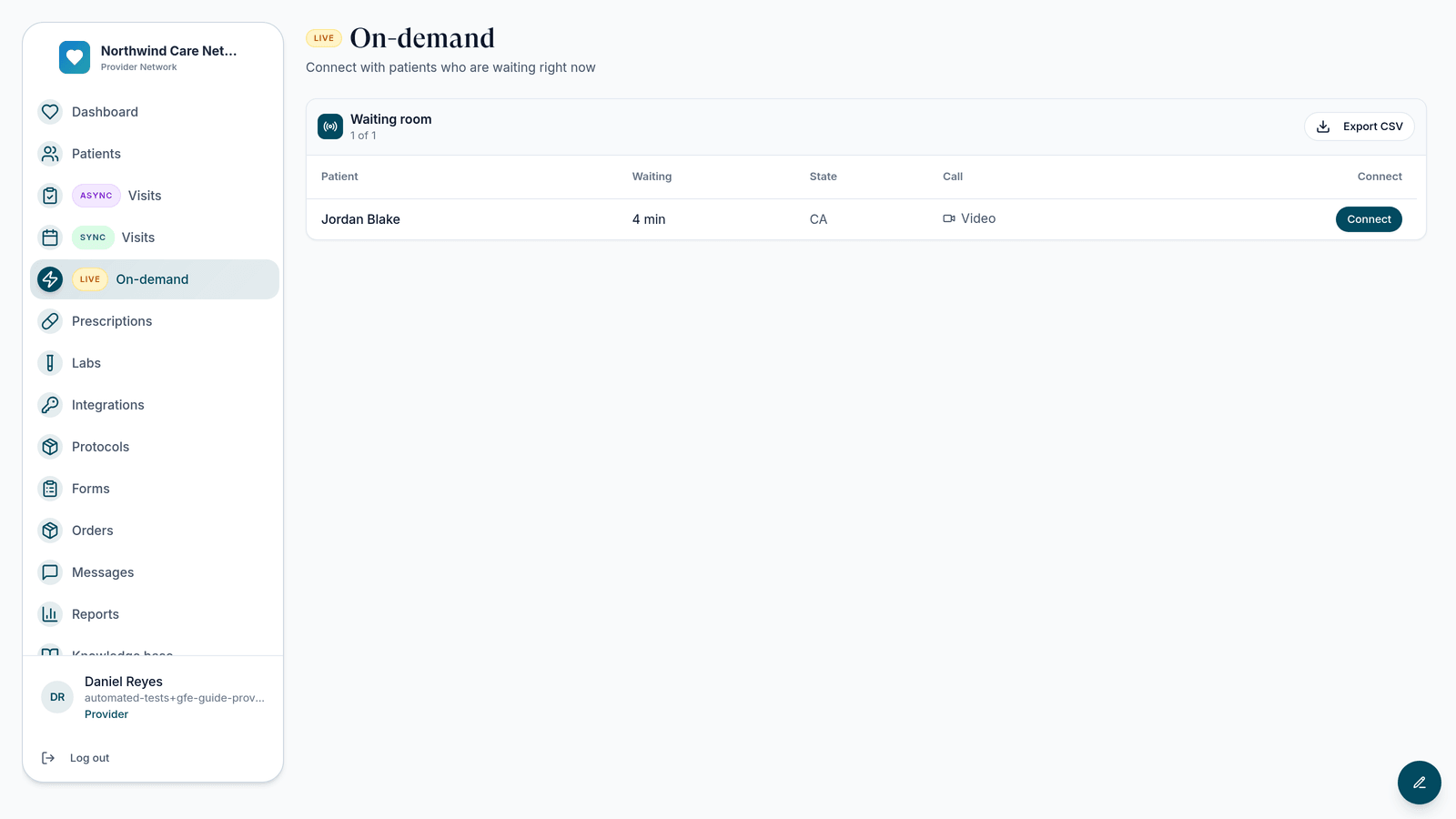
| Answer on-demand patients | Left menu → LIVE On-demand (/on-demand-visits) |
Visible to: Provider Network Admin for setup; providers in the network for reviews and visits.
Create a GFE treatment
A treatment is the thing being cleared, such as a neuromodulator or a weight-loss consult. Every active treatment you create is offered to every Review Only clinic in your network; each clinic then chooses which of them to offer at each location.
Open the picker
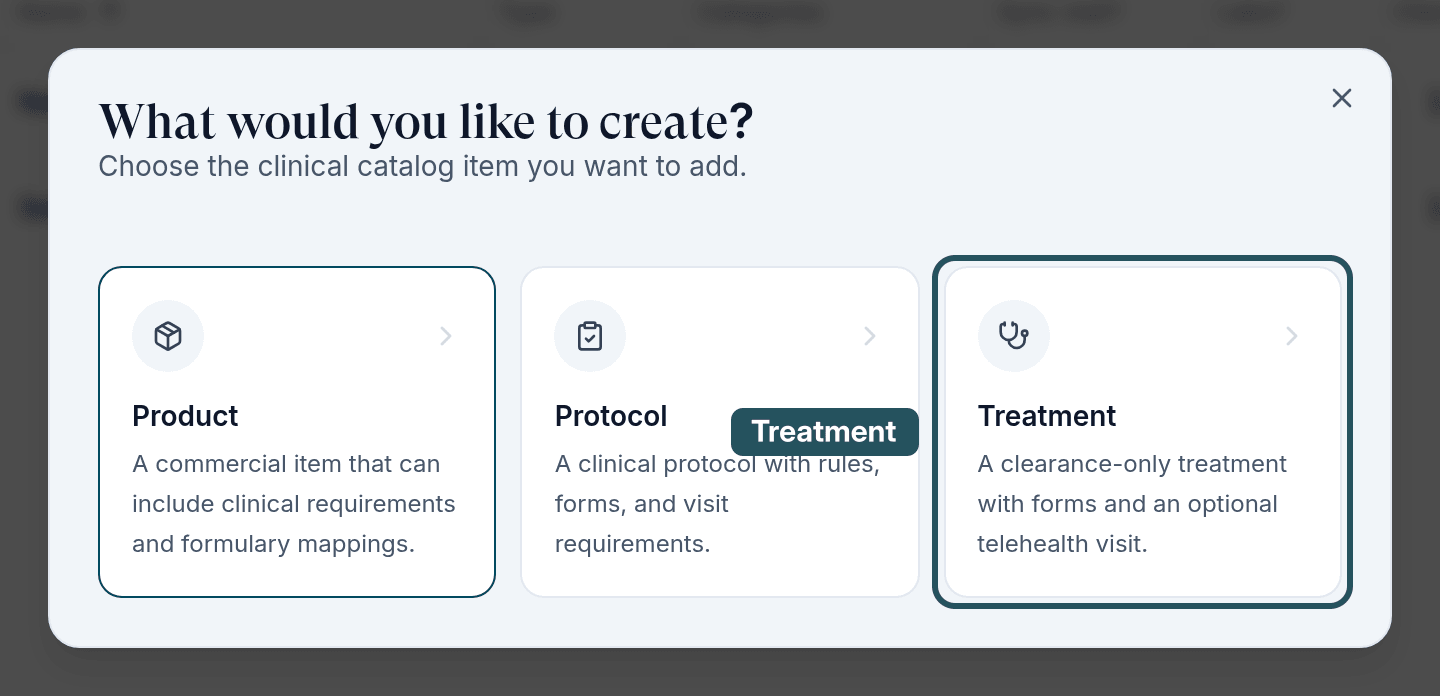
Go to Protocols and click Create. In What would you like to create?, choose Treatment: A clearance-only treatment with forms and an optional telehealth visit.
Name it the way the clinic says it
Clinic staff pick treatments by this name when they request a GFE, and patients see it too. Use the service name, such as Neuromodulator, not an internal code.
Attach the intake form
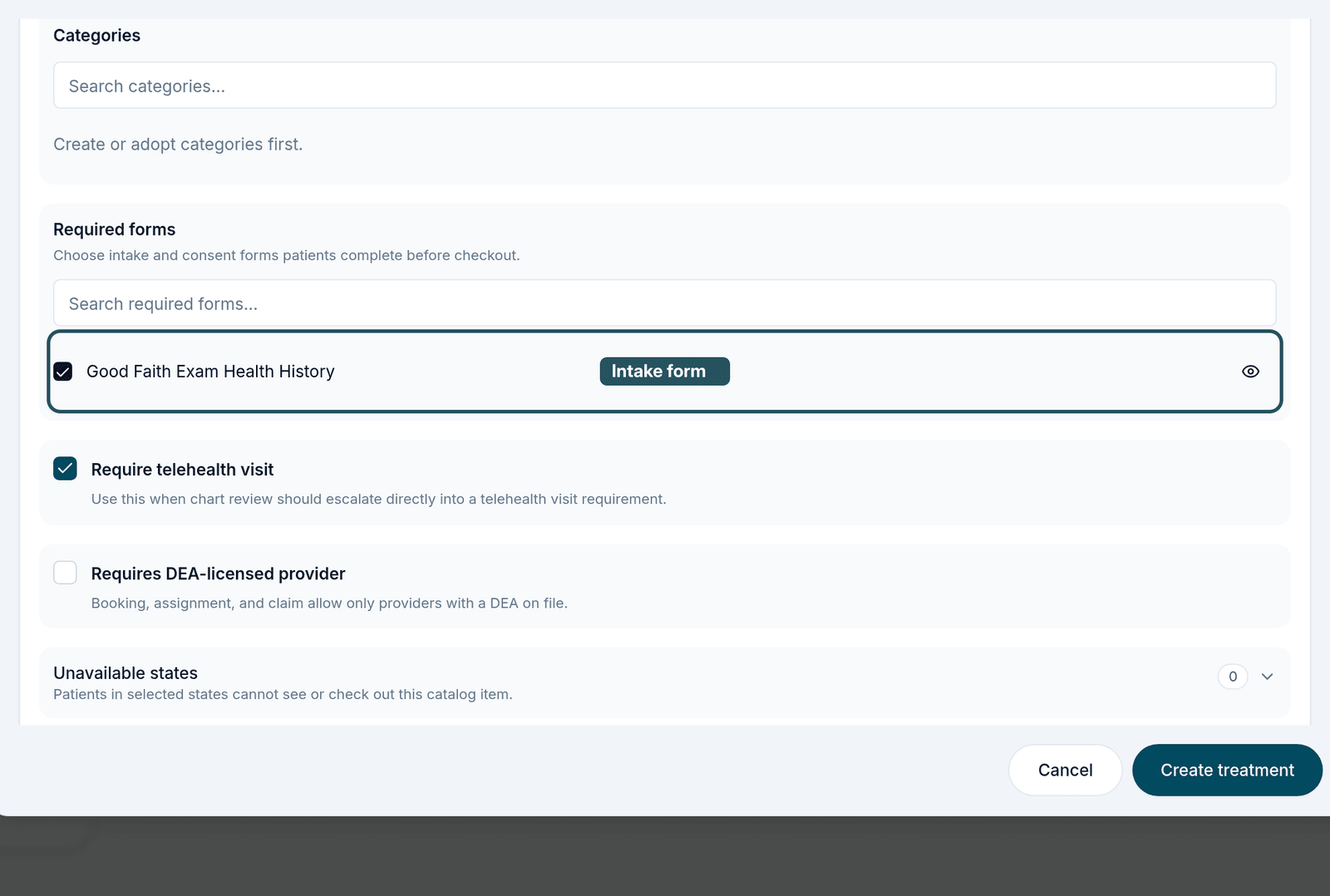
Under Required forms, tick the form or forms the patient must fill in, for example a GFE health history. The provider reviews the answers. Build the form first under Forms if it does not exist.
Decide async or live
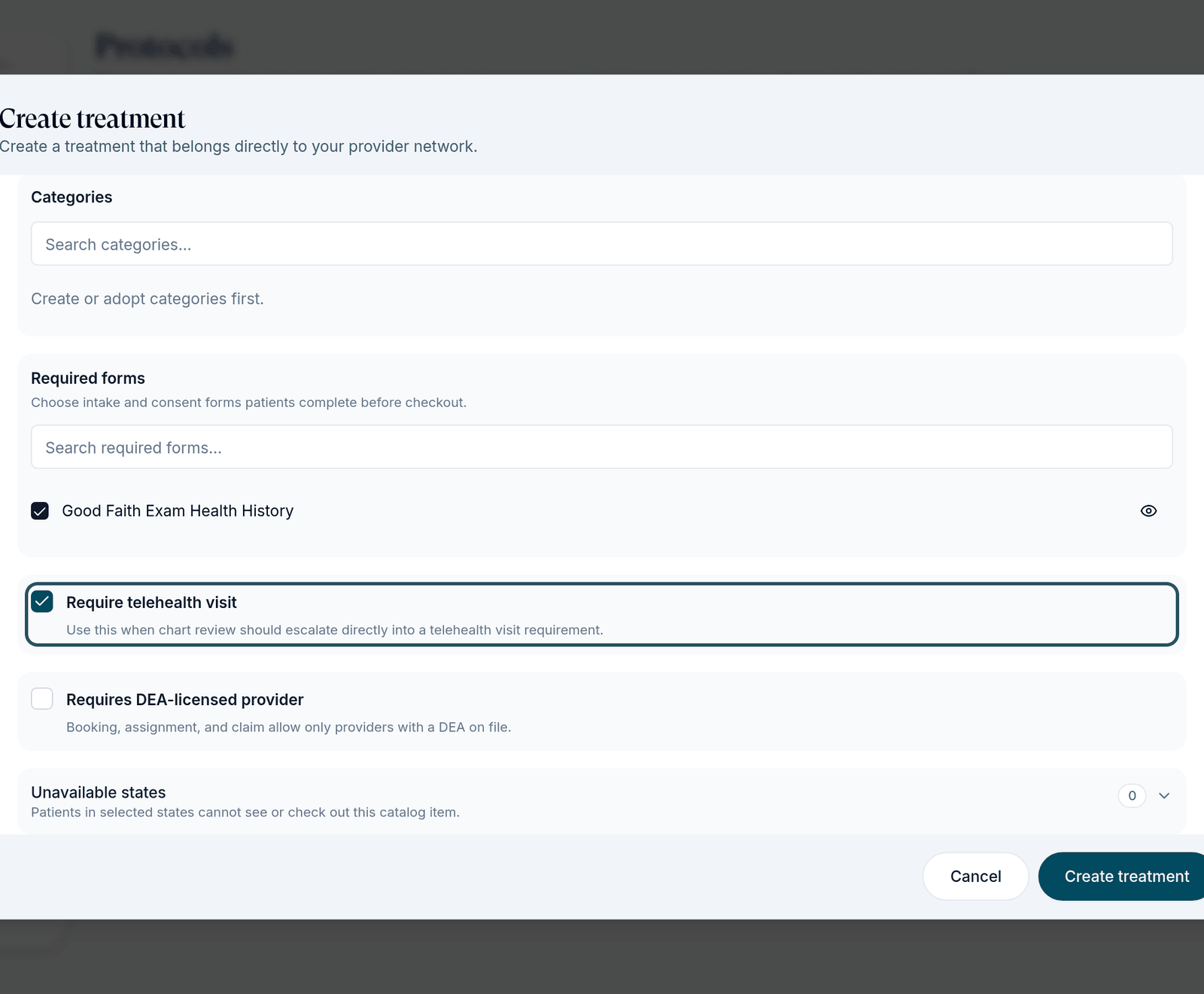
Tick Require telehealth visit when the provider must see the patient over video. Leave it unticked for a forms-only async review. Tick Requires DEA-licensed provider only for services that need one.
Save
Click Create treatment. The treatment appears in the Protocols list with type Treatment, and Sync visit? reads Yes when it needs a live visit.

The Required forms hint says “before checkout”. A GFE has no checkout; the forms are what the patient completes after the clinic sends the request.
Make the clinic a Review Only client
New clinic
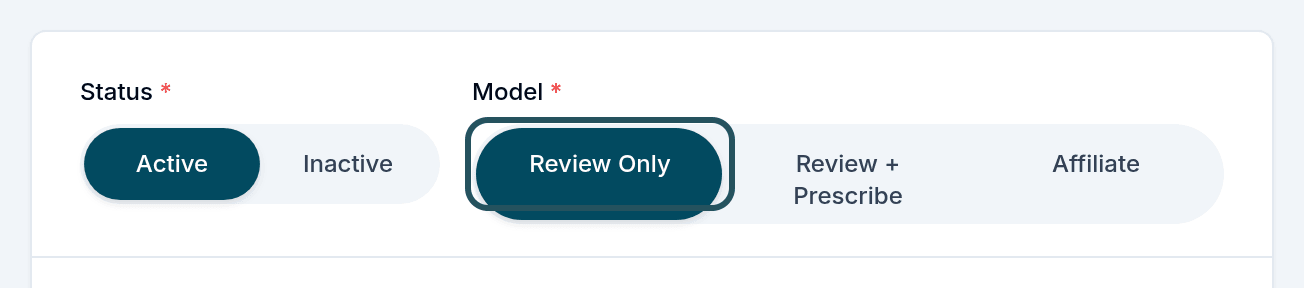
In Clients, click Create client and set Model to Review Only. Finish the rest of the form as usual.
Existing clinic
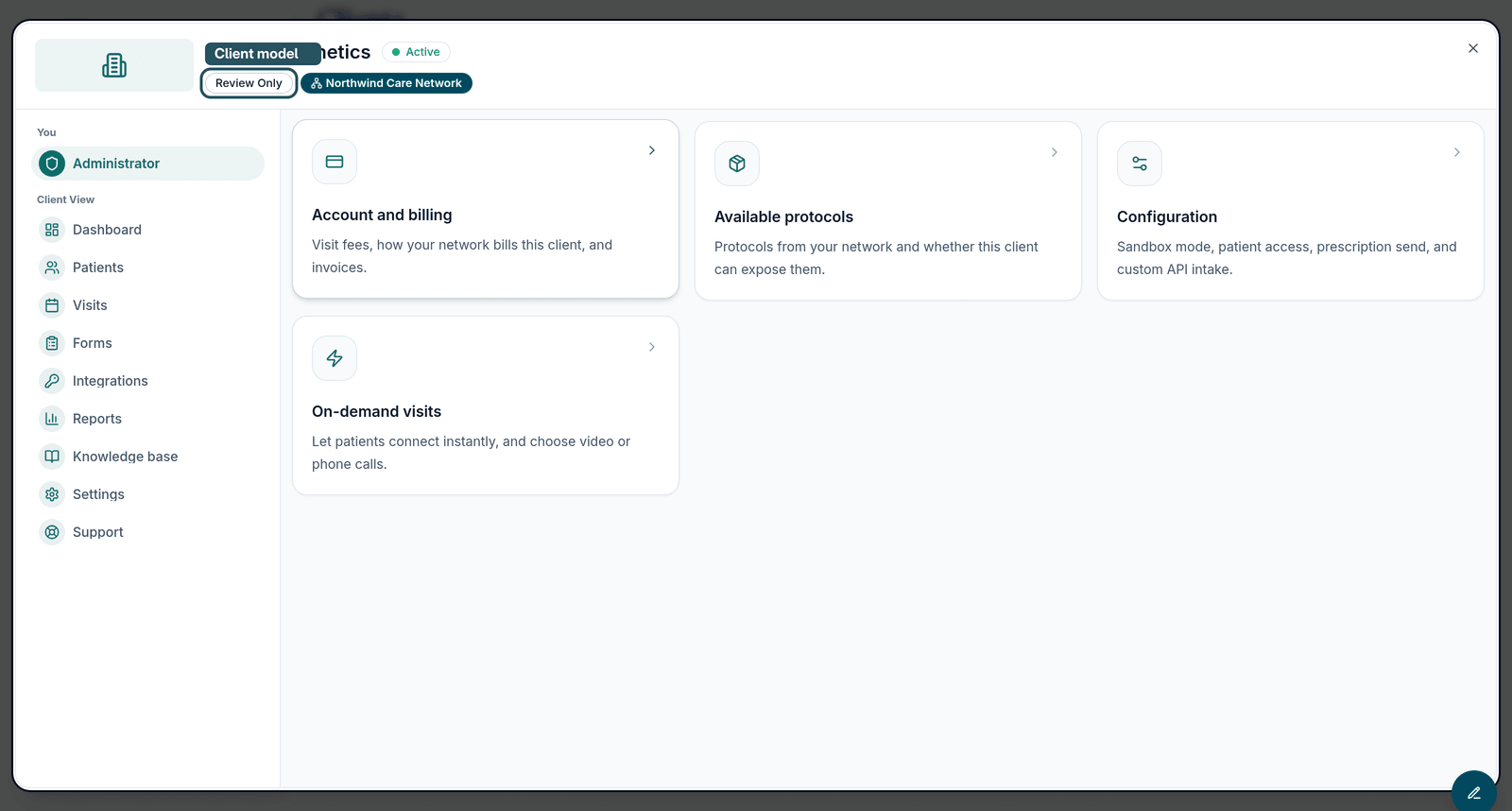
Open the client from Clients. The badge under its name shows its model. If it doesn't say Review Only, contact GEN Health support to change it. Only GEN Health can change a model after creation.
Turn on on-demand visits (optional)
On-demand lets a patient whose treatment needs a live visit join a video waiting room straight away, instead of booking a time. Your providers answer from LIVE On-demand. It needs network sync-visit claiming first, because the patient isn't booked with a particular provider.
Enable claiming
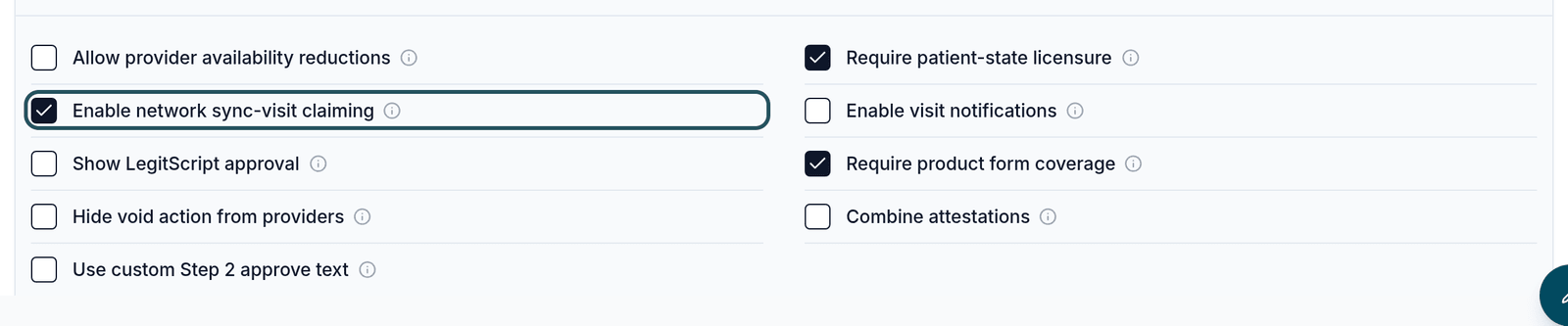
Open Settings → Operations and tick Enable network sync-visit claiming. It saves straight away.
Choose the providers who can answer
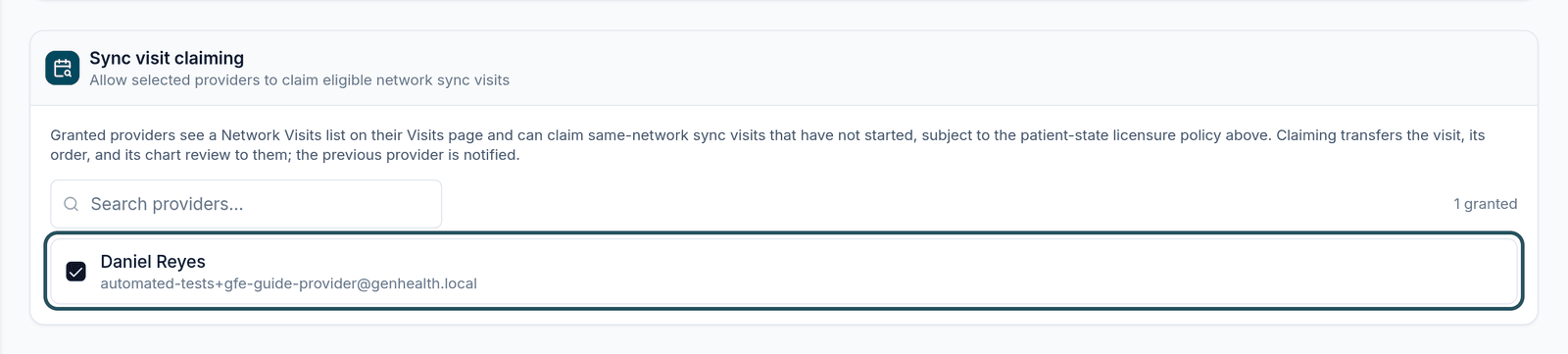
In the Sync visit claiming card (Allow selected providers to claim eligible network sync visits), tick each provider and click Save. The toast reads Sync visit claiming settings updated. A provider can take only patients in states where they are licensed.
Switch it on for the clinic
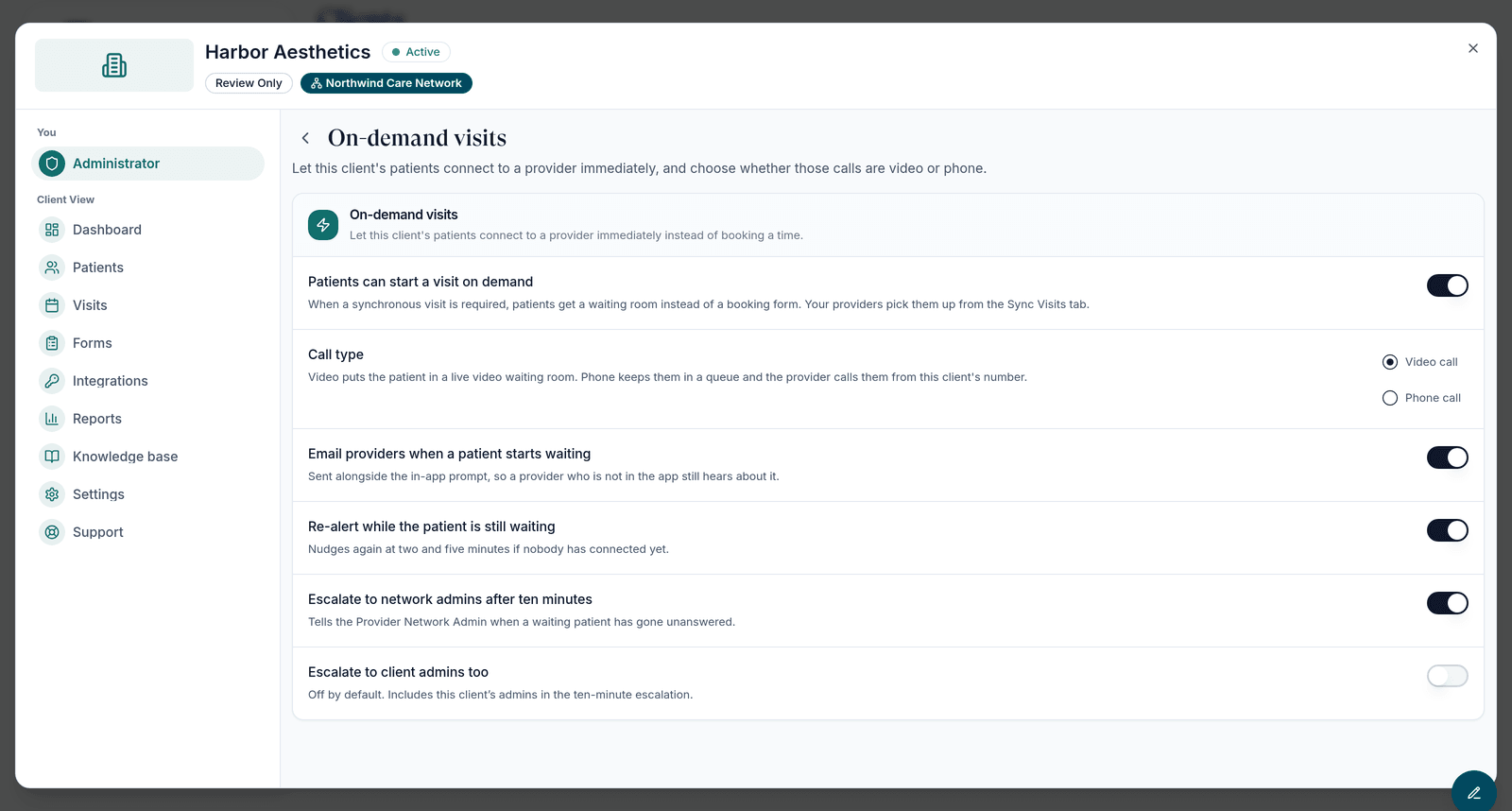
Open the client → Administrator → On-demand visits and turn on Patients can start a visit on demand. Each control saves when you change it (On-demand visit settings updated).
| Setting | What it does |
|---|---|
| Patients can start a visit on demand | Offers the patient Connect now alongside booking. Greyed out until network claiming is on. |
| Call type: Video call or Phone call | Video puts the patient in a live video waiting room. Phone keeps them in a queue and the provider calls them from the clinic's number. |
| Email providers when a patient starts waiting | Emails providers as well as the in-app prompt. |
| Re-alert while the patient is still waiting | Nudges again at two and five minutes if nobody has connected. |
| Escalate to network admins after ten minutes | Tells Provider Network Admins about a patient still waiting. |
| Escalate to client admins too | Adds the clinic's admins to that ten-minute alert. Off by default. |
What the clinic does next
Send the clinic's admin the Client guide Request a Good Faith Exam (GFE) for a patient. In short: Dashboard → Manage defaults to add its locations and tick treatments, then Request clearance for each patient in three steps (Patient, Treatments, Delivery).
Review a GFE as a provider
Find the request
An async GFE appears in ASYNC Visits as a row with the clinic's name and a purple Good Faith Exam badge, status Pending. Click Claim; the toast reads Review claimed and the chart opens. A live GFE appears in SYNC Visits or, on demand, in the LIVE On-demand waiting room with a Connect button.
Review the chart
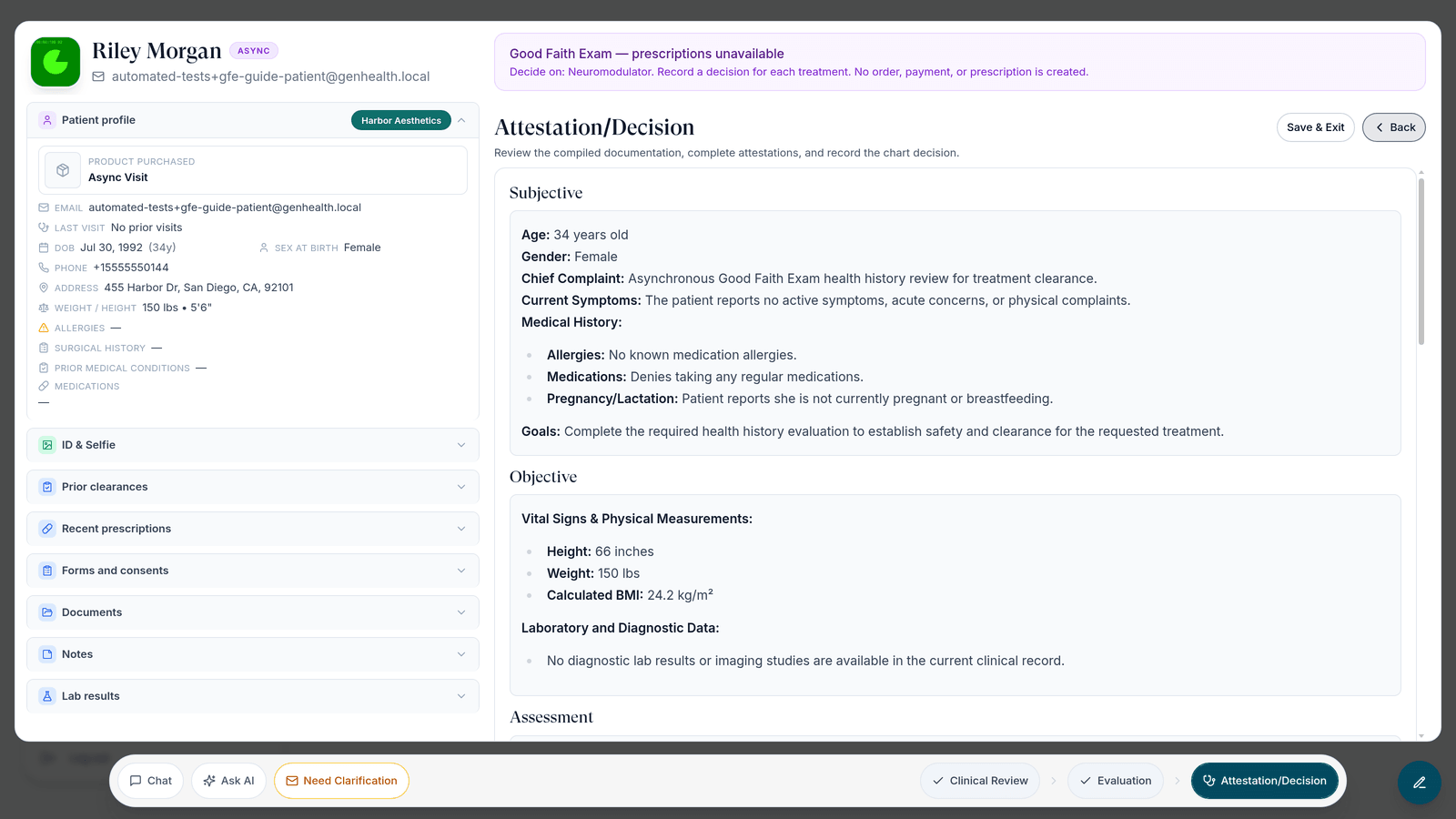
A banner reads Good Faith Exam — prescriptions unavailable and lists the treatments to decide on. Work through Clinical Review and Evaluation as usual.
Record the decision
On Attestation/Decision, complete the attestations, then under Visit Decision tick each treatment you clear. Anything left unticked is recorded as not approved. Click Approve {x} of {n}; the toast reads Treatment decisions recorded and the row moves to done.
Statuses the clinic will see
| Status | Meaning |
|---|---|
| In review | Requested; the patient hasn't finished, or no provider has decided yet. |
| Approved | Every requested treatment was cleared. |
| Partially approved | Some treatments were cleared and some were not. |
| Not approved | No treatment was cleared. |
What can go wrong
| What you see | Why | Fix |
|---|---|---|
| The clinic has no Request clearance card | It isn't a Review Only client. | Ask GEN Health to change the model. |
| The clinic sees No treatments are available yet. | Your network has no active treatment. | Create one under Protocols. |
| Patients can start a visit on demand is greyed out | Network sync-visit claiming is off. | Turn it on in Settings → Operations. |
| A waiting patient never shows up for a provider | The provider isn't granted claiming, or isn't licensed in the patient's state. | Tick them in Sync visit claiming and check their licences. |
| Staff get An active clearance already includes one of these treatments | That patient already has an open request for one of the treatments. | Finish or wait out the open request, or request other treatments. |
| This link is no longer available right after Use this device | A known issue in testing on 24 September 2026. | Use Send to patient until it is fixed. |
Next
Was this helpful?