Client record — assignments, protocols, pricing
Everything your network controls on one linked client: which Providers serve them, what they pay, which protocols they get, and what their staff may do.
The client record is where your network sets everything about one linked Client: which Providers serve them, what they pay per visit, which protocols they may sell, and what their staff and patients are allowed to do.
Questions people ask about this page
Why is a control missing or read-only on this Client?
Because your network is an additional network for this Client, not the primary one. Workflow permissions and Configuration only render for the primary network. Account and billing and Available protocols render either way, and each network sees its own fees and its own protocols. This is the single most common "is this a bug?" on the page — it is not.
Where do I set what the Client pays us per visit?
Administrator → Account and billing → Visit fees. Three fields: SYNC Visit, ASYNC Visit, Escalation Fee. These are network-to-Client charges. What the patient pays is set elsewhere, per visit type, in the Client's own Visits settings.
Is there a Save button for visit fees?
No. Each field saves on its own when you click away, or you can click the tick that appears beside a changed field. You get one toast per field — SYNC Visit Price updated, ASYNC Visit Price updated, Escalation Fee updated.
What does the Assigned Providers number actually control?
Which of your Providers can see and claim this Client's work at all. Two modes: All active providers — every active Provider in your network serves them — or Custom assignments, a hand-picked roster. Assignment is necessary but not sufficient; a Provider still has to clear state licensure and their Preferred Protocols.
What happens when I disable a protocol for a Client?
The Client can no longer expose that protocol to patients. It does not cancel anything already in flight. Check for live orders on that protocol before you turn it off.
The Invoices table shows dashes. Where are the real invoices?
That card is a placeholder today — it renders two draft rows with no dates, descriptions, or amounts, and is not yet wired to real invoice data. Do not read it as "you have two draft invoices". Reconcile network-to-Client charges in Reports → Client activity & COGS instead.
What is Sandbox mode?
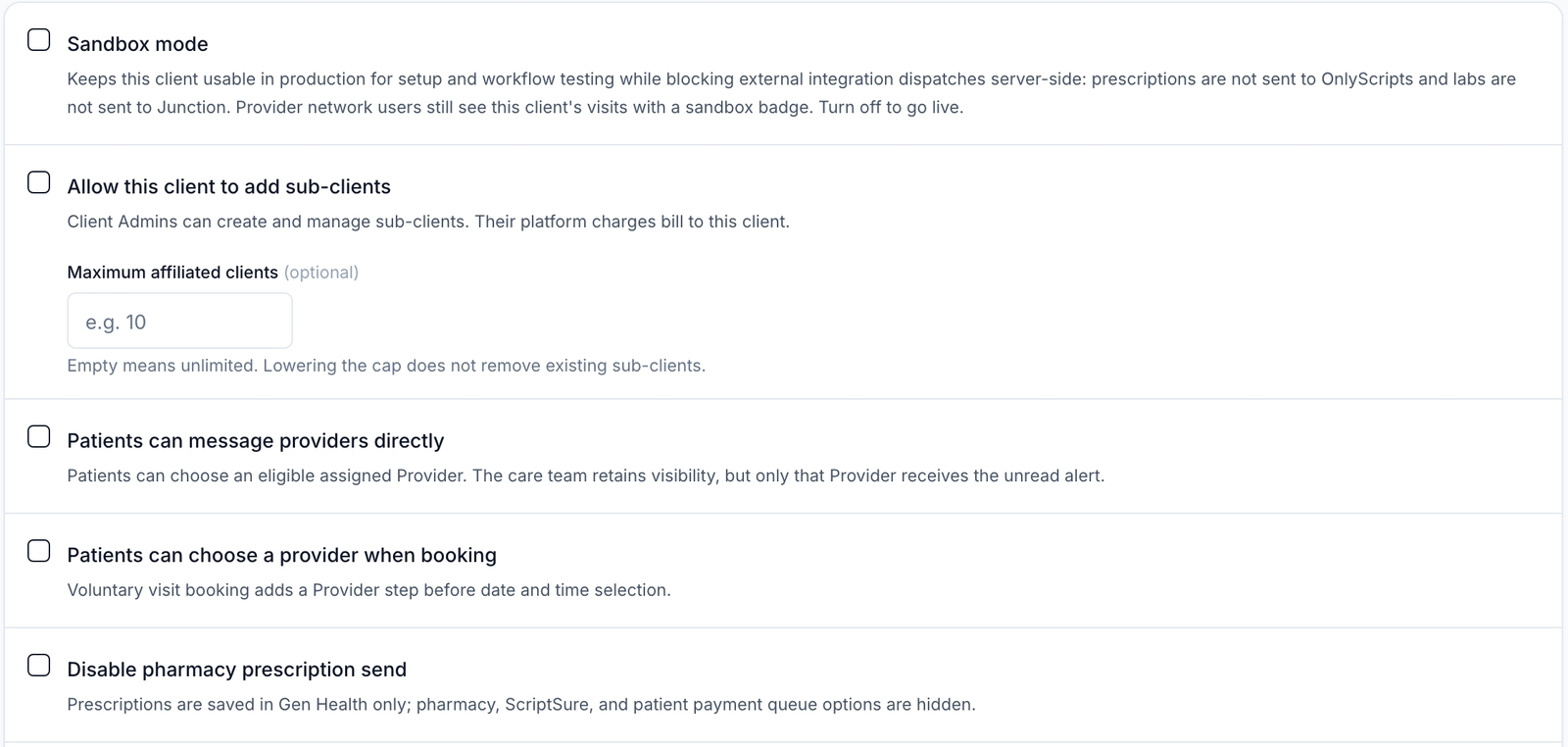
A per-Client switch that keeps the account usable while blocking outbound integrations server-side: prescriptions are not sent to OnlyScripts and labs are not sent to Junction. Your Providers still see the Client's visits, with a sandbox badge. Turn it off to go live.
Where is the Clients list itself documented?
In Link and onboard a client. That guide covers the Client Management table, leads, custom columns, and creating an account. This guide starts once a Client record is open.
Where to find it
Left menu → Clients, then click a Client row. Direct link: /clients?client=<clientId>&client_tab=__administrator. Visible to: Provider Network Admin (full) and Provider Delegate (read-only — the page's write controls are hidden for them).
The record opens as a dialog headed with the Client's name and the line Preview the client admin experience for this client. Chips underneath show the Client's status (Active / Inactive), model (Review Only, Review + Prescribe, or Affiliate), and the networks they belong to.
What is on this page
The left rail has two sections. You holds a single tab, Administrator — everything your network controls. Client View below it mirrors the Client's own sidebar (Dashboard, Patients, Messages, Visits, Products, Labs, Forms, Prescriptions, Integrations, Orders, Billing, Reports, Knowledge base, Settings, Support) so you can see exactly what their admins see.
| Administrator card | What it controls | Who sees it |
|---|---|---|
| Account and billing Visit fees, how your network bills this client, and invoices. | Per-visit and escalation fees your network charges this Client, plus the invoice list. | Any Provider Network Admin linked to the Client |
| Available protocols Protocols from your network and whether this client can expose them. | Which of your protocols this Client may sell. | Any Provider Network Admin linked to the Client |
| Workflow permissions Control whether this client can prepare prescription drafts during form review. | Four toggles over patient messaging, provider choice at booking, pharmacy sending, and API intake. | Primary network only |
| Configuration Sandbox mode and client staff prescription queueing. | The Features card and the Sandbox mode switch. | Primary network only |
Assigned Providers — who serves this Client
This control does not live on the Administrator tab. It is the Assigned Providers cell on the /clients table itself.
Open the list
In the left menu, click Clients. Use All Types → Clients if leads and practices are cluttering the view.
Click the count
In the Assigned Providers column, click the number on the Client's row. A popover headed Provider Assignments opens.
Read the mode first
The sub-line reads All providers · {n} loaded on the full-network default, or {n} assigned · {n} loaded on a custom roster, and a badge shows All active providers or Custom assignments. The footer usually reads Only active providers in this network are shown. Assign all keeps the client on the full-network default. It changes in three cases: on a network large enough to page while the default is in force it reads All active providers are assigned. To create a custom set, unassign all, then choose up to 50 providers.; over the roster cap it reads This custom set exceeds 50 providers. Assign all or unassign all before editing it.; and if your network is not the primary one it reads Only the primary provider network can change assignments for this client.
Pick the roster
Tick the Providers who should serve this Client. Use ASSIGN ALL to stay on the full-network default, or UNASSIGN ALL to start from an empty custom roster. Changes save as you make them — a Updating chip appears while they do.
On a large network
The popover loads Providers in pages. A Search providers... box and a Load more providers button appear once there are more than the first page; the empty state then reads No matches in the providers loaded so far rather than No providers found.
Verify with one real case
Create a single controlled demo visit for this Client and confirm the expected Providers appear for booking, assignment, and claiming. A Provider on the roster can still be ineligible for one patient — see Provider profile and readiness.
Assignments and pricing are separate. The roster is on the /clients table; fees are inside the record under Account and billing. Changing one never changes the other.
Account and billing
Section description: Visit fees, client payment setup, and invoices between your provider network and this client.
Open it
Open the Client record, stay on Administrator, and click the Account and billing card.
Set the three fees
The Visit fees card (Per-visit and escalation fees your network charges this client.) has one field each for SYNC Visit (Price client will pay for SYNC visit), ASYNC Visit (Price client will pay for ASYNC visit), and Escalation Fee (Price when an ASYNC visit needs to be escalated to a SYNC visit). Each takes a plain amount — placeholder 0.00, up to two decimal places, USD.
Let each field save itself
Click away from the field, or click the tick that appears beside it. A bad value raises Please enter a valid price (e.g., 99.99) and the field reverts. Clearing a field removes that fee entirely.
Read the help popover if you are unsure
The About visit pricing icon explains the model: pricing is per client, SYNC and ASYNC prices are charged to the Client, the escalation fee applies when an ASYNC visit becomes a SYNC visit, and patient-facing visit pricing lives in the Client profile's Visits settings, not here.
A Client with no visit fee produces completed visits that carry no charge. They show up in Reports → Client activity & COGS as Unbilled visits. Set the fees before the Client goes live.
Available protocols
Section description: Review which protocols from your network are available to this client.
Open it
From Administrator, click Available protocols. The card header shows {shown} of {total} and a chip reading {n} enabled.
Find the protocol
Search with Search protocols, networks, or descriptions..., or filter by All Access, All Networks, and All Types. Columns are Access, Network, Protocol, Type.
Toggle access
Use the switch in the Access column. Its accessible label reads Disable {protocol} for client when it is on.
Or move in bulk
Enable all turns on every protocol the current filters match; Disable all turns off every matching enabled one. Select preset applies a saved access set. All three respect the active filters, so narrow the list first.
Disable all acts on everything the filter currently matches, not on what is visible on screen. Clear your search, check the {shown} of {total} count, and only then use it.
Workflow permissions
Only rendered when your network is this Client's primary network. The card on the Administrator hub is described as Control whether this client can prepare prescription drafts during form review.; once open, the section description reads Choose which form review actions this client can perform for its primary provider network. Each switch is off unless someone turned it on.
| Toggle | What it does when on |
|---|---|
| Patients can message providers directly | Patients can choose an eligible assigned Provider. The care team keeps visibility, but only that Provider gets the unread alert. |
| Patients can choose a provider when booking | Voluntary visit booking adds a Provider step before date and time selection. |
| Disable pharmacy prescription send | Prescriptions are saved in GEN Health only; pharmacy, ScriptSure, and patient payment queue options are hidden. |
| Client can submit custom intake via API | The Client API may submit freeform questions and answers that satisfy an order's required forms, instead of filling provider-network or client product forms. |
Disable pharmacy prescription send reads like a small preference and is not. With it on, your Providers cannot transmit a prescription for this Client's patients at all — the pharmacy and ScriptSure options disappear from the prescribe step.
Configuration
Only rendered when your network is this Client's primary network. It holds a Features card with one switch you can set: Sandbox mode.
Keeps this client usable in production for setup and workflow testing while blocking external integration dispatches server-side: prescriptions are not sent to OnlyScripts and labs are not sent to Junction. Provider network users still see this client's visits with a sandbox badge. Turn off to go live.
Leave it on while the Client is being built and tested. Turning it off is the moment their orders start reaching real pharmacies and real labs, so treat it as the go-live switch.
Primary versus additional networks
| Control | Primary network | Additional network |
|---|---|---|
| Assigned Providers | Yes | Popover opens, but read-only — Only the primary provider network can change assignments for this client. |
| Account and billing (visit fees, invoices) | Yes | Yes — its own fees for this Client |
| Available protocols | Yes | Yes — its own protocols |
| Workflow permissions | Yes | Card is not rendered |
| Configuration / Sandbox mode | Yes | Card is not rendered |
A Client has exactly one primary provider network and any number of additional ones. Nothing on this page lets you promote your network to primary — that is a Client or platform-level change. There is no per-link status document either, so there is no "invited", "accepted", or "disconnected" state between a network and a Client to look for.
Statuses you will see here
| Status | Where | What it means |
|---|---|---|
| Active / Inactive | Record header chip | Whether the Client tenant itself is switched on. |
| Review Only | Record header chip | Client model gfe_only — your Providers review, they do not prescribe. |
| Review + Prescribe | Record header chip | Client model gfe_prescribe — review and prescribing. |
| Affiliate | Record header chip | Client model affiliate — patient payment credentials resolve to your network, not the Client. |
| All active providers | Provider Assignments popover | No custom roster; every active Provider in your network serves this Client. |
| Custom assignments | Provider Assignments popover | A hand-picked roster is in force. |
| draft | Invoices table | Placeholder rows only. Not a real invoice state — see the FAQ. |
The Status, Contract status, and Payment status values on the /clients table are your own editable labels, not tenant states. They are covered in Link and onboard a client.
What can go wrong
| What you see | Why | Fix |
|---|---|---|
| No Workflow permissions or Configuration card | Your network is an additional network for this Client, not the primary one. | Nothing you can do here. The primary network — or a Super Admin — owns those controls. |
| Every control is missing and you cannot edit cells | You are signed in as a Provider Delegate. The page is read-only for that role. | Ask a Provider Network Admin. |
| This custom set exceeds 50 providers. Assign all or unassign all before editing it. | A hand-picked roster is capped at 50 people. | Use ASSIGN ALL to go back to the full-network default, or UNASSIGN ALL and build a smaller roster. |
| A Provider is assigned but still sees no work | Assignment is one of several gates. | Run the readiness checklist in Provider profile and readiness — licensure and Preferred Protocols are the usual culprits. |
| Completed visits with no charge | No visit fee is configured for this Client. | Set SYNC Visit and ASYNC Visit. Reports counts these as Unbilled visits. |
| Prescription cost reads $0 in Reports | No prescription fee is configured for this Client in billing settings. | Expected until one is set — the metric's own sublabel says Needs a prescription fee. |
| A price will not stick | Format validation rejected it. | Enter digits and at most two decimals, no currency symbol. The toast reads Please enter a valid price (e.g., 99.99). |
| Patients cannot pick a provider when booking | Patients can choose a provider when booking is off. | Turn it on under Workflow permissions — primary network only. |
| Prescriptions save but never reach a pharmacy | Disable pharmacy prescription send is on, or the Client is in Sandbox mode. | Check both. A sandbox block reports Client is in sandbox mode with the fix Turn off sandbox mode in the client's settings, then resubmit. Sandbox also blocks lab dispatch to Junction. |
Next
Was this helpful?