Settings — Messaging
Decide which conversations your linked clients may start with the network, which roles they can reach, and keep reusable patient messages here.
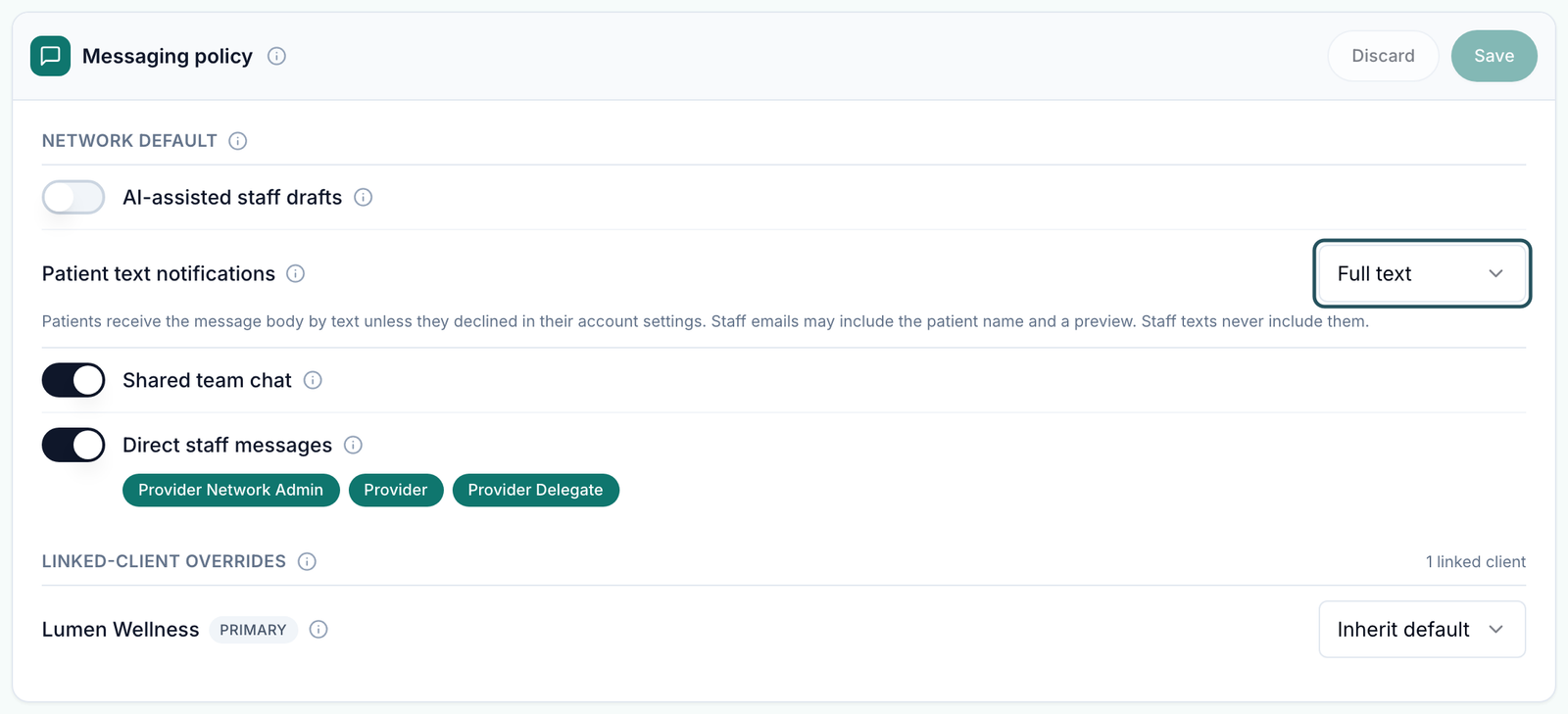
Messaging is the settings tab where a Provider Network Admin decides which conversations linked clients can start with the network, which network roles they can reach, and stores the reusable messages staff insert into patient threads.
Turning a switch off here changes what people in other organisations can do, and they get no notice. A client staff member who tries to start a blocked conversation sees only Direct staff messaging is disabled by your provider network. or Network chat is disabled by your provider network. Tell your linked clients before you flip a switch.
Questions people ask about this page
A client says they can't message us any more. What did I change?
Almost certainly one of the three switches under Network default. Turning off Shared team chat removes the client's Network chat option; turning off Direct staff messages removes their one-to-one threads with your staff. Existing history stays readable — only new sends are blocked.
Where did the AI draft button go in my staff's composer?
The AI draft section of the composer assist panel is not rendered at all when AI-assisted staff drafts is off. There is no error message — the section simply disappears. Linked clients must also consent separately on their own side.
Why is the policy dropdown greyed out for one of my clients?
That client's row is marked Additional, not Primary. Additional links inherit patient destinations from the client's primary network and cannot be overridden here. The info icon on the row says so: This network is an additional link for this client. Patient access is controlled by the primary network in the Client profile.
Save is stuck and there is a red line about recipient roles.
You left Direct staff messages on with no role pills selected. The inline error reads Pick at least one role. and the blocking line reads Select at least one direct-message recipient role before saving a policy with direct messaging enabled. Tick at least one of Provider Network Admin, Provider, Provider Delegate, or turn the switch off.
Is "Message templates" a separate Settings card?
Not any more. There are eight Settings cards and templates live on this one, below the policy card. Older links to /settings/message-templates, /settings/patient-message-templates and /settings/templates all resolve here.
What is the difference between a patient message and an escalation note?
Patient messages are text staff insert into a patient thread — typically after prescribing. Escalation notes are internal wording, for example when a chart needs MD review. They are two tabs on the same card and each has its own list, search, and New button.
Why does the template list say some templates could not be scanned?
The warning reads This network has more active templates than we can scan. Archive unused templates or narrow your search. Archive templates you no longer use, or search for the one you want.
Where to find it
Left menu → Settings → the Messaging card. Direct link: /settings/messaging. Aliases that also resolve here: /settings/message-templates, /settings/patient-message-templates, /settings/templates. Visible to: Provider Network Admin only.
The card on the Settings index reads Messaging — Conversation defaults, linked-client overrides, and reusable patient message templates.
What is on this page
| What you see | What it does |
|---|---|
| Messaging policy card | Holds the network default and the per-client overrides. Header buttons Discard and Save. |
| Network default group | Three switches that apply to every linked client unless that client has a custom policy. |
| Linked-client overrides group | One row per linked client with a Primary or Additional pill and a policy-mode dropdown. The trailing count reads {n} linked client. |
| Load more clients | Pages through a long client list. On failure it relabels to Try again. |
| Template tabs Patient messages / Escalation notes | Two separate template libraries on one card. |
| New patient message / New escalation note | Replaces the list with the template form. |
| Template search | Placeholder Search messages… on the patient tab, Search notes… on the escalation tab. |
| Template table | Columns Message template (or Note template), Suggested for (patient tab only), Actions. Row actions Edit and Archive. |
How to set the network default
Open the page
Left menu → Settings → Messaging.
Set the three switches
Under Network default, decide each one. Hover the info icon beside a label to read exactly what it does.
Choose who direct messages can reach
With Direct staff messages on, three pills appear: Provider Network Admin, Provider, Provider Delegate. Tick every role you want client staff to be able to start a private thread with.
Save
Click Save in the Messaging policy header. The toast reads Messaging policy updated. Discard throws away unsaved changes.
Tell the clients
Message every linked client before the change lands. From their side the option just stops working.
How to override one client
Find the row
Scroll to Linked-client overrides and find the client by name. The pill beside it reads Primary or Additional.
Switch to a custom policy
Change Policy mode for {client} from Inherit default to Custom policy. The Shared team chat and Direct staff messages controls appear indented under the row.
Set them for that client only
Change the two switches. They now replace the network default for this client alone.
Save
Click Save in the card header.
Only Primary links can be customised. The dropdown is disabled for Additional links because the client's primary network owns patient destinations.
How to publish a reusable message
Pick the library
Below the policy card, choose the tab Patient messages or Escalation notes.
Start one
Click New patient message (or New escalation note). The form replaces the list.
Name it
Template name — placeholder e.g. Prescription sent or e.g. MD review needed. The helper reads Use a short name your team can recognize quickly.
Write the body
Fill in Patient message (or Note). The placeholder shows the shape: Hi {{patient_first_name}}, I’ve sent your prescription for {{medication_name}} to the pharmacy… Click Using variables beside the box to see the tokens you can drop in.
Suggest when it should surface
On the patient tab, use Suggest for protocol categories (optional) and Suggest for formulary medications (optional). Leave both empty and the template applies to any protocol — the Suggested for column then shows the badge Any protocol.
Save
Click Create patient message, Create escalation note, or Save changes when editing. Back to templates returns to the list. The toast reads Template created.
Every setting on this page
| Setting | What it controls | Default |
|---|---|---|
| AI-assisted staff drafts | Consent to bounded recent message text being sent to the approved drafting model. Off removes the AI draft section from the composer entirely. Drafts are never sent automatically, and linked clients must consent separately. | Off |
| Shared team chat | Lets the client use its shared internal thread with this network. They see it as Network chat; you see it as Client chat. | On |
| Direct staff messages | Lets client staff start a private internal conversation with selected network roles. Off by default, so a brand-new network has no direct threads until you turn this on. | Off |
| Provider Network Admin pill | Client staff may start a direct conversation with network admins. | Selected when direct messaging is on |
| Provider pill | Client staff may start a direct conversation with providers. | Selected when direct messaging is on |
| Provider Delegate pill | Client staff may start a direct conversation with provider delegates. | Selected when direct messaging is on |
| Policy mode for {client} | Inherit default or Custom policy, per linked client. Disabled for Additional links. | Inherit default |
| Per-client Shared team chat | Overrides the network default for that one client. | Follows the network default |
| Per-client Direct staff messages | Overrides the network default for that one client. | Follows the network default |
| Template name | The label your staff pick the template by. | Empty |
| Patient message / Note | The text inserted into the thread. Supports variables such as {{patient_first_name}} and {{medication_name}}; the Using variables button lists them. | Empty |
| Suggest for protocol categories (optional) | Surfaces this template automatically for those protocol categories. Empty means any protocol. | None selected |
| Suggest for formulary medications (optional) | Surfaces this template after prescribing those medications. Search placeholder Search medications… | None selected |
Statuses and labels you will see here
| What you see | What it means | What to do |
|---|---|---|
| Primary pill on a client row | This network is the client's primary provider network. You can customise its policy. | Use the dropdown to diverge from the default. |
| Additional pill on a client row | This network is a secondary link. Patient access is controlled by the client's primary network. | Nothing — the dropdown is disabled by design. |
| Inherit default | The client follows the three switches above. | Nothing. |
| Custom policy | A custom policy replaces the network default for this client. | Check the indented switches under the row. |
| Any protocol badge in Suggested for | The template has no category or medication targeting. | Nothing, unless you want it narrower. |
| No linked clients are available for an override. | No client is linked to this network yet. | Link one from Clients. |
| 0 templates / No patient messages yet | The library is empty. | Click New patient message. |
What can go wrong
| What you see | Why | Fix |
|---|---|---|
| Save does nothing and a red line appears. | Direct staff messages is on with no role pills selected. | Tick at least one role pill, or turn the switch off. |
| A client's staff lost a conversation type without warning. | You turned a switch off. Existing history stays readable; only new sends are blocked. | Turn it back on, or set that client to Custom policy and enable it for them alone. |
| The client list is short and Load more clients is showing. | The override list is paginated. | Click Load more clients until your client appears. If it errors, the button relabels to Try again. |
| A red box with a Try again button instead of the policy. | The policy failed to load. Fallback text: Unable to load messaging policy. Try again. | Click Try again. Do not assume the switches you see are current until it loads. |
| Staff still cannot use AI draft after you turned it on. | The linked client has not given its own consent. | Ask the Client Admin to enable AI assistance on their side. |
| You want to stop a client messaging patients. | This page does not control patient messaging. | Patient destinations are controlled from the client record. See Client record. |
| A template you archived is still in someone's list. | The list is paged and cached per session. | Reload the page; archived templates drop out of the active list. |
Next
Was this helpful?