Protocols
Build the clinical catalog your network owns — requirements, forms, labs, state exclusions, refill rules — and grant a client access to it.

This is your network's clinical catalog: the protocols, products, and treatments your providers work from, and the page where you decide which linked clients can sell each one.
The ownership model in one line. A protocol belongs to your network — you own its clinical rules, forms, labs, and state exclusions. A client that you grant access to lays its own display name and its own patient price over the top. You never set a patient price here; the client always does.
Questions people ask about this page
I gave a client access and their patients still cannot see it. Why?
Because access is granted off and hidden. Ticking a client in the Clients popover creates that client's copy with status inactive, hidden from the storefront, and no price. The client then has to do three separate things: activate it, switch on storefront visibility, and set a customer price. Until the price is set, nothing appears to patients and there is no badge anywhere warning you about it.
Where do I set the price?
Nowhere on this page. A provider network catalog has no price fields at all. The linked client sets the patient price on its own Products page.
What is the difference between Product, Protocol, and Treatment?
The What would you like to create? picker defines them: Product is a commercial item that can include clinical requirements and formulary mappings; Protocol is a clinical protocol with rules, forms, and visit requirements; Treatment is a clearance-only treatment with forms and an optional telehealth visit. A treatment hides the Clinical rules tab, the Require Labs panel, and the DEA toggle.
Where is the lab recency window — on Labs or here?
Here. /labs is only a catalog of panels. The rule that says "results must be under 90 days old" lives on the protocol, inside the Require Labs panel as Lab recency window (days). Same for which labs count and which markers are required.
Why is a protocol I just created missing from the list?
The status filter starts on Active. If you saved it as Inactive it is filtered out. Note that CLEAR ALL resets the filter back to Active rather than clearing it.
Can a Provider edit the catalog?
No. Providers and Provider Delegates see /protocols read-only. For them the page hides Create, Presets, Bulk Import, the row Actions column, and the row checkboxes. Templates and Categories stay visible to all three roles.
Will editing a protocol change orders that already exist?
No. An order carries a snapshot of the item as it was at purchase. Your edits apply to future use. That is also why removing a client's access does not undo work already in flight — but it does delete that client's overlay and its formulary configuration.
What does the Clinical rules tab actually change?
Only later purchases. The first purchase always uses whatever is on the Basics tab. Rules let a refill after, say, day 90 require a telehealth visit or a fresh form that the first purchase did not. With no rules set, refills keep today's behaviour.
Where to find it
Left menu → Protocols. Direct link: /protocols. Visible to: Provider Network Admin (full edit), Provider and Provider Delegate (read-only). Anything after /protocols/ redirects back to /protocols — there are no sub-routes and no tab query parameter.
What is on this page
| What you see | What it does |
|---|---|
| Create | Opens What would you like to create? — Choose the clinical catalog item you want to add. |
| Bulk Import | Opens Bulk Import Protocols. Upload CSV, TSV, TXT, XLSX or XLS, or paste spreadsheet content; AI categorisation runs in the background and protocols appear as each chunk finishes. |
| Presets | Enable a curated bundle of protocols for a client in one action. Results group as Will add, Already enabled, Unavailable. |
| Templates | Review reusable protocols and categories and add them to your provider network catalog. |
| Categories | Manage Network Categories — Create, import, search, and archive categories for your provider network catalog. |
| Message Templates | Reusable patient messages attached to catalog items. |
| Export CSV | Downloads the filtered table. |
| Search | Placeholder Search products.... |
| Filters | Status (default label All statuses, Active preselected) · All types (Products, Protocols, Treatments) · All categories · Has Forms · Has Formulary · Requires Labs · Telehealth Visit · CLEAR ALL. |
| Table columns | Name · Type · Categories · Status · Sync visit? · Labs? · Clients · Forms · Formulary · Documents · Actions. The card sub-line reads {filtered} of {total}. |
| Row cells that are buttons | Categories, Labs?, Clients, Forms, Formulary, and Documents are each clickable and open their own popover or dialog. Most of the day-to-day work happens in the table, not in the edit dialog. |
| Row menu (...) | Edit product · Manage formulary defaults (products only) · Manage knowledge base links · Archive product. |
| Bulk bar (rows selected) | {n} selected · Activate · Deactivate · Add Category · Link Knowledge Base · Excluded States · Delete · Clear selection. |
How to create a protocol, field by field
Open the create picker
On /protocols, click Create beside the card title. The dialog What would you like to create? opens.
Choose the item type
Click the Protocol card. The dialog becomes Create protocol — Create a protocol that belongs directly to your provider network. It has two tabs: Basics and Clinical rules.
1. Name
Type the name (placeholder e.g. Weight management). This is what your providers see and what a client's display name overlays.
2. Status
Active or Inactive. Leave it Inactive while forms and labs are still missing, then flip it once the protocol is complete.
3. Description
Placeholder Describe how this item is used clinically and commercially. Write for both audiences — clinical and commercial.
4. Product Notes & Clinical Disclaimer
Placeholder Optional clinical context shown to physicians during review and prescribing. The info icon explains it is shown to prescribing physicians with a disclaimer that it does not constitute medical decision-making advice. Patients never see it.
5. Categories
Click the category chips that apply. If none exist, the panel reads Create or adopt categories first. — go to Categories in the header first.
6. Required forms
Attach intake and consent forms patients must complete before checkout. Only Active intake and consent forms appear. A draft form is invisible here — publish it on /forms first.
7. Require telehealth visit
Toggle. Use this when chart review should escalate directly into a telehealth visit requirement. The patient must book and attend a live visit; an async chart review is not enough.
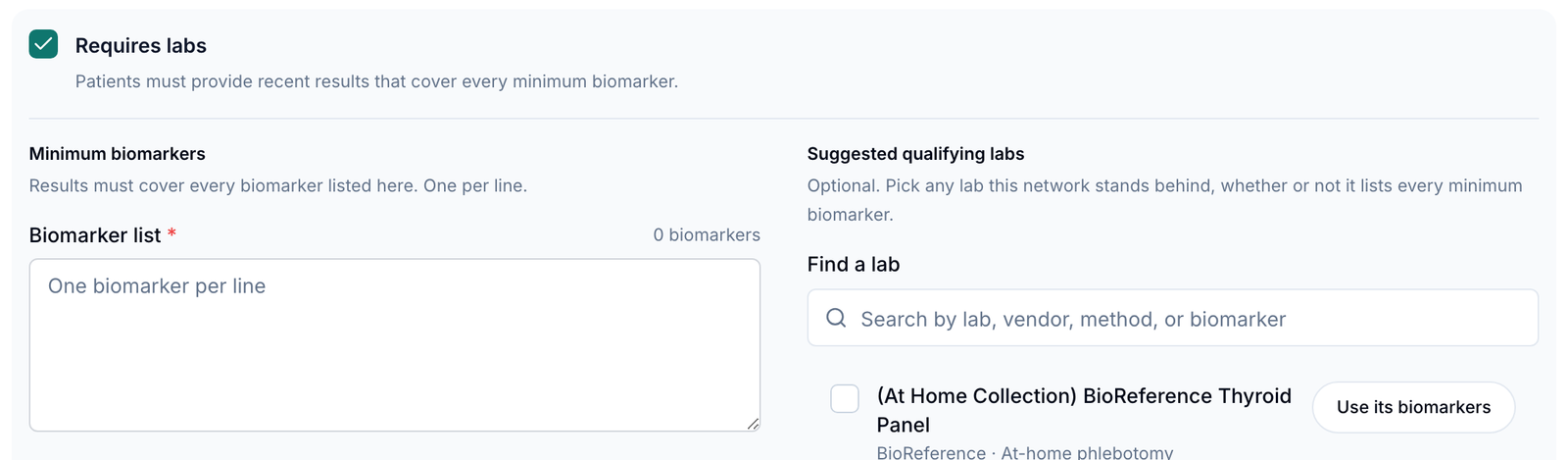
8. Require Labs
Toggle, which opens a panel. Copy: Patients must complete recent results from a supported lab product before this item can be ordered. Inside it: an Approved Labs list with a Search labs... box and an All filter, a Lab recency window (days) field, and an alternative marker mode called Require labs by markers with a Required markers picker (Search markers...). This panel is the only place the recency rule exists.
9. Requires DEA-licensed provider
Toggle. Booking, assignment, and claim allow only providers with a DEA on file. Switching this on shrinks the pool of providers who can take the work — check your roster first or visits will sit unclaimed.
10. Unavailable states
Grid of US states. Patients in selected states cannot see or check out this catalog item. This is network-wide and applies to every client using the protocol.
Save it
Click Create protocol. Toast: Protocol created. Failure: Unable to save protocol. Please try again.
How to add a refill rule on the Clinical rules tab
Optional. Skip it entirely and refills behave exactly like the first purchase.
Open the tab
Inside the protocol dialog, click Clinical rules. The panel is headed Next purchases — Optional. If no rules are set, later purchases keep today's refill behavior.
Read the banner
With nothing set it reads Unset: No clinical rules — next purchases work as they do today. Once you save one it becomes Active: Later purchases use the rules in the table. First purchase still uses Basics.
Read the table
Columns When and Care. The first row is fixed: First purchase with a summary of your Basics settings, marked Basics. With no rules, a second row reads Any later refill / Today's refill track / Unset, and the empty line says No saved rules yet. Click "Add rule" to override today's refill.
Add one
Click Add rule. Choose Applies when — Within a day range or Every N days — then fill From day and To day (or Every day in the open mode).
Set what the refill needs
Refill visit type (placeholder Uses Basics category; Optional. Overrides the protocol Basics visit type for matched refills.), Require telehealth visit, and Require forms — Independent from telehealth. Off = no intake for this rule. The lab requirement panel from Basics is reused here too.
Save and check the table
The rule lands in the Clinical rules table. Per-row icon buttons Edit rule and Remove rule. The hint under the table says Saved rules live in the table. Add or edit one at a time.
How to give a client access to a protocol
Find the protocol
On /protocols, locate the row. Its Clients cell shows how many clients already have it.
Open the client list
Click the number in the Clients cell. A popover headed Clients opens with the sub-line {n} assigned. If none are linked it reads No clients are linked to this provider network.
Tick the client
Tick the checkbox next to the client's name. Toast: Protocol enabled for client. Unticking gives Protocol disabled for client.
Understand what you just did — and did not do
You created that client's copy of the protocol in an off state: inactive, hidden from the storefront, and with no price. Nothing is visible to a patient yet.
Tell the client what they must do
The client has to (1) activate their copy, (2) tick storefront visibility, and (3) set a customer price. Missing the price is the most common cause of "the protocol never appeared" — there is no badge for it anywhere.
Or enable a whole set at once
Click Presets in the header to apply a curated bundle. The preview groups the result as Will add, Already enabled, Unavailable, and the result screen repeats it as Added, Already enabled, Unavailable.
Removing access is destructive
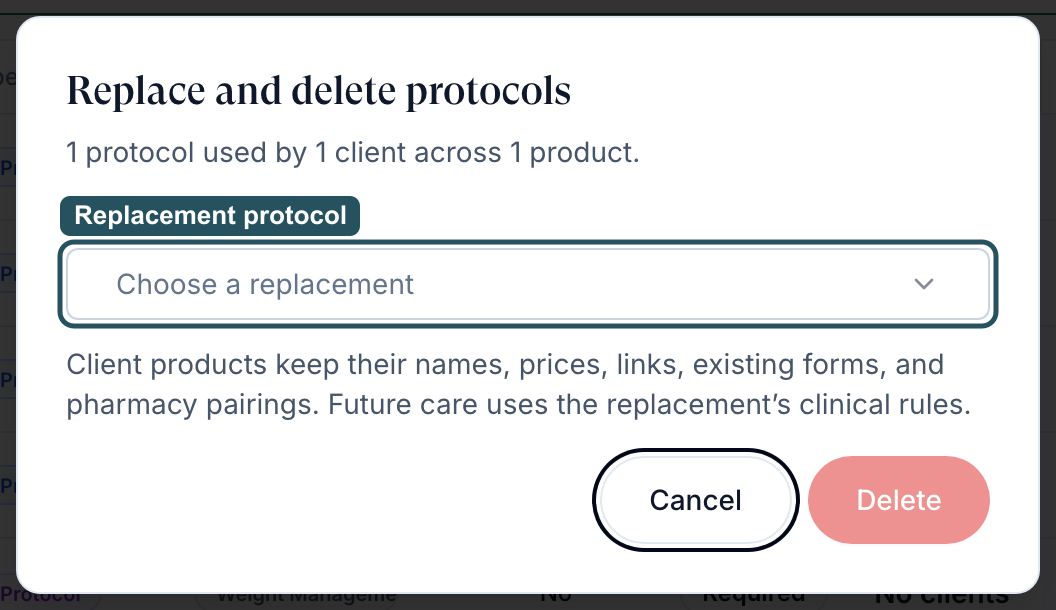
Unticking deletes that client's overlay document and the formulary configuration hanging off it. Confirm the exact client and protocol before you untick.
How to pair medications to a protocol
Open the pairing sheet
Click the Formulary cell in the row (it reads {n} mapped), or use the row menu ... → Manage formulary defaults. Products only.
Read the sheet header
Toggle medications paired with {product name}. These become the network formulary defaults clients inherit.
Find and pair
Search with Search medications or SKU..., then narrow with the All / Paired / Unpaired pill and the price, shipping, pharmacy, dose form, package size, and strength filters. Toggle each medication you want.
If the sheet is empty
You will see No OnlyScripts pharmacies are enabled for this network. Enable a pharmacy under Integrations to pair formulary medications. Pairing is impossible until a pharmacy is connected — see Integrations and pharmacy.
Every setting on this page
| Setting | What it controls | Default |
|---|---|---|
| Name | The catalog item's name in your network. | Empty |
| Type | Product, Protocol, or Treatment. Editable only when editing — on create it is fixed by the card you picked. | What you chose |
| Status | Active or Inactive across the whole network. | Active |
| Description | Clinical and commercial description. | Empty |
| Product Notes & Clinical Disclaimer | Text shown to prescribing physicians during review. Not medical advice, and never shown to patients. | Empty |
| Categories | Which network categories the item belongs to. Drives the category filters everywhere. | None |
| Required forms | Active intake and consent forms the patient must finish before checkout. | None |
| Require telehealth visit | Forces a live visit rather than an async review. | Off |
| Require Labs | Opens Approved Labs, Lab recency window (days), and Require labs by markers / Required markers. Not available on a treatment. | Off |
| Requires DEA-licensed provider | Restricts booking, assignment, and claim to providers with a DEA on file. Not available on a treatment. | Off |
| Unavailable states | Patients in those states cannot see or check out the item, at every client. | None selected |
| Clinical rules → Applies when | Within a day range or Every N days since the first purchase. | No rules |
| Clinical rules → Refill visit type | Overrides the Basics visit type for matched refills. | Uses Basics category |
| Clinical rules → Require telehealth visit / Require forms | Per-rule overrides, independent of one another. | Off |
| Client assignment (Clients cell) | Which linked clients may sell the protocol. Creates their overlay inactive, hidden, unpriced. | None |
| Formulary defaults (Formulary cell) | Which pharmacy medications are paired to the item, and their default directions. | 0 mapped |
There is no price, no image, no inventory, and no out-of-stock state anywhere in a provider network catalog. The only availability control is Unavailable states.
Statuses you will see here
| Status | What it means | What to do |
|---|---|---|
| active (lowercase, in the Status cell) | The item is live in the network catalog. The cell prints the stored value, so it reads lowercase. | Nothing. Being active here does not make it visible to any patient. |
| Inactive | Switched off. Archive product in the row menu writes this same state — there is no separate archived state. | Use the bulk bar's Activate, or edit the row and set Status to Active. |
| Sync visit? = Yes / No | Whether Require telehealth visit is on. | Edit the protocol to change it. |
| Labs? = Yes / No | Whether Require Labs is on. Click the cell to configure it without opening the full dialog. | Click the cell. |
| {n} form / {n} forms | How many active forms are attached. | Click to change. Zero forms on an active, client-assigned protocol triggers the Intake forms needed banner on /forms. |
| {n} mapped | Paired formulary medications. | Click to pair more. Reads Loading... while counts resolve. |
| {n} linked | Linked knowledge base documents shown to reviewing providers. | Click to change. |
| Unset (Clinical rules) | No refill rules, so later purchases behave like the first. | Add a rule only if refills genuinely differ. |
| Will add / Already enabled / Unavailable | Preset preview groups. Unavailable means the protocol cannot be enabled for that client. | Fix what makes it unavailable — usually inactive, or missing form coverage. |
What can go wrong
| What you see | Why | Fix |
|---|---|---|
| You assigned a client and their patients see nothing | The client's copy lands inactive, hidden, and unpriced. A network product stays off the patient storefront until the client sets a customer price, and there is no badge for that. | Ask the client to activate, show on the storefront, and set a price. Confirm with them rather than assuming. |
| A form you built is missing from Required forms | Only Active intake and consent forms are listed. Drafts, network forms, and client forms never appear. | Publish it on /forms, on the Patient Intakes or Patient Consents tab. |
| Categories panel says Create or adopt categories first. | The network has no categories yet. | Close the dialog, click Categories in the header, and create them in Manage Network Categories. |
| Visits on this protocol are never claimed | Requires DEA-licensed provider is on and few or no providers have a DEA on file. | Check the roster on /providers, or turn the requirement off if the medication is not controlled. |
| The formulary sheet is empty | No OnlyScripts pharmacies are enabled for this network. | Connect a pharmacy under Integrations first. Pairing cannot happen before that. |
| Patients in one state cannot order | That state is in Unavailable states on the protocol. This is network-wide; a client cannot override it. | Edit the protocol, or use the bulk bar's Excluded States to reset a batch. |
| A refill asked for a form the first purchase did not | A rule on the Clinical rules tab matched that refill. | Open the protocol, read the Clinical rules table, and edit or remove the row. |
| Toast: Unable to save protocol. Please try again. | The save call failed. | Retry. The dialog keeps your input — do not re-enter it from scratch. |
| A change did not affect an existing order | Expected. Orders keep a snapshot of the item at purchase. | Nothing. Only future orders pick up the edit. |
| The Clinical rules tab is missing | You are creating a Treatment. Treatments hide both tabs, the lab panel, and the DEA toggle. | Create a Protocol or Product if you need refill rules. |
Next
Was this helpful?