What each provider must complete
The nine-step wizard every invited clinician must finish, what blocks them afterwards, and how to tell from your roster who is ready.
Every clinician you invite has to finish a nine-step wizard of their own before they can open a single visit — and you watch their progress from /providers.
This is the number one reason a new network cannot see patients on day one. Your own setup took four screens. Theirs takes nine, plus a knowledge-base review, and includes an NPI lookup, a government ID upload and a drawn signature. Send the invitations before you build the catalogue, not after.
Questions people ask about this page
How do I know whether someone is ready to take visits?
Three checks on /providers. Their Account Status must read Active, not Pending or Onboarding. Their Credentials tab must show an NPI and at least one Verified licence for the states they will treat in. And if you e-prescribe, their ScriptSure enrolment must be verified — check that at /integrations, not on their profile.
My provider says they are trapped in a dialog they cannot close.
Two different dialogs do that. The onboarding wizard blocks until all nine steps are done. Then Required Knowledge Base Review blocks until every required document is opened — and its X genuinely does nothing. Neither applies to you as an admin, which is why you have never seen them.
Can a provider skip anything?
Some things. Provider profile has a Skip for now. Availability can be passed with Continue and set later. Licences can be deferred. What cannot be skipped: the account details, engagement type, government ID, signature and the policy agreements — and, for anyone whose engagement type is Healthcare Provider, a valid ten-digit NPI.
Their badge says Active but they still see nothing.
Active only means the wizard is finished. It says nothing about client assignments, licence verification or state coverage. Open their profile → Capabilities → Assigned clients and tick the clients they should serve.
Does finishing onboarding let them e-prescribe?
No. ScriptSure enrolment is a separate flow that you start from /integrations, and completing it involves the vendor's own identity proofing. A provider can be fully onboarded, fully licensed, and still unable to send a prescription.
Why is one of my providers being asked for an NPI and another is not?
Everyone is shown the NPI screen, but the requirement is only enforced when their Engagement Type is Healthcare Provider. A W2 Employee or 1099 Contractor can finish without a ten-digit NPI on file.
A delegate says their setup was much shorter.
Correct. A Provider Delegate gets two steps: Account (Confirm the profile details needed for your delegate account.) and Policies. No NPI, no ID, no licences, no signature. They still hit the knowledge-base gate.
Can I complete a step on their behalf?
Partly. From their profile you can save a Government ID document, set their Engagement type, edit their Signature, add licences on Credentials, and set hours on Scheduling. You cannot accept the policies for them — that has to be their own click.
Where to find it
You watch progress at left menu → Providers (/providers), in the Account Status column and inside each provider's profile. The count of unfinished people is the Onboarding tile on /dashboard. The wizard itself belongs to the provider — you never see it on your own account.
The short version
Invite early
Their nine steps are the long pole. Start them on day one.
Send the checklist with the invitation
They will need their NPI, a photo of a government ID, their state licence numbers and expiry dates, and a mouse or finger to sign with.
Watch Account Status
Pending → Onboarding → Active.
Then verify licences and assign clients
Active alone does not make anyone ready.
The nine steps a Provider must complete
| # | Step label | Screen title | What they do | Required? |
|---|---|---|---|---|
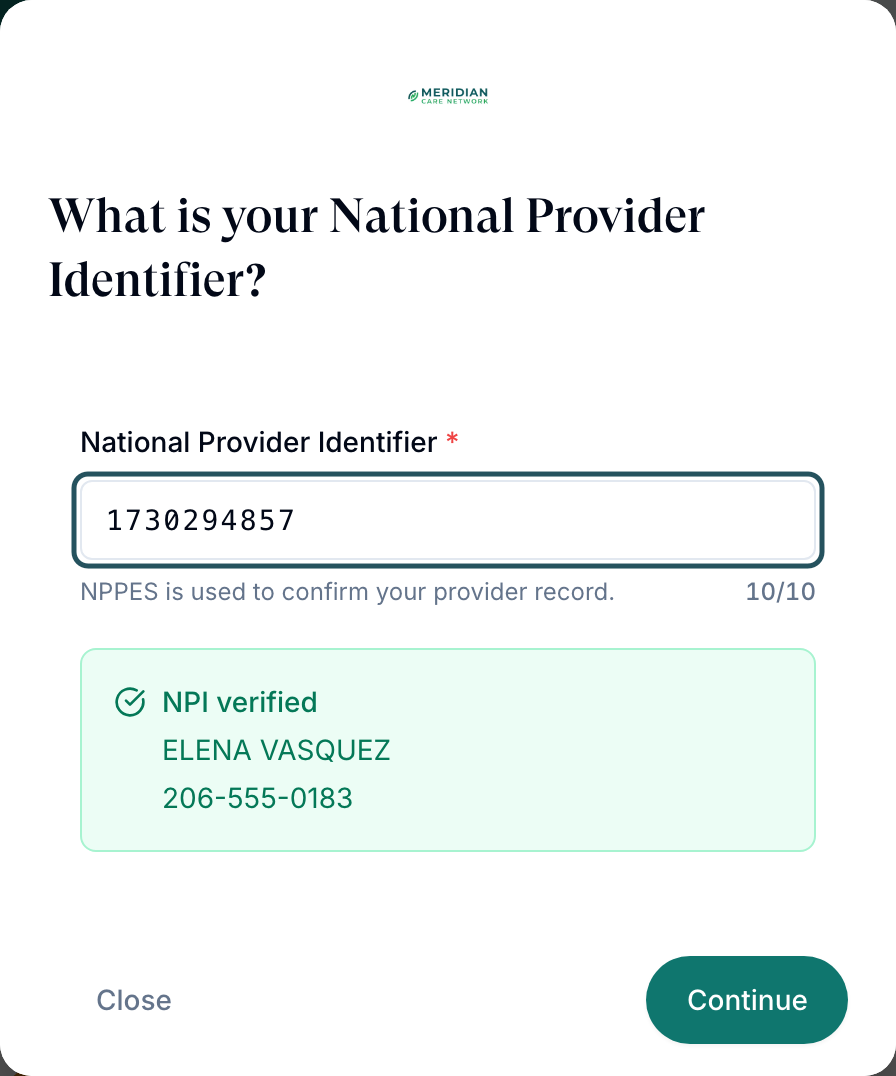
| 1 | NPI | NPI Verification — Verify your provider record before continuing. | Type their National Provider Identifier * into a field placeholdered 10-digit NPI, with a live n/10 counter and the note NPPES is used to confirm your provider record. The button reads Verifying while it checks. A match prefills their name. | Yes, when their engagement type is Healthcare Provider |
| 2 | Identity | Identity — Upload your government-issued ID. | Upload an image or PDF under 10 MB. Toast on success: Document uploaded successfully. | Yes |
| 3 | Account | Account Setup — Confirm the profile details needed for provider onboarding. | First Name *, Last Name *, Phone Number *. Prefilled from the NPI lookup where possible: These details were prefilled from NPPES and can be edited before continuing. | Yes |
| 4 | Profile | Provider profile — Add a profile picture and short bio, or skip this step for now. | Photo upload plus a bio field hinted Share your clinical background, specialties, and approach to care. | No — has Skip for now |
| 5 | Credentials | Credentials — Add professional licenses now or continue and complete them later. | Add each state licence: State *, License Type *, License Number *, Expiration Date, and a License Image/PDF if your network requires one. | The step is required; the licences themselves can be deferred |
| 6 | Type | Engagement Type — Choose how you will engage with the provider network. | Pick one of W2 Employee (Full-time or part-time employee with benefits), 1099 Contractor (Independent contractor) or Healthcare Provider (Licensed healthcare professional). | Yes |
| 7 | Availability | Availability — Set availability now or skip it and manage it later. | Pick bookable hours. Blocked entirely until your network has a timezone and operating hours. | No |
| 8 | Signature | Draw Your Signature — Add the signature used for prescriptions and agreements. | Draw on the canvas headed Draw your signature. A Clear button resets it. | Yes |
| 9 | Policies | Policies and agreements — Review and accept the required agreements before entering your workspace. | Tick Terms and Conditions, Privacy Policy and HIPAA and business associate obligations. The last button is Complete Setup — it stays disabled until all three boxes are ticked. (Complete Onboarding is what the button reads on the Signature step for the shorter wizards where signing is the final step, so do not use it as a landmark.) | Yes |
A Provider Delegate gets two of these: Account and Policies. Nothing else.
The two blocking gates after the wizard
| Gate | What it says | How it clears |
|---|---|---|
| Required Knowledge Base Review | Description Review each required item before continuing in the portal. Each item shows Pending review or Completed, with a button reading Review or Review Again. | Only by opening and completing every required item. The close X does nothing. Applies to Providers and Provider Delegates, never to admins. You control the required list at /knowledge-base. |
| Set your availability | Not blocking — a reminder. It appears when a provider has no availability in the next three full weeks, and explains the target: two days in one upcoming week, or three days across the three. | Buttons Remind Me Later or Manage Availability. |
What you can see about their progress
| Where | What it tells you |
|---|---|
/dashboard → Onboarding tile | How many people in the network have an unfinished wizard. Helper text: Providers needing setup. |
/providers → Account Status | Pending (never opened the invite), Onboarding (started, unfinished), Active (finished), Inactive (switched off). |
/providers → Last Login | — means they have never signed in, which distinguishes a lost invitation from a stalled wizard. |
| Profile → Overview | Engagement type, Government ID and Signature sections show whether each of those artefacts exists. There is no e-prescribing status on this tab today — see the note below the table. |
| Profile → Credentials | NPI with its value or Not set and the badge Required for some roles; DEA Number (Optional); and the Licenses table with a status per licence. |
| Profile → Capabilities | Assigned clients — the thing that actually routes work to them. |
/notifications | Queues for pending licence review and NPI change requests, so credential work does not sit unnoticed. |
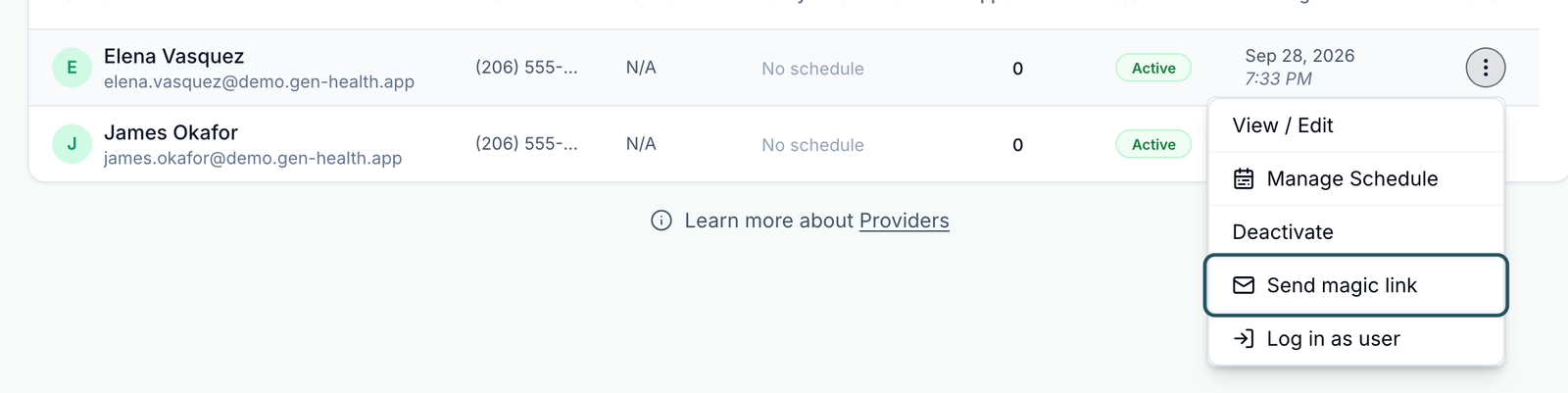
The fastest unstick for anyone in Pending or Onboarding is the row action Send magic link. It drops them straight back into the wizard with no password.
Verified on staging: a Provider's Overview tab shows Provider Stats, Profile, User information, Update Your Password, Sign-In Methods, Data Export (Admin only), Engagement type, Government ID, Signature and Access controls — and no e-prescribing panel. Check ScriptSure state at /integrations instead.
How to get a stalled provider moving
Open the roster
Left menu → Providers.
Read the badge and the last login together
Pending with — under Last Login means the email never landed. Onboarding means they got in and stopped.
Send a magic link
… → Send magic link. Wait for Magic link sent to {email}.
Find out which step they are on
Open their profile. No Government ID means step 2. No Engagement type means step 6. No Signature means step 8. No NPI on Credentials means step 1.
Fill in what you can for them
You can save a government ID, set the engagement type, add licences and edit the signature from their profile. The policy acceptance has to be theirs.
Clear the knowledge-base gate
If they are through the wizard but still stuck, check /knowledge-base for how many items are marked required.
Then make them workable
Verify a licence on Credentials, tick their clients on Capabilities, and start ScriptSure from /integrations if you prescribe.
Statuses you will see here
| Status | What it means | What to do |
|---|---|---|
| Pending | Invitation sent, account never claimed. | Send magic link. |
| Onboarding | Signed in, wizard unfinished. They cannot take a visit. | Find the missing artefact in their profile and help. |
| Active | Wizard finished. It says nothing about licences or assignments. | Verify a licence and assign clients. |
| Inactive | An admin switched the account off. Hidden by the default filter. | Activate. |
| Licence Pending | Uploaded, waiting for your review. This is the default for a new licence. | Open Update License Status and set it. |
| Licence Verified | You approved it. The row becomes read-only. | Nothing. |
| Licence Expiring Soon | Verified, but the expiry is close. | Ask for a renewal and update the expiration date. |
| Licence Expired | Past its expiration date. Computed, never stored. | Update the date. It keeps reading Expired until you do. |
| Licence Rejected | You refused it, and had to give a reason. | They re-submit. |
| NPI Not set with Required for some roles | No NPI on file. There is no verified state for an NPI — only present or absent. | Ask them to add it, or use Add NPI on their profile. |
| ScriptSure enrolment | Tracked at /integrations, not on the provider record. Roll-up chips there read Enrolled, Pending and Not invited. | Only a verified prescriber can e-prescribe. See ScriptSure e-prescribing. |
What can go wrong
| What you see | Why | Fix |
|---|---|---|
| Nobody can take the first visit even though everyone accepted their invitation | Accepting an invitation only starts the wizard. Nine steps stand between that and a working account. | Check the Onboarding tile on your dashboard and chase each name. |
| A provider is stuck on Availability and says the buttons are dead | Your network has no timezone or no operating hours, so their availability manager is disabled. | Set both at Network overview and operating hours. They can also click Continue without changing anything. |
| A provider cannot get past NPI Verification | Wrong number, or NPPES did not answer. Errors: NPI must be exactly 10 digits and Unable to verify NPI. Please try again. | Check the number against the public NPPES registry and retry. |
| The ID upload fails | Errors are Please select an image or PDF file and File size must be less than 10MB. | Ask for a smaller JPEG or PDF, or upload it for them from their profile. |
| They finished everything and are still blocked by a dialog | The Required Knowledge Base Review gate. Its close X does nothing by design. | They must open every required item. Reduce the required set at /knowledge-base if it is excessive. |
| An Active provider sees an empty queue | No client assignments, or state-licensure filtering excludes those patients. | Profile → Capabilities → Assigned clients, then /settings/operations → Require patient-state licensure. |
| A provider cannot send a controlled prescription | No DEA number on file, or no verified ScriptSure prescriber mapping. Neither is part of onboarding. | Profile → Credentials → DEA Number (Optional) → Save DEA, then finish ScriptSure enrolment from /integrations. |
| You want to reset someone's onboarding | There is no re-open control for a network admin. The Super Admin tool Re-open onboarding is not on your side of the app. | Ask them to use Review onboarding in their own account settings, or raise a ticket at /support. /support opens on the Incoming Requests tab, which is normally empty — click Your Support Tickets to see and raise your own. |
Next
Was this helpful?