Provider profile and readiness
Answer one question about a Provider: are they ready to take visits, and if not, what is missing?

The provider record answers one question: is this Provider ready to take visits, and if not, what is missing?
Questions people ask about this page
A Provider says they see no work in their queue. Where do I start?
Run the readiness checklist below in order. In practice it is almost always one of three things: they are not assigned to that Client, the protocol is not in their Preferred Protocols, or your network enforces patient-state licensure and they hold no verified licence in that patient's state. The third one is invisible to them — those rows are filtered out of the queue rather than shown greyed out.
Where did a Provider go? They are not in the list.
/providers loads with the status filter pre-set to Active and Pending, so anyone deactivated is hidden. Open the status pill and tick Inactive, or click CLEAR ALL.
A prescriber has said Pending Verification for days. What clears it?
Waiting does not. ScriptSure never notifies GEN Health when identity proofing is approved, so a prescriber stuck at Pending Verification only advances when someone clicks Check status in the ScriptSure setup modal on /integrations. GEN Health re-polls on its own at most once every ten minutes, and only when someone reads the status.
What is the difference between NPI and DEA here?
Neither has a verified state. NPI is the national provider identifier — required by onboarding and prescribing, and shown as Not set with a Required for some roles badge when missing. DEA Number (Optional) is a plain field with a Save DEA button; it decides controlled-substance eligibility only. A DEA registration uploaded as a licence row goes through the normal Pending → Verified review; the DEA field itself does not.
A licence shows Expired even though I renewed it.
Expired is computed from the expiration date, not stored. The dialog says it plainly: Expired licenses will continue to display as expired until the expiration date is updated. Open Edit License and change Expiration Date.
Where do I see whether a Provider can e-prescribe?
On /integrations, in the ScriptSure setup modal — not on the provider record. An e-Prescribe badge exists in the profile, but it only renders for a read-only viewer; a Provider Network Admin editing the profile never sees it. Do not go looking for it on the Overview tab.
How do I change a Provider's NPI?
You do not — they do. On their Credentials tab the Provider clicks Request change on the NPI row, which opens Request NPI Change. The new number is checked against NPPES immediately, then waits for you: the request lands in Notifications under NPI changes, and the live NPI only moves when you approve it there.
Does the Capabilities tab control what a Provider may prescribe?
Preferred Protocols is a hard gate on claiming, not a preference: a visit whose protocol is missing from the list cannot be claimed. The Claim button is simply disabled and the reason — This visit's protocol is not in your Preferred Protocols. — sits in the button's native browser tooltip, not on the page, so the Provider sees a dead button and no explanation. Assigned clients decides whose workload they see at all.
Where to find it
Left menu → Providers. Direct link: /providers. Visible to: Provider Network Admin only — Providers and Provider Delegates have no such page. Click any row to open the profile, or use the row's … menu → View / Edit.
The profile is a dialog driven by the URL: /providers?user=<id> opens it on Overview, and &user_tab=credentials, capabilities, scheduling, or timeline jumps straight to a tab. Those links are shareable.
What is on this page
| What you see | What it does |
|---|---|
| Search providers... | Matches name, email, phone, position, role, and specialties. |
| Status pill | Options Active, Pending, Inactive, each with a count. Its resting label is All Statuses, but it is pre-set to Active + Pending, so out of the box it reads 2 selected and deactivated people are hidden. |
| All Specialties · Joined Date · CLEAR ALL | Specialty multi-select, a joined-date range, and a reset. All Specialties renders only when at least one Provider has a specialty on file, so a young network will not see it at all. CLEAR ALL appears once a search, status, specialty, or date filter is active. |
| Table columns | Provider, Phone, Position, Today's Schedule, Appointments Today, Account Status, Last Login, Actions. All but Actions sort. Empty cells read N/A, No schedule, or —. |
| Add Provider | Opens the Invite Provider dialog. It only ever invites the Provider user type. |
| Row … menu | View / Edit, Manage Schedule, Deactivate or Activate, Send magic link, and Log in as user. Right-clicking the row opens the same menu. |
| Overview tab contents | Provider Stats (Visits, Reviewed Visits, Prescriptions), Profile, User information, Update Your Password, Sign-In Methods, Data Export (Admin only), Engagement type, Government ID, Signature, and Access controls. |
| Profile tabs (Provider) | Overview, Credentials, Capabilities, Scheduling, Timeline, and Provider Network Forms once they have submitted one. A Provider has no Settings tab; a Provider Delegate has Overview, Settings, and Credentials only. |
The readiness checklist
Work these in order. Each one is independent — passing one does not excuse another.
| # | Check | Where | Ready looks like | Blocks |
|---|---|---|---|---|
| 1 | Account status | /providers table, Account Status column | Active | Everything — the account cannot sign in. |
| 2 | NPI | Credentials tab, NPI row | A 10-digit number, not Not set | Onboarding and prescribing. |
| 3 | State licence | Credentials tab, Licenses table | At least one Verified row for each state they will treat | Claiming and assignment when the network enforces patient-state licensure. |
| 4 | Client assignment | Capabilities tab, Assigned clients | The Client is ticked, or that Client uses All active providers | Seeing that Client's patients and queue at all. |
| 5 | Preferred Protocols | Capabilities tab, Preferred Protocols | The protocols they will treat are ticked | Claiming a visit on any protocol not in the list. |
| 6 | Availability | Scheduling tab | Time blocks inside network operating hours | SYNC (live) bookings only. ASYNC work needs none. |
| 7 | e-Prescribe enrolment | /integrations → ScriptSure setup — not the provider record | The prescriber's row reads Verified and rolls up to the Enrolled chip | Sending a prescription through ScriptSure. |
| 8 | DEA | Credentials tab, DEA Number (Optional) | A number on file, plus a verified DEA licence row where your policy requires one | Controlled-medication encounters when DEA enforcement is on. |
| 9 | Required knowledge base review | /knowledge-base, not this page | Nothing required, or they have opened every required item | The whole portal. Nothing on the provider record shows this. |
Check 9 is invisible from here. If a Provider says the app is stuck behind a dialog they cannot close, it is a required knowledge base item, not a credential. See Knowledge base.
How to run the check on one Provider
Open the list
In the left menu, click Providers. The card subtitle reads {shown} of {total}. If you cannot see the person, clear the status filter first — see the FAQ above.
Read the Account Status column
Anything other than Active stops here. Pending means the invite was never claimed; Onboarding means they claimed it but have not finished the wizard. For either, open the row's … menu and click Send magic link.
Open the profile
Click the row. The dialog header shows their name, a user-type badge, and a lifecycle badge.
Overview — activity and account basics
Provider Stats shows Visits, Reviewed Visits, and Prescriptions. Below it sit Profile, User information, Sign-In Methods, Data Export (Admin only), Engagement type (W2 Employee / 1099 Contractor / Healthcare Provider), Government ID, Signature, and Access controls. This tab does not show e-prescribing status — check that on /integrations.
Credentials — NPI, DEA, licences
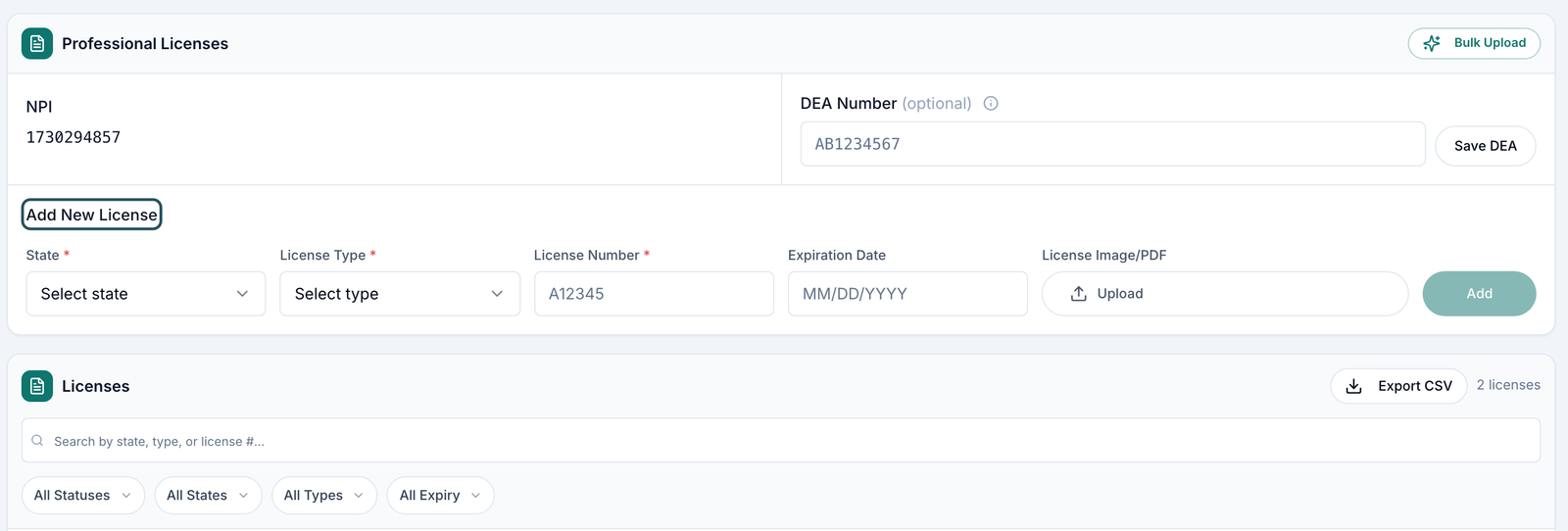
Click Credentials. Check the NPI value, then read the Licenses table: State, Type, License #, Status, Expires. Use the All States filter to confirm coverage for the states this Provider will actually treat.
Capabilities — who and what
Click Capabilities. Preferred Protocols lists every protocol, category, and product in your network; Assigned clients lists your linked Clients. Both need an explicit save — Save Preferred Protocols and Save Assignments — and stay disabled until you change something.
Scheduling — only if they take live visits
Click Scheduling. The card reads Manage availability / Set your availability by selecting specific dates and times. The right panel shows Set Hours for Selected Dates, Provider network Operating Hours with a row per weekday, the two timezone lines Hours shown in your timezone: … and Network timezone: …, and Upcoming Availability. Empty reads No availability set yet. Read both timezone lines before you judge a Provider's hours — they are often different.
Reviewing a licence
Find the pending rows
On the Credentials tab, set the status filter to Pending. The header count reads {n} of {m} licenses.
Look at the document, then approve or reject
Click Verify on the row, or open Update License Status and choose Status: Pending, Verified, Inactive, or Rejected. Rejected makes Rejection Reason * mandatory. Click Save Status.
Do several at once
Tick the row checkboxes. The bulk bar reads {n} license(s) selected with Clear, Reject, and Verify {n}. The bulk dialog warns that the status and reason apply to every selected licence and the provider gets one summary email.
Load a batch from a spreadsheet
Click Bulk Upload — Upload a spreadsheet or paste rows. AI will extract license identifiers and create pending licenses. It accepts CSV, TSV, TXT, XLSX, or XLS, and the paste box expects State,License Type,License Number,Expiration Date. Everything it creates is Pending and still needs review.
Adding a licence yourself
Use the Add New License form on the Credentials tab. Fields in order: State * (placeholder Select state) · License Type * (Select type; options DEA, MD, DO, NP, PA, RN, LPN, LCSW, LMFT, Other) · License Number * (A12345) · Expiration Date (MM/DD/YYYY) · License Image/PDF (button Upload). Click Add. The toast reads License submitted for review — even an admin's own entry starts as Pending.
Statuses you will see here
Account Status (the Providers table)
| Status | What it means | What to do |
|---|---|---|
| Active | Can sign in and work. | Nothing. |
| Pending | Invite sent, account never claimed. | Send magic link from the row menu. Deactivate is hidden for pending rows. |
| Onboarding | Account exists, the onboarding wizard is unfinished. | Send a magic link and ask them to finish it. |
| Inactive | Switched off by an admin. Hidden by the default filter. | Activate from the row menu. |
The filter pill says Inactive but the badge on the row can render Deactive — same state, two words. Onboarding is display-only: filters and counts still use the underlying status.
Licence status
| Status | What it means | What to do |
|---|---|---|
| Pending | Uploaded, waiting for review. Every new licence starts here. | Open Update License Status. |
| Verified | Approved. The row becomes read-only and cannot be edited. | To correct a verified licence, use Update License Status to move it back to Pending or Inactive first, or delete it and add it again. |
| Expiring Soon | Verified, but the expiration date is within 30 days. | Ask for a renewal and update Expiration Date. |
| Expired | Past the expiration date. Computed, never stored. | Update the expiration date — the badge does not clear until you do. |
| Rejected | A reviewer refused it. A rejection reason was required. | The Provider re-submits. |
| Inactive | Retired by an admin. | Nothing. |
The separate All Expiry filter offers Current, Expiring Soon, Expired, and No Expiry. "Expired" therefore appears in two filter groups meaning two different things — an effective status in one, a date bucket in the other.
ScriptSure enrolment states
Read these on /integrations → ScriptSure setup. The table there rolls every state up into three chips — Enrolled, Pending, Not invited — with the precise state on each prescriber's own row.
| State | What it means | What unblocks it |
|---|---|---|
| Not Invited | Never invited. | Send an invite. |
| Blocked | Readiness blockers exist — missing NPI, a non-ASCII name, the practice not initialised, the integration off. | Hover the badge for the list, fix each one, then invite. |
| Invite Sent / Invite Resent | The link is out. | The Provider opens the email. |
| Account Created | A ScriptSure user exists but is not mapped to a prescriber id. | They finish the ScriptSure flow, then you click Check status. |
| Proofing | Identity proofing is in progress. | They complete it. |
| Pending Verification | Mapped, but identity verification has not come back. | Check status. ScriptSure never pushes proofing approvals, so this never clears on its own — an automatic re-poll happens at most once every ten minutes, and only when someone reads the status. |
| Role Update Required | A ScriptSure account with that email exists but is not a prescriber. | Enable Prescriber on that ScriptSure account, or click Send fresh invite. |
| Invite Expired / Invite Revoked | The link lapsed or was pulled. | Send fresh invite — the old URL is never reused. |
| Rejected | ScriptSure or Experian refused identity proofing. | The Provider resolves it with ScriptSure, then send a fresh invite. |
| Verified / Ready | Enrolment complete. | Nothing. |
The rolled-up chips above the ScriptSure table are only three: Enrolled, Pending, Not invited. The backend can also send its own status text, so a row may show wording not listed above — read it literally.
What can go wrong
| What you see | Why | Fix |
|---|---|---|
| The Provider is not in the table | The status filter defaults to Active and Pending. | Tick Inactive in the status pill, or click CLEAR ALL. |
| Their queue is empty but everything looks verified | Patient-state licensure enforcement removes ineligible rows entirely — they are never rendered greyed out. | Add the missing state licence, or review Require patient-state licensure in Settings → Operations. |
| Claim is greyed out on an async visit with no visible reason. | The protocol is unticked on that Provider's Capabilities tab. The explanation — This visit's protocol is not in your Preferred Protocols. — is only in the button's native browser tooltip, so it appears after hovering the disabled button for a second and never as on-screen text. Providers routinely report this as "Claim is broken". | Open the Provider → Capabilities → tick the protocol → Save Preferred Protocols. Tell them to hover a disabled Claim to read the reason next time. |
| Claim blocked: This encounter involves controlled medications and requires a provider with a DEA license. | Controlled medication plus DEA enforcement, with no DEA on file. | Have them submit a DEA licence, then verify it. There is also an Apply for DEA license path inside the charting modal. |
| Availability buttons are all disabled | The network has no timezone or no operating hours. The message names which. | Set them in Settings → Network overview before asking anyone for hours. |
| NPI must be exactly 10 digits / DEA number must be 2 letters followed by 7 digits | Format validation. | Re-enter. A provider-initiated NPI change also needs your approval in Notifications. |
| You cannot find an e-Prescribe badge anywhere on the profile | It does not render for a Provider Network Admin viewing another user. | Check enrolment on /integrations → ScriptSure setup instead. |
| No Capabilities or Scheduling tab | You are looking at a Provider Delegate, not a Provider. | Nothing — delegates have neither by design. |
Log in as user puts you inside the Provider's real account. Everything you do afterwards is attributed to them, not to you, and the sign-in itself is written to the audit log. Use it to reproduce a problem, never to do their clinical work.
Next
Was this helpful?