
Clients
Every client account your network serves: onboard a new client end to end (create, protocols, providers, visit fees, sandbox test, go-live), track status and comments, and add your own columns.

Clients lists every client account your network serves, with your own status tracking and comments. Left menu → Clients. Provider Network Admin; Provider Delegates can read the list but can't change it or open a client.
What you can do here
- Onboard a new client end to end
- Create a client account
- Track a client's status and leave comments
- Add your own column
- Open a client's profile
Onboard a new client end to end
Use this when you sign a new client brand or clinic and need them seeing patients.
Create the client
Click Create client (top right) and invite their first Client Admin. See Create a client account.
Turn on Sandbox mode while you set up
Click the client's name, then Configuration → Sandbox mode. New clients don't start in sandbox mode. With it on, prescriptions and labs are never sent out.
Give them protocols
In the profile, open Available protocols and switch on each protocol, or use Select preset. The client then activates, shows and prices each product on their own Products page.
Choose their providers
Switch to Table view, click the number in Assigned Providers, and tick the providers who serve them (or ASSIGN ALL).
Set visit fees
In the profile, open Account and billing and fill SYNC Visit, ASYNC Visit and Escalation Fee.
Run a sandbox test
Ask the client to place a test order. Your provider finds it in Visits → ASYNC under Sandbox Visits Only, charts it and prescribes. Nothing reaches a pharmacy or lab.
Approve the go-live request
When the client clicks Request go-live, a Go-live request card appears on your Dashboard under Action items. Click Approve.
You'll know it worked when the Go-live request card disappears and Sandbox mode is off in the client's Configuration. The full test checklist is in Go live.
Who can do this: Provider Network Admin of the client's primary network. Sandbox mode, provider assignments and go-live approval are primary-network only.
Create a client account
Use this for a brand or clinic that has no GEN Health account yet.
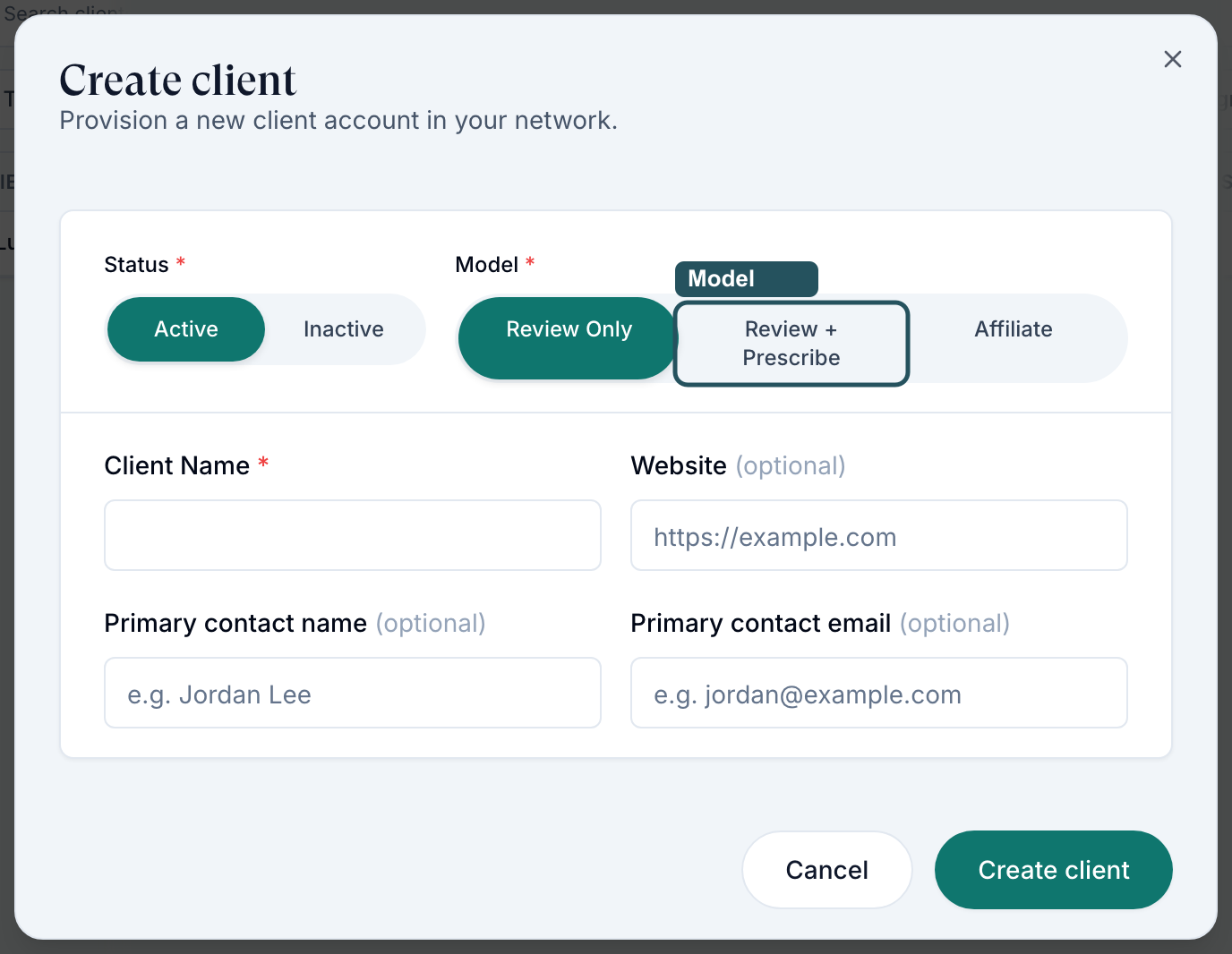
Open Create client
Click Create client in the top right of the list.
Pick status and model
Status: Active or Inactive. Model: Review Only (clearance exams for a clinic; no orders or prescribing), Review + Prescribe (your providers examine and prescribe; the client collects payment) or Affiliate (your network collects payment and pays the pharmacy). Choose carefully: the model decides who is paid.
Name it
Type Client Name. Website, Primary contact name and Primary contact email are optional; the email pre-fills the invite.
Create and invite
Click Create client. On the next screen add the admin's email as Client Admin and click Send Invites, or Skip for now.
You'll know it worked when the toast reads Client created successfully, the client's profile opens, and a new row appears in the list.
Who can do this: Provider Network Admin.
Track a client's status and leave comments
Use this to keep your team's commercial notes in one place.
Set a status
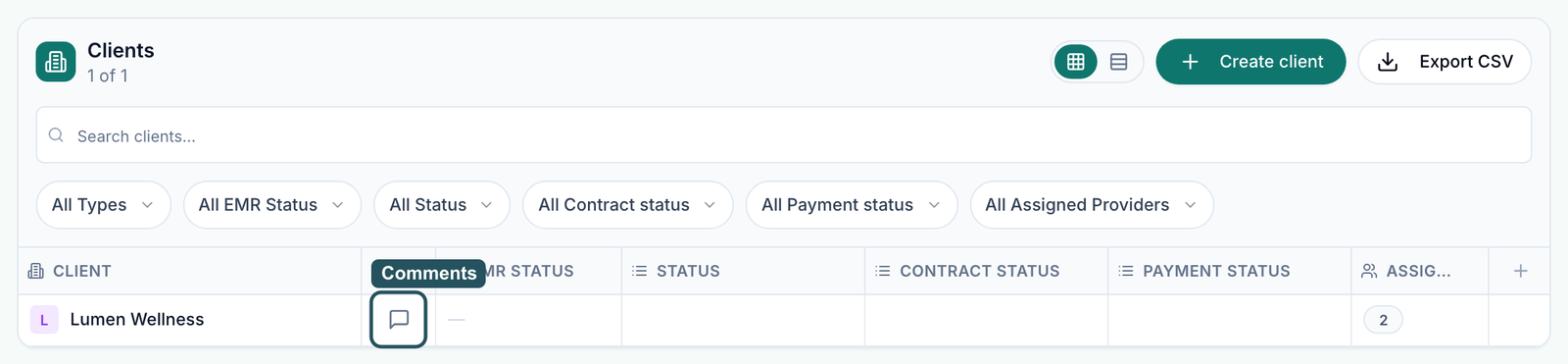
Click the Status, Contract status or Payment status cell and pick an option. Click the icon beside a column name to rename it or edit its options.
Leave a comment
Click the speech-bubble icon next to the client's name, type in Comments for the client, and click Send. Type @ to mention a teammate.
You'll know it worked when the cell shows the new option, or the comment appears in the panel.
Who can do this: Provider Network Admin. Comments are visible to your network only, never to the client.
Add your own column
Use this to track something the default columns don't, such as a launch date or monthly volume.
Open Add column
Click Add column: the last column header in Sheet view, or the button at the top in Table view.
Name it and pick a type
Type the Column name, pick Text, Number, Money, Date or Dropdown, and click Add column.
You'll know it worked when the new column appears at the right with its own filter.
Who can do this: Provider Network Admin. A column's header menu has Hide column and, for your own columns, Delete column.
Open a client's profile
Click the client's name. Everything your network sets for that client (providers, protocols, visit fees, configuration) is there. See Client profile.
What's on this page
| Control | What it does |
|---|---|
| Sheet view / Table view | Spreadsheet or classic table. Your choice is remembered in this browser. |
| All Types | Show Clients, Businesses (read-only rows), or both. |
| EMR Status | Set by GEN Health: Lead, Onboarding, Live or Churned. You can't edit it. |
| Assigned Providers | How many providers serve the client. In Table view, click the number to change them. |
| Right-click a cell | Copy, Clear cell, Remove from Clients. |
What can go wrong
| What you see | Why | Fix |
|---|---|---|
| Clicking a client does nothing | You're a Provider Delegate (only admins open client profiles), or the page hit an error | Ask a Provider Network Admin. If you are one, reload; if it persists, raise a ticket in Support. |
| The same client is listed several times | A known problem with duplicate rows | Don't create the client again. Raise a ticket in Support with the client's name. |
| This client is still finishing setup — try again in a moment. | You edited a row seconds after creating the client | Wait a few seconds and try again. |
| You invited a client admin but no email arrives | The client account is Inactive | Ask GEN Health Support to activate the account, then invite again. |
| You can't become Client Admin of a second brand: your email is already used | One email belongs to one account | Use a separate email per brand, and move between accounts with Log out → Switch Account. |
Questions people ask
A client says the network has to turn things on for them. Is that ours to do?
Yes for protocols, providers, visit fees, sandbox and go-live approval; those live in the client's profile. Product prices, storefront visibility and payment processor setup are the client's.
How do I add a Client Admin or Client Staff user under a client later?
Open the client's profile, then Client View → Dashboard → Users → Add. Their own Client Admin can do the same.
Does Remove from Clients delete the client?
No. It removes your tracking fields and comments for that row. The client account and its patients stay.
A client has two accounts. Can they be merged?
Not from this page. Raise a ticket in Support naming both accounts.
What does "live" mean for a client?
Sandbox mode is off, so prescriptions and labs go to real pharmacies and labs. Your own Status column (for example Live Seeing Patients) is only a label for your team.
Related
Was this helpful?