
Settings — Security
Two switches: require 2-step verification (MFA) for your team, for your patients, or both, and what to do when someone can't get their code.
Settings — Security turns on 2-step verification (MFA) for your team, your patients, or both, with one switch each. Left menu → Settings → Security. Client Admin only. Every client account has it.
What you can do here
- Require 2-step verification for your team
- Require 2-step verification for patients
- Help someone who can't get their code
Require 2-step verification for your team
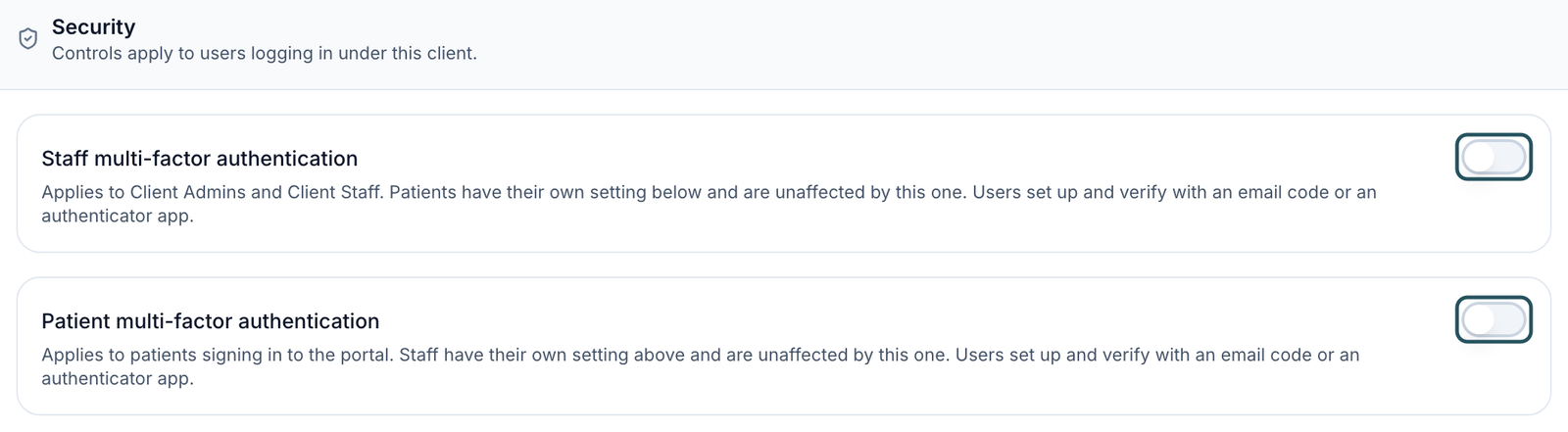
Use this when every Client Admin and Client Staff member should confirm a code when they sign in. Patients are not affected.
Turn on the switch
Tell your team first, then click the switch beside Staff multi-factor authentication. It saves at once.
Each person sets it up
At their next sign-in, each person sees Set up 2-step verification and picks Email code (a 6-digit code to their email) or Authenticator app (Google Authenticator, 1Password and similar). After that, each new sign-in asks for a code.
You'll know it worked when the toast reads Security settings updated and a teammate signing in sees Set up 2-step verification.
Who can do this: Client Admin. Turn it off with the same switch.
Require 2-step verification for patients
Use this when patients must confirm a code to sign in to your portal. It doesn't change what your team does.
Plan the change
Every patient is stopped at their next sign-in until they set it up. Tell patients before you turn it on, especially on a live brand.
Turn on the switch
Click the switch beside Patient multi-factor authentication.
You'll know it worked when the toast reads Security settings updated and a test patient sees Set up 2-step verification after signing in.
Who can do this: Client Admin.
If a toast reads Unable to update security settings, the change didn't save and the switch goes back. Reload the page and try again.
Help someone who can't get their code
Use this when a teammate or patient is stuck on Verify your sign-in.
Try the other method
On the verification screen they can click Use email code instead or Choose a different method, then Send code. Ask them to check spam and use the newest code.
Still stuck
If they can't reach their email either, raise a ticket in Support to GEN Health with their name and email. You can't reset another person's method from this page.
You'll know it worked when the toast reads 2-step verification is set up, or the app loads after Verify.
Who can do this: The person signing in; GEN Health support for resets.
What's on this page
| Looking for | Where it is |
|---|---|
| Your own password and sign-in methods | Click your name at the bottom of the left menu: Update Your Password and Sign-In Methods. |
| Who can sign in, and removing someone's access | Dashboard → Users. |
| What Client Staff can do | Settings — Staff permissions. |
| Custom domain and SSL certificate | Settings — Branding. |
What can go wrong
| What you see | Why | Fix |
|---|---|---|
| Someone never receives their sign-in code | The email was filtered, or they're using an old code | Check spam, click Send code once and use the newest code. Still nothing: raise a ticket in Support. |
| A code is rejected | Authenticator codes change every 30 seconds; email codes expire | Enter a fresh code straight away. |
| Patients suddenly ask why they need a code | Patient multi-factor authentication is on | Leave it on and point them to Email code, or turn it off. |
| We could not check verification | The app couldn't read your security settings | Click Try again. If it keeps happening, raise a ticket in Support. |
Questions people ask
Can we require 2FA for staff only, not patients?
Yes. Turn on Staff multi-factor authentication and leave Patient multi-factor authentication off.
Is there an automatic sign-out for shared computers?
No; client accounts have no inactivity sign-out. In a clinic: click Log out at the bottom of the left menu at the end of each shift on front-desk computers.
I never received the sign-in code for one of our accounts. What now?
Use Use email code instead or Choose a different method. If that fails, raise a ticket in Support; GEN Health can reset it.
If we turn on MFA, does it apply to our patients as well as staff?
Only if you turn on Patient multi-factor authentication. The two switches are independent; your provider network's providers follow the network's own setting.
Related
Was this helpful?