
Your team
Invite teammates, make someone a Client Admin or Client Staff, resend a magic link, deactivate or restore access, and choose what Client Staff can do.
Invite teammates, change their role, resend sign-in links and remove access. Left menu → Dashboard → the Users card. Client Admin.
What you can do here
- Invite a teammate
- Make someone a Client Admin, or Client Staff
- Resend a sign-in link (magic link)
- Remove or restore access
- Set the primary billing contact
- Choose what Client Staff can do
Invite a teammate
Use this to give a new person their own login.
Click Add
Top right of the Users card. Add new user opens.
Pick the role
Client Admin (Primary administrator for your clinic) or Client Staff (Support staff and medical assistants).
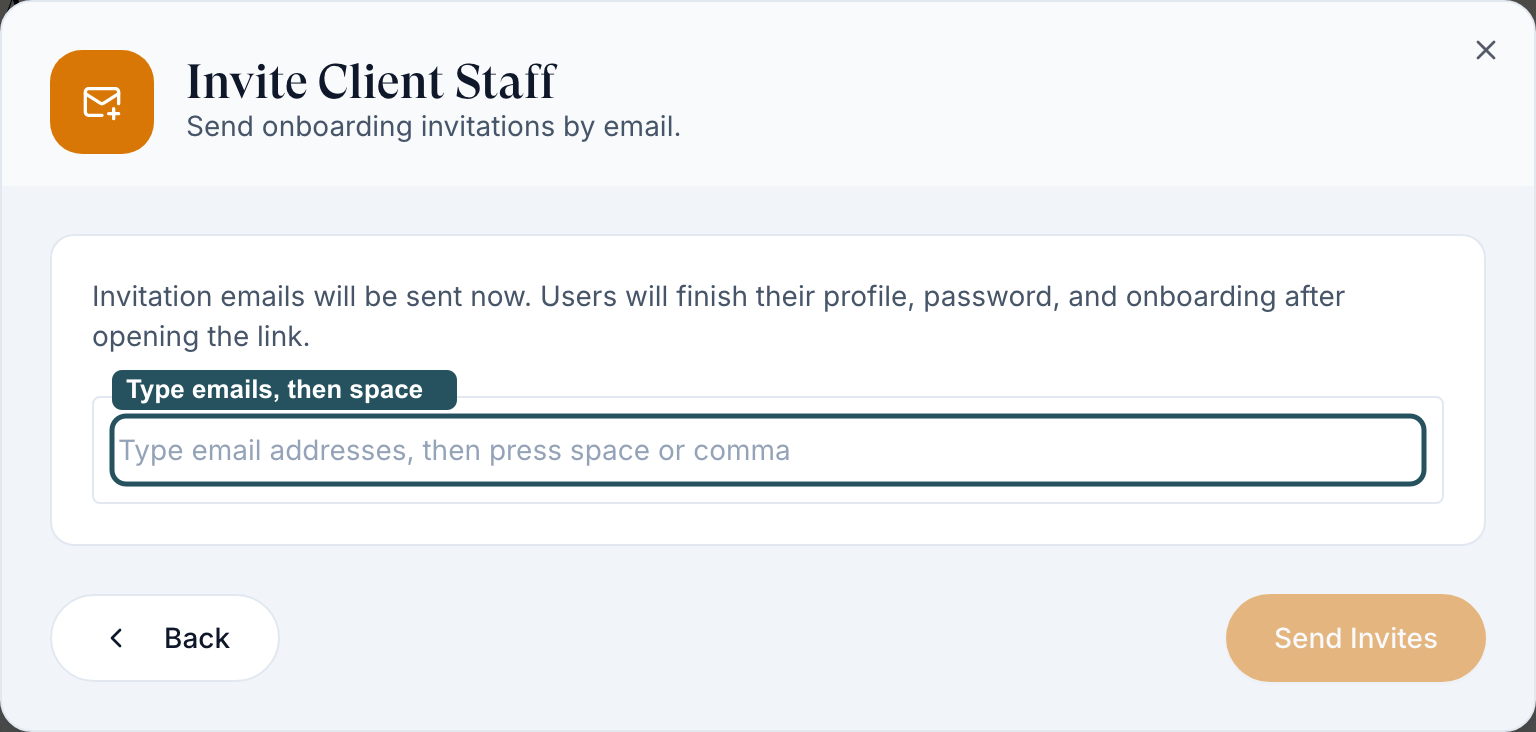
Type their email addresses
Press space or comma after each one. You can invite several people with the same role at once.
Click Send Invites
The emails go out straight away (Invitation emails will be sent now.). Click Done.
You'll know it worked when the toast reads Invitation sent. and the person appears with status Pending. They turn Active once they finish account setup.
Who can do this: Client Admin. You can't invite providers; your provider network adds them.
A Client Admin can change billing, settings and your team. Start people as Client Staff and add permissions as they need them.
Make someone a Client Admin, or Client Staff
Use this when someone's job changes.
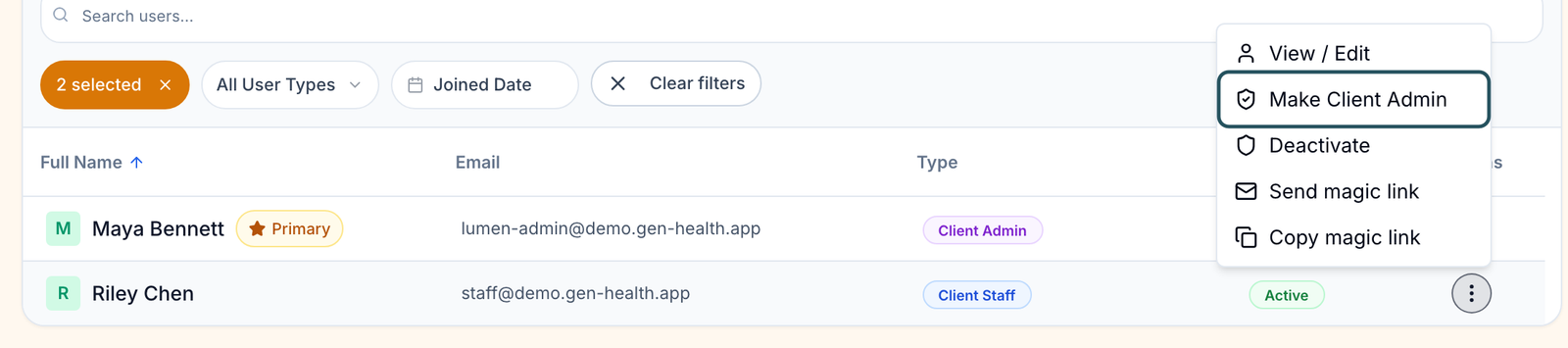
Open the row menu
Click ⋮ at the end of their row.
Pick the new role
Make Client Admin or Change to Client Staff.
Confirm
The dialog says what they gain or lose. Click Make Client Admin (or Change to Client Staff).
You'll know it worked when the toast reads [name] is now Client Admin (or Client Staff) and the Type column changes.
Who can do this: Client Admin. Not on your own row, and not on your last active Client Admin.
Resend a sign-in link (magic link)
Use this when an invite never arrived, a link expired, or someone is locked out.
Open the row menu
Click ⋮ on their row.
Send or copy the link
Send magic link emails a one-click sign-in link. Copy magic link copies it so you can send it another way.
You'll know it worked when the toast reads Magic link sent to their email, or Magic link copied to clipboard.
Who can do this: Client Admin. A copied link signs in as that person: never paste it into a shared chat or ticket.
Remove or restore access
Use this when someone leaves, or comes back.
Deactivate
⋮ → Deactivate, then Confirm. They lose access; their history stays. For an invite nobody accepted, Delete removes it instead.
Restore
In the status filter, tick Inactive. Then ⋮ → Activate on their row.
You'll know it worked when the toast reads User status updated to deactive and the row shows Deactive (or Active again).
Who can do this: Client Admin. Someone who has signed in can't be deleted, only deactivated.
Set the primary billing contact
Pick the person
On a Client Admin's row, ⋮ → Set as primary contact.
You'll know it worked when the Primary badge moves to their name.
Who can do this: Client Admin, for Client Admins only. It's also on Settings — Account and billing.
Choose what Client Staff can do
Use this to give staff refunds, booking or promo codes without making them admins.
Open Staff permissions
Left menu → Settings → Staff permissions.
Tick and save
Tick what Client Staff may do, then Save permissions. It applies to every Client Staff member.
You'll know it worked when your ticks are still there after you reload. See Settings — Staff permissions.
Who can do this: Client Admin.
| What | Client Admin | Client Staff |
|---|---|---|
| Patients, Messages, Orders, Prescriptions, Support | Yes | Yes |
| Products, Labs, Forms, Formulary, Visit Options | Build and edit | View, send to patients, review form submissions |
| Billing, Reports, Settings, this Users card | Yes | No (Settings: their own notifications) |
| Mark orders paid, release held labs, email patients from Orders | Yes | No |
| Refunds, payment requests, promo codes, marketing, subscriptions, booking visits | Yes | Only when ticked in Staff permissions |
What can go wrong
| What you see | Why | Fix |
|---|---|---|
| The invite never arrived | Spam filter, or a typo in the address | Check the email on their row, then Send magic link. |
| Unable to send magic link | Known problem | Copy magic link and send it yourself, or have them enter their email on the sign-in page. |
| No Make Client Admin or Change to Client Staff | It's your own row, or the last active Client Admin | Ask another Client Admin, or add one first. |
| A teammate can't find a button you have | They're Client Staff | Tick it in Staff permissions, or make them a Client Admin. |
| Someone's login email must change | Emails can't be edited here | Invite the new address, then deactivate the old account. |
Questions people ask
How do I get back a team member I archived?
Tick Inactive in the status filter, then ⋮ → Activate.
Can you downgrade a user to Client Staff?
You can: ⋮ → Change to Client Staff.
How do we let a staff user create promo codes?
Settings → Staff permissions → tick Manage coupons → Save permissions.
Can a Client Staff user have their own availability and appointment calendar?
No. Only your network's providers have availability. Staff can reschedule visits, and book them with the Create visits permission.
Can we add a new user with all access?
Yes: Add → Client Admin.
Related
Was this helpful?