Forms, consents, and public links
Build the intake and consent forms patients complete, decide who has to fill them in, and share one as a public link.
/forms is where a Client Admin builds the intake questions and consent forms patients fill in, and where your team reviews the answers.
Questions people ask about this page
How do I actually build a form from nothing?
Click Add at the top right of the Intake Forms card, then Create it on your own. The builder opens full screen. Add each question with Add Question, then Save Draft or Publish Form. Full walkthrough below.
What is the difference between an intake and a consent?
An intake asks health questions. A consent asks the patient to agree to something and can collect a signature. They live on separate tabs: Patient Intakes and Patient Consents. The builder is identical; only the tab you start from decides which list the form joins.
I saved my form but no patient ever sees it. Why?
Two separate things must be true. First, the form must not be a Draft — a draft never reaches a patient. Use the Status switch on the row, or click Publish Form in the builder. Second, the form must be targeted at someone: open the row menu, click Manage Targeting, and choose Require for ALL patients or pick the products it applies to. An active form with no targeting is required by nobody.
Can my Client Staff edit forms?
No. For Client Staff the Add button and the whole Actions column are not rendered and Status becomes a read-only badge, so there is no way into the builder. Staff do get the whole Submissions tab, including Queue prescription.
What does a public link do, and is it safe to leave on?
Enable Public Link gives the form a web address anyone can open without an account. Submissions are matched to a patient by the email address typed into the form: a new email creates a patient, a known email attaches to the existing one, so you do not get duplicates. The link keeps working until you click Disable Public Link — it has no expiry date.
Do I have to write the clinical questions myself?
No. Your provider network — the medical group whose licensed providers review your patients — supplies its own required forms, and those run before yours. The empty state says so: "Patient intake forms apply to patients in this client after provider-network and practice intake requirements."
Where to find it
Left menu → Forms. Direct link: /forms. Visible to: Client Admin (full control) and Client Staff (read-only, plus the Submissions tab). This page stays available on every client model, including Review-only clients that lose Products and Formulary.
The heading is Forms. Under it, a Client Admin reads "Create and manage patient forms, consents, and submissions." A Client Staff user reads "Review client-owned forms and patient submissions, request follow-up forms, and send product offers. Form configuration remains read-only."
What is on this page
| What you see | What it does |
|---|---|
| Patient Intakes tab | Your health-question forms. The number beside the label is how many exist. |
| Patient Consents tab | Your agreement forms. Same table, same builder. |
| Submissions tab | Answers waiting for your team, plus public forms someone started and never finished. |
| Add | Opens the Create Form dialog. Client Admin only. |
| Export CSV | Downloads the rows currently shown in the table. |
Search forms... | Filters by form name. |
| Four filters | All Statuses (Active / Inactive / Draft) · Public link (Public link on / Public link off) · Products (All patients / Product assigned / Unassigned) · Questions (Has questions / No questions). Clear filters resets them. |
| Status column | A switch for active/inactive, or the badge Draft. |
| Form Name column | Name and description, plus the badges Public link enabled and Storefront. |
| Questions column | Reads "6 questions". Click it to open the builder. |
| Product column | Who the form is required for. An untargeted form reads Click to assign for a Client Admin and No products selected for Client Staff, who cannot change it. Click the cell to open Manage Targeting. |
| Last Updated column | Click it to open the Change History dialog. |
| Actions column | The row menu. Not rendered at all for Client Staff. |
How to build an intake form from scratch
Open the page
In the left menu, click Forms. The Patient Intakes tab opens first, showing the Intake Forms card.
Start the form
Click Add at the top right of the card. The Create Form dialog opens and asks "Do you want to upload a PDF or create it on your own?"
Choose how to start
Click Create it on your own ("Start from a blank form and build it section by section."). The builder opens with the title Create Intake Form. The other card, Upload a PDF, is covered further down.
Name the form
Click the heading New Intake Form. It turns into a text box. Type the name your team will recognise, for example Weight programme intake, then press Enter. Click Click to add description... underneath if you want a subtitle.
Add your first question
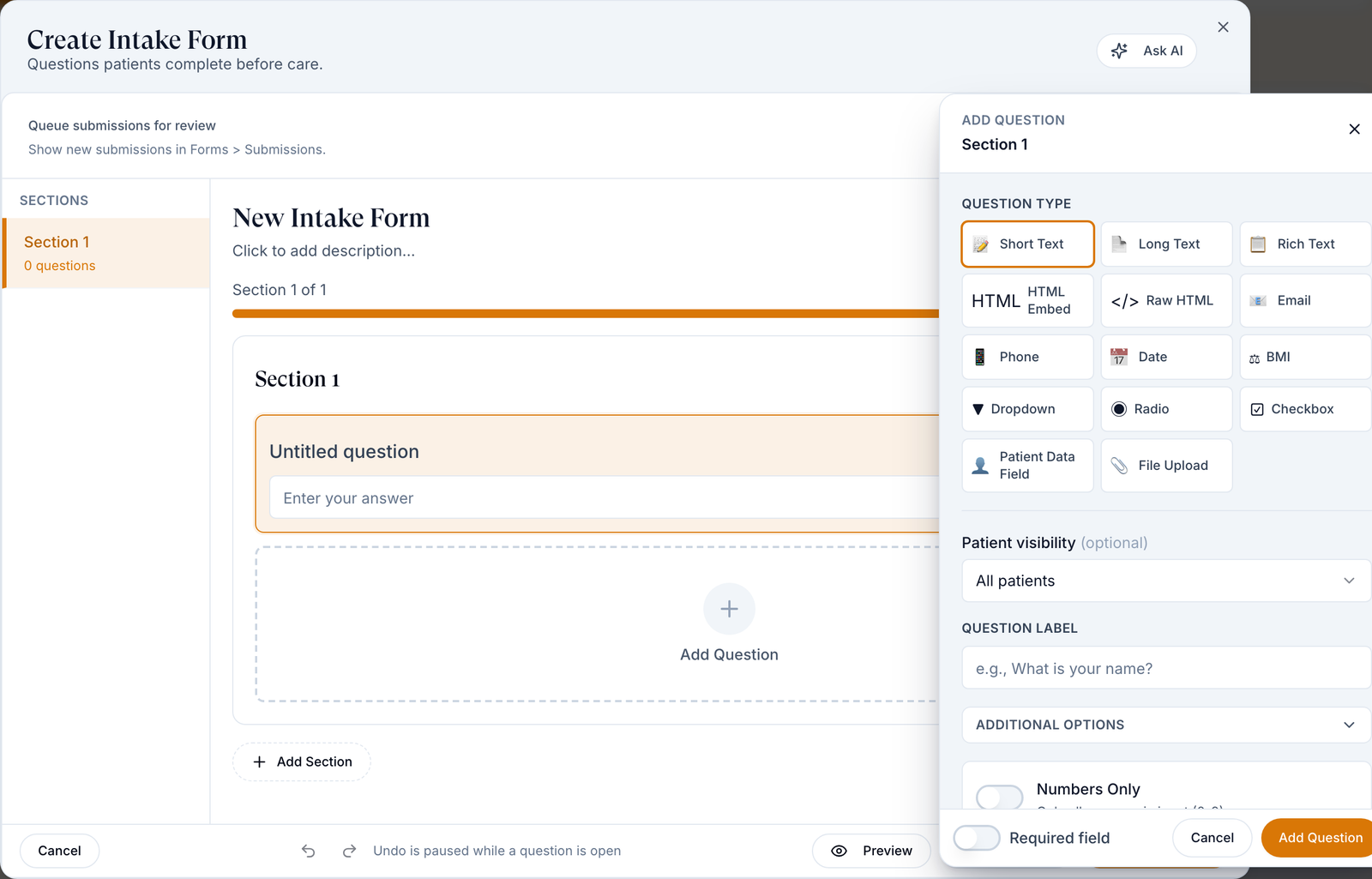
Click Add Question. The question editor opens on the right, headed ADD QUESTION.
Pick a type
Under QUESTION TYPE, click Short Text. The grid collapses to the type you chose plus a Change button. Every type is listed in Every question type below.
Write the question
In QUESTION LABEL (placeholder "e.g., What is your name?") type the question exactly as the patient should read it: What is your main health goal?
Make it required
At the bottom of the editor, switch on Required field. The question then shows a red asterisk on the form.
Save the question
Click Add Question at the bottom right of the editor. The panel closes and the question appears on the form.
Add a multiple-choice question
Click Add Question again, choose Dropdown, and type the label. A Response Options list appears. Type each choice into Add option... and press Enter after each one. Click Add Question to save.
Add a date question
Click Add Question a third time, choose Date, type the label, then Add Question. Date questions have no placeholder — the app draws a date picker.
Reorder, edit, or delete
Hover a question card. Three icon buttons appear in its top-right corner: Reorder question (the grip — drag it up or down), Edit question (the pencil, which reopens the editor headed EDIT QUESTION with a Update Question button), and Delete question (the cross).
Split a long form into sections
Click Add Section to start a second page of questions. Sections are listed in the SECTIONS rail on the left, and the counter above the questions reads "Section 1 of 2".
Preview it
Click Preview in the footer to see the form the way a patient will.
Save, then publish
Click Save Draft to keep working on it later. The message reads Intake form saved, and the row appears in your list with a Draft badge that no patient can reach. Click Publish Form when it is finished; the message reads Intake form published and the row's Status switch is on. If the row does not appear, clear the status filter — the list defaults to whatever you filtered by last time.
Tell the app who has to complete it
Back in the list, open the row's Actions menu and click Manage Targeting. See How to decide who has to fill a form in below. Publishing without targeting means nobody is asked for it.
Undo works while no question editor is open: ⌘+Z, redo with ⌘+⇧+Z, save with ⌘+S. While a question is open the footer says "Undo is paused while a question is open".
Every question type
These are the 14 tiles under QUESTION TYPE, in the order they appear.
| Type | What the patient gets |
|---|---|
| Short Text | One line of free text. |
| Long Text | A multi-line box for a paragraph. |
| Rich Text | A block of formatted text you write — for a consent body. Add Require Signature or Require Acknowledgment to make the patient sign or type their name. |
| HTML Embed | An embedded widget or page. Fields: Embed Title, Embed Code or URL, Display Height. |
| Raw HTML | Your own HTML, CSS, and JavaScript block. It can be generated for you from a Prompt to HTML description. |
| An email box that validates the format. | |
| Phone | A phone-number box. |
| Date | A date picker. |
| BMI | Height and weight inputs that calculate BMI. Show BMI visual turns the chart on or off. |
| Dropdown | A pick-one list. You supply the Response Options. |
| Radio | Pick one, all choices visible at once. |
| Checkbox | Pick any number of choices. |
| Patient Data Field | An answer that writes straight onto the patient's profile. "Saves the answer to the patient profile when the form is submitted." |
| File Upload | A photo or document upload. Allow PDF uploads controls whether PDFs are accepted. |
Rich Text, HTML Embed, and Raw HTML are display blocks. The editor says so: "Display blocks cannot be required." There is nothing for the patient to answer, so no Required field switch appears.
Every setting in the question editor
| Setting | What it controls | Shown for |
|---|---|---|
| QUESTION TYPE | Which of the 14 types this question is. Changing it keeps the label. | All |
| QUESTION LABEL | The question text the patient reads. | All |
| Placeholder | Grey hint text inside the empty box. Under Additional Options. | Text-entry types |
| Help Text | A line of guidance under the question. Under Additional Options. | All |
| Required field | The patient cannot submit without answering. | All except display blocks |
| Numbers Only | "Only allow numeric input (0-9)". | Short Text |
| Exact Character Length (Optional) | Forces a fixed length — "9 for DEA, 10 for NPI". | Short Text |
Response Options / Add option... | The choices in a list. Removing one asks Remove "{option}"? and, if follow-ups hang off it, "What should happen to the follow-up questions?" | Dropdown, Radio, Checkbox |
| Display Rule | Turns a question into a follow-up: "Show this follow-up when the answer" is / is not a chosen option. | Follow-up questions |
| Disqualifiers | "Block completion when the answer matches this text rule." Use it to stop an unsuitable patient finishing the form. | Most answerable types |
| Profile field | Which patient-record field the answer is written to. | Patient Data Field |
| Allow PDF uploads | Accept PDFs as well as images. | File Upload |
| Require Signature | "User will be asked to draw their signature". | Rich Text / consent blocks |
| Require Acknowledgment | "User will type their full name to acknowledge". | Rich Text / consent blocks |
| Show BMI visual | "Turn off to display only the calculated BMI value." | BMI |
Settings that live on the form, not on a question
| Setting | Where | What it controls |
|---|---|---|
| Queue submissions for review | Top of the builder | "Show new submissions in Forms > Submissions." Off means the answers only land on the patient record. |
| Ask AI | Top right of the builder | Opens the AI Form Assistant. Its own note is honest: "Changes are applied directly to the current form draft." Read every edit before publishing. |
| Form ID chip | Top right, on a saved form | Copies the form's document ID so you can embed the form on the patient dashboard. |
| Show in Storefront / Hide from Storefront | Row menu | Whether patients can start the form themselves. Adds the Storefront badge. |
| Manage Targeting | Row menu, or the Product cell | Who must complete the form. Next section. |
| Collect Address on Public Link / Skip Address on Public Link | Row menu, once the public link is on | Whether the public form asks for a mailing address. |
| Set to Draft · Deactivate · Activate · Duplicate · Delete | Row menu | Status changes, a copy to start from, and removal. Delete asks for confirmation in a plain browser box reading Delete "{form name}"? — not an in-app dialog — and there is no undo. Past submissions survive a delete. The menu adapts to the row: a draft offers Edit, Manage Targeting, Duplicate, Show in Storefront, Enable Public Link, Activate, Delete — no Set to Draft, because it already is one. |
How to decide who has to fill a form in
Open targeting
On the form's row, open the Actions menu and click Manage Targeting. The dialog is titled Manage Targeting: {form name}.
Choose the scope
Pick Require for ALL patients — every patient entering this client completes it — or Require for specific products or categories.
Pick the products
With the second option chosen, switch between the Products and Categories pills, search, and tick what applies. The picker filters include Selected, Active, Inactive, Client-owned, and Network, so you can target your network's catalogue items as well as your own.
Check it from the product side
Open Products, open a product, and look at its Forms tab. Every form that applies to that product is listed there. If a product shows "No required forms apply to this product.", your targeting did not reach it.
How to share a form as a public link
A public link lets somebody fill the form in before they have an account — for an advert, a landing page, or a referral partner.
Turn the link on
On the form's row, open the Actions menu and click Enable Public Link. A message confirms Public link enabled and the row gains the badge Public link enabled.
Decide about the address
Two more items appear in the same menu: Collect Address on Public Link and Skip Address on Public Link. Collect the address if the product ships.
Copy it
Click Copy Public Link. The message reads Public link copied. The address uses your custom domain when you have one, otherwise the platform address.
Test it signed out
Click Open Public Link, or paste the link into a private browser window. You should see the form's own page, headed with the form name.
Turn it off when the campaign ends
Click Disable Public Link. The message reads Public link disabled and the old address stops working.
A public link never expires by itself. Old adverts keep sending people through it months later. Give each campaign its own duplicated form and its own link, and disable the link when the campaign stops.
How to turn an existing PDF into a form
Click Add, then Upload a PDF ("Generate a draft intake form from an existing PDF or image."). The dialog is Upload PDF — Intake Form: type a Form Title (its placeholder is Generated Form, which is also the name you get if you leave it blank) and pick your File with Choose PDF or Image. The hint reads "PDF and image files up to 10MB." Click Generate Form; the builder then opens with the fields it recognised already in place.
Read every generated question before you publish. The importer guesses question types and sometimes invents a field that was not on the PDF.
The Submissions tab
Both Client Admin and Client Staff can use this tab. It holds two cards.
| Card | What it lists | What you can do |
|---|---|---|
| Patient submissions "Review patient answers, then queue a prescription for provider approval." | Completed forms that had Queue submissions for review switched on. Columns Patient, Form, Selected products, Submitted, Status, Actions. | Review (then View answers), Request forms, Queue prescription, No action. Clicking a product badge sends that offer to the patient. |
| In-progress form starts "People who began a public form and have not submitted it yet. Answers save as they type." | Public-link forms someone opened and abandoned. Columns Started by, Phone, Form, Progress, Started, Last activity, Status. | Read only — use it to follow up by phone. |
Statuses you will see here
| Status | Where | What it means | What to do |
|---|---|---|---|
| Draft | Forms table, Status column | Saved but never published. No patient can reach it. | Open it and click Publish Form, or use Activate on the row. |
| Active | Forms table, Status switch on | Live. Patients it is targeted at must complete it. | Nothing. |
| Inactive | Forms table, Status switch off | Retired. Old submissions stay on the patient records. | Use Activate to bring it back. |
| Public link enabled | Badge on Form Name | Anyone with the address can complete this form without signing in. | Only leave it on while a campaign is running. |
| Storefront | Badge on Form Name | Patients can start this form themselves from your storefront. | Nothing. |
| Pending | Submissions → Patient submissions | Answers are in and queued for your team. | Click Review. |
| Reviewed | Submissions | Someone on your team opened and acknowledged the answers. | Request forms, Queue prescription, or No action. |
| Actioned | Submissions | Final. A prescription draft or other action was taken. | Nothing. |
| Dismissed | Submissions | Final. Somebody chose No action. | Nothing. |
| Prescription queued | Submissions, in place of the buttons | A prescription draft is already waiting for a provider. | Track it on Prescriptions. |
| In progress | Submissions → In-progress form starts | Someone started a public form and stopped. Their answers are saved as they typed. | Call them, or leave it. |
Draft means different things in different places. Here it means "this form was never published". On the Submissions tab, a half-finished public form is labelled In progress, not Draft.
What can go wrong
| What you see | Why | Fix |
|---|---|---|
| The form is Active but no patient is ever asked for it. | It has no targeting. The Product column is empty. | Row menu → Manage Targeting → Require for ALL patients, or select the products. |
| You published a form and patients suddenly hit an extra step at checkout. | You chose Require for ALL patients. Every patient in the client now has to finish it. | Switch the targeting to the specific products, or set the form to Inactive while you decide. |
| The row shows 0 questions. | The form was created but nothing was added, or a draft was saved before the first question. | Filter by Questions → No questions to find them all, then open and finish or delete each one. |
| Add is missing and the rows have no Actions column. | You are signed in as Client Staff. That column is not rendered for staff at all. | Ask a Client Admin. Staff still get the whole Submissions tab. |
| "No forms found. Try adjusting your search terms" even though you have forms — this is common right after you save a draft. | The filter bar remembers your last visit. A status filter set to Active hides every Draft and Inactive form. | Clear the status filter (the small cross beside it), or click Clear filters to reset the whole bar. |
| A patient's answers are not in the Submissions tab. | The form does not have Queue submissions for review switched on. That is the only thing that puts a submission in this queue. | Open the builder and switch it on. Past submissions are still on the patient's Forms tab. |
| The builder's ID tooltip tells you to open Settings > Patient Experience. | The tooltip uses the old name for that settings card. | The card is called Portal experience on the Settings page. |
| You clicked Cancel in the builder and lost everything. | Cancel discards unsaved work; there is no autosave for a form you never saved. | Click Save Draft early and often, or press ⌘+S. |
Next
Was this helpful?