
Dashboard
Clear your Action items and notifications, fix a Payment needed alert or the red platform fee banner, and work through your setup checklist.
The page you land on after sign-in: your counts, what needs your attention, your setup checklist and your team. Left menu → Dashboard. Client Admin and Client Staff; staff see the counts and Action items only.
What you can do here
- Clear what needs your attention (alerts and notifications)
- Fix a Payment needed alert
- Work through your setup checklist
- Fix the red platform fee banner
Clear what needs your attention (alerts and notifications)
Use this first thing every day. Action items shows only when something is waiting.
Read Action items
Each card is one kind of alert: Notifications (for example 8 notifications need your attention), Message from your network, Payment needed, or Enable NMI Customer Vault. With several cards, See later or the arrows move to the next.
Click Open notifications
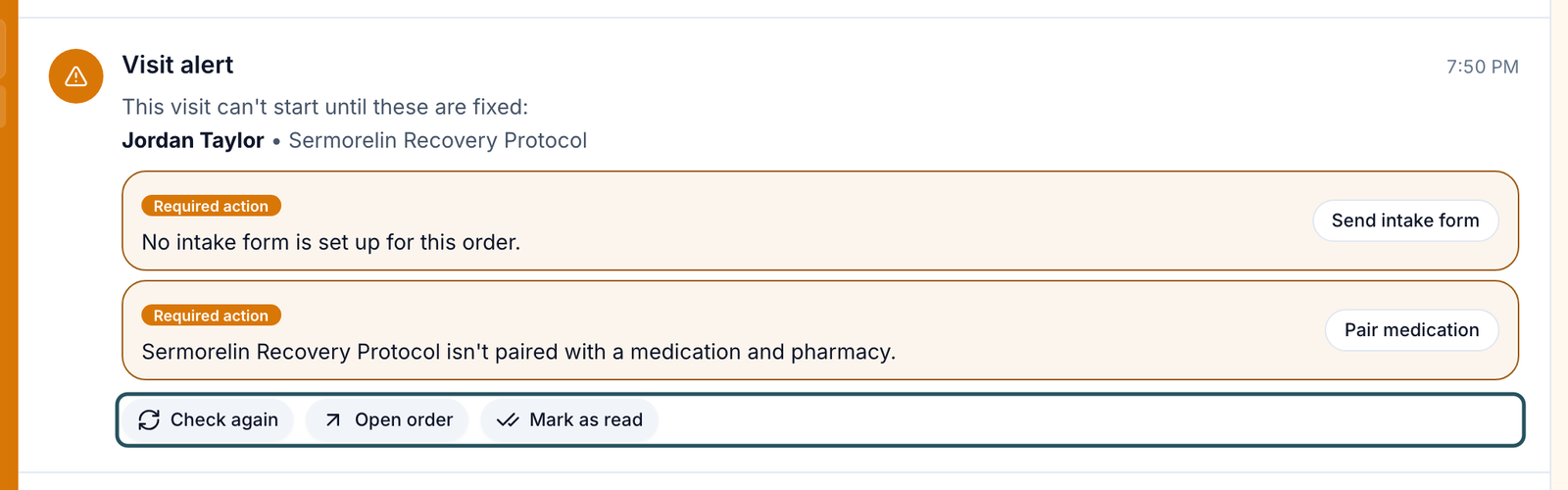
Messages opens on Notifications. Each Visit alert starts This visit can't start until these are fixed: and offers a fix, such as Send intake form or Pair medication.
Fix it, then click Check again
Open order opens the order. Mark as read files the alert, but the visit stays on hold until Check again clears it.
You'll know it worked when the alert reads Resolved. This visit can go to a provider. and the count on the Dashboard drops.
Who can do this: Client Admin and Client Staff; each sees the alerts sent to them. Some fixes, such as pairing a medication, need a Client Admin.
Fix a Payment needed alert
Use this when a pharmacy couldn't charge your account for an order. It's your pharmacy payment method, not the patient's card.
Click View
On the Payment needed card. The dialog names the patient, Order and Pharmacy.
Click Fix payment
The OnlyScripts payment page opens in a new tab. Save a working card there.
You'll know it worked when the card leaves Action items and the order moves on. Dismiss only hides the alert.
Who can do this: Client Admin and Client Staff.
Work through your setup checklist
Use this while you set up. Set up your account appears only when GEN Health or your network has written steps for you.
Open a step
Click its title to read What to do, any Steps, Details to fill in and Resources.
Mark it done
Click Mark as done, or the circle on the row. It's marked done for your whole team.
You'll know it worked when the count rises (for example 3/8 · 38%). At 100% the card reads You are all set; Dismiss removes it for everyone.
Who can do this: Client Admin. The checklist is a reminder: ticking a step doesn't switch anything on. See Go live.
Fix the red platform fee banner
Use this when a red banner reads Your latest platform fee failed to process. It's your GEN Health bill, with a deadline before suspension.
You'll know it worked when the banner goes away after the fee is collected.
Who can do this: Client Admin. Client Staff never see this banner.
What's on this page
| Control | What it does |
|---|---|
| Total Patients | Every patient record, test accounts included. Reports leaves test data out, so its number can differ. |
| Platform Users (staff: Team Members) | Your Client Admins and Client Staff. |
| Users | Your team: invite, change roles, resend sign-in links. See Your team. |
In a clinic: there's no list of today's appointments here. Use Visits → History and filter by Status.
What can go wrong
| What you see | Why | Fix |
|---|---|---|
| No Action items | Nothing is waiting on you | Nothing to do. |
| Notifications couldn't load | The alert list didn't load | Click Retry. |
| Payment needed for a processor you don't use | It's the pharmacy's charge to your account, not your patient checkout | Click View → Fix payment. |
| You updated the card, but the red banner stays | It clears when the fee is collected, not when the card is saved | Check Settings → Account and billing → Payments. If it's still failed, contact GEN Health Support. |
| No Set up your account card | No steps were written for you, or someone dismissed it | Use Go live. |
Questions people ask
The Dashboard warns NMI Customer Vault is not enabled. What must we enable?
Turn on Customer Vault in your NMI merchant account; How to enable Customer Vault opens NMI's help page. Until then, patients re-enter their card for refills and subscriptions.
What does the order alert on a patient mean? Is her card not working?
A Payment needed alert is about your pharmacy payment method, not the patient's card. See Fix a Payment needed alert.
After a Payment needed alert, do we pay for test orders?
Yes. Any order sent to a pharmacy is charged for the medication, test or not. Sandbox orders aren't sent.
Why is my patient count different from Reports?
Total Patients counts test accounts; Reports doesn't.
Related
Was this helpful?