Finish account setup
The wizard you meet at first sign-in: every step, every field, and why finishing it is only the start of setup.
The account-setup wizard is the full-screen sequence that opens the first time you sign in from your invitation email, and you cannot reach the app until you finish it.
Finishing this wizard gates nothing else. It collects your name, business details, brand, and three signatures — roughly a fifth of what a working client needs — then hands you a workspace with no forms, no products, no labs, no team, and, unless you connected one, no real payment processor. Nothing warns you. Treat Setup Complete as the start of Getting Started, not the end of setup.
Questions people ask about this page
How do I get to the wizard? It is not in the menu.
It finds you. Open the invitation email, set your password, and it opens over whatever page you land on. To reopen it later, see Where to find it below — every field stays filled in and can be changed.
Why does my colleague see fewer steps than I did?
Workspace-level steps are asked once. The first Client Admin gets the long wizard; every admin after them gets just Account and Policies, as do Client Staff. The step dots say which you are in: Step 1 of 9, of 5, or of 2.
Can I skip it and come back?
A Client Admin can close it and land in the app half-configured; it reopens every sign-in until you sign on Policies. Client Staff and provider-side roles cannot dismiss it. The other way out is the red Log out link, which asks Confirm Logout.
I finished setup. Why can patients not buy anything?
The wizard creates no products, forms, or labs, and Payouts lets you leave with I’ll do this later. Work through Getting Started in order. Check /products first: rows reading Needs payment setup mean no real processor is connected.
What am I actually agreeing to on the last step?
Three agreements, listed in full below. Read the stored record later at Settings → Account and billing → View agreements.
My wizard has a Locations step and no Billing step. Is that wrong?
No — you are on the Review Only client model, which runs a different five-step wizard. See Review-only clients and clearance defaults; a lot of the Getting Started path does not apply to you.
Where to find it
It opens by itself over any route on first sign-in. To reopen: left menu → your avatar (Open account settings) → dialog Edit Account Information → card Onboarding (Review your setup from the beginning. Existing information stays filled in and can be updated.) → Review onboarding. Visible to: every role, with a different step list each.
What is on this page
| What you see | What it does |
|---|---|
| Header Client Admin Setup — Finish setup in a few quick steps and enter your client workspace. | The shell; Client Staff see Client Staff Setup. Screen readers announce it as Complete Your Account Setup. |
| Red Log out, top right | Leaves setup. In a replay it reads Close. |
| Back and the dots, along the bottom | Previous step, and progress. Screen readers announce Step 3 of 9: Client. |
| Continue, bottom right | Saves and advances. Becomes Finish Setup on Policies, and I’ll do this later on the two optional steps. The last screen is Setup Complete. |
Which wizard you get
| Who you are | Steps, in order |
|---|---|
First Client Admin, Review + Prescribe (gfe_prescribe) | Account · Website · Client · Billing · Payouts · Brand · Routing · Pharmacy billing · Policies |
| First Client Admin, Affiliate | The same list without Payouts — affiliate clients take payment through their provider network. |
First Client Admin, Review Only (gfe_only) | A different five: Account · Business · Locations · Brand · Policies. No website, no billing, no payouts, no pharmacy. |
| Second and later Client Admins, and all Client Staff | Account · Policies. For an admin, Billing is inserted after Account only if the invitation carried its own plan terms. |
Routing and Pharmacy billing appear only for a Client Admin whose client is paired with a provider network and is not a child of another client.
Step by step: the nine-step wizard
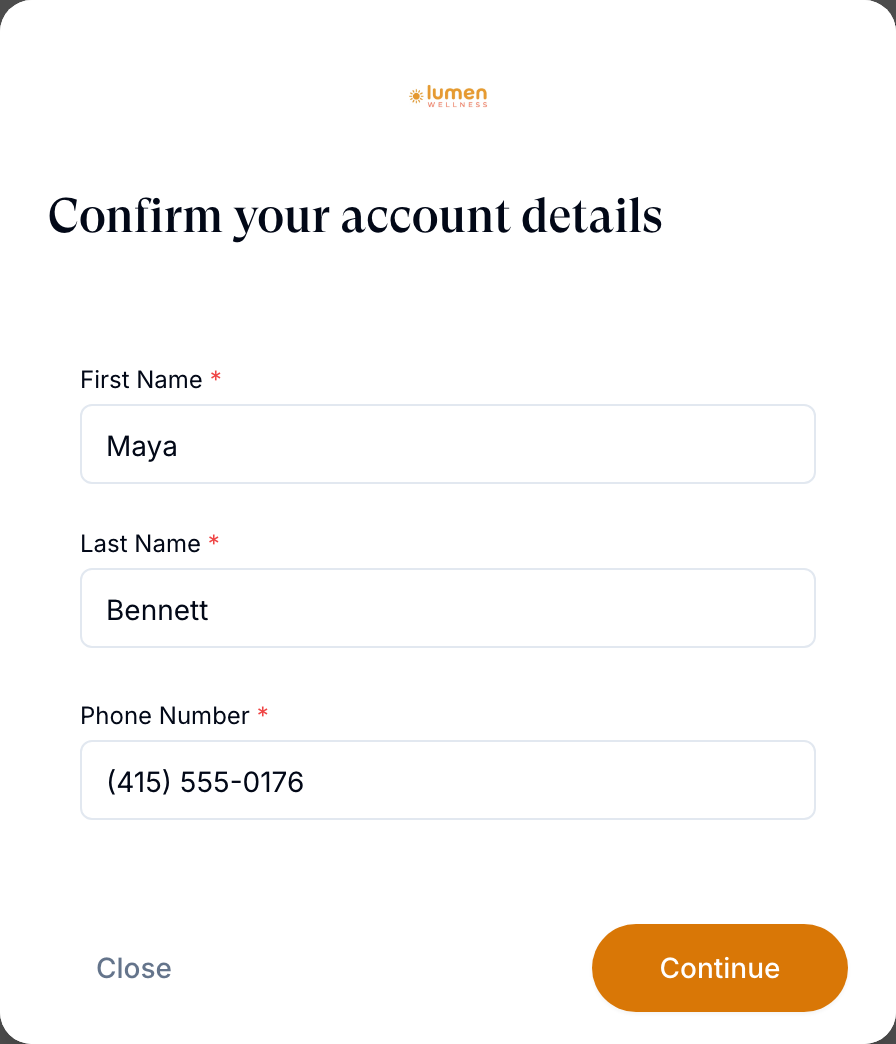
1. Account — Your account profile
Three required fields: First Name *, Last Name *, Phone Number *. There is no email field — Continue confirms the address your invitation was sent to. Cannot be skipped.
2. Website — Do you currently have a website?
Three cards: Yes, Working on it, No (I’d like help with my website build.). Continue is disabled until you pick one. Yes reveals Website URL; an http:// address is rejected with Use an https:// URL. The site is read to pre-fill your Brand step. This step is only acknowledged in browser session storage, so it reappears on a replay in a new session.
3. Client — Tell us about your business…
Business name *, Brand name (mirrors the business name as you type), then Business address: Street address *, Apt, suite, etc. (optional), City *, State *, ZIP code *. A read-only Provider network panel shows your paired network. Cannot be skipped.
4. Billing — Enter your billing information
The card you pay GEN Health with, headed GEN Health billing — You won’t be charged now. A three-part form: Contact (Billing first name *, Billing last name *), Billing address, and Card (Card number, Exp, CVC). The card fields are optional here, so you can advance without them — and that is what blocks labs later.
5. Payouts — Choose how you want to get paid
The processor patients pay you through: None, Custom Payment Instructions, Stripe, Authorize.Net, NMI, SimPay, SlidePay, Square, Whop. The button reads I’ll do this later until you pick one. Removed for Affiliate clients.
6. Brand — Tell us about your brand…
Upload icon and Upload logo dropzones with a crop dialog, Display name, Time zone, Do you want a phone number? (Yes provisions a workspace number), Font, and Primary color, Secondary color, Background color. Required.
7. Routing — Meet your pharmacy network
Read-only: the pharmacies you get automatically through GEN Health and OnlyScripts. Continue is not passive — it provisions them and switches them on for your client.
8. Pharmacy billing — Save a payment method with OnlyScripts
Optional, and a third distinct card: the one OnlyScripts charges pharmacy costs to. The button reads I’ll do this later until saved. Skipping it surfaces later as a dashboard alert reading Payment needed.
9. Policies — Policies and agreements
Three checkboxes; Finish Setup stays disabled until all three are ticked. The only hard block in the wizard.
The three agreements
| Card | What you are confirming | Link |
|---|---|---|
| Terms and Conditions | I have read and agree to the Terms and Conditions that govern use of this workspace. | Review Terms and Conditions |
| Privacy Policy | I have read and agree to the Privacy Policy and understand how information is handled. | Review Privacy Policy |
| HIPAA and business associate obligations | That you are responsible for HIPAA compliance for protected health information, and will execute and maintain business associate agreements with the parties you engage where the law requires it. | none |
Each tick is stored permanently with your name, email, business name, IP address, timestamp, and the wording you saw. Anything already signed is locked and reads You’ve already agreed to this. or Acknowledgement collected.
Statuses you will see here
| Status | What it means | What to do |
|---|---|---|
| Step 3 of 9: Client | The step dots read aloud. The total tells you which variant you are in. | Nothing. |
| Setup Complete | All required sections saved and all agreements signed. | Click Continue, then continue with Link your provider network. |
| Pending (on the dashboard Users table) | An invited teammate has not finished their wizard. | Resend from the row's actions menu. |
| We couldn’t load your setup | Your onboarding status could not be fetched. | Click Try again. If it persists, log out and back in. |
What can go wrong
| What you see | Why | Fix |
|---|---|---|
| The checklist item Invite your team opens Settings category not found | That checklist item points at /settings/team, which is not a real page for a Client Admin. A fix is being tracked. | Team lives on Dashboard → card Users → Add. Use that, and ignore the broken link. |
| Setup is finished but nothing works end to end | The wizard gates nothing. Forms, products, protocols, labs, team, and domains all come afterwards. | Work through Getting Started steps 1 to 13 in order. |
| Patients check out but no money arrives | Payouts was left on None — Test mode — no real charges. | Go to /settings/payments and pick a real processor. |
| Toast: Please update your account payment method to enable labs. | You skipped the card fields on Billing; labs cannot be activated without a platform payment method on file. | Add the card at Settings → Account and billing → Payment method, then retry. |
| Dashboard alert Payment needed on an order | Pharmacy billing was skipped, so OnlyScripts has no card. | Click View details, or fix it from /integrations. |
| A five-step wizard with a Locations step | Review Only client — a genuinely different product. | Read Review-only clients and clearance defaults before any other Getting Started step. |
| You closed the wizard and it reopens every sign-in | The agreements are unsigned, so onboarding is outstanding. | Reach Policies, tick all three, click Finish Setup. |
Next
Was this helpful?