Products
Turn your provider network's clinical protocols into the products patients buy, price them, and get the checkout links.
/products is the catalogue patients buy from: your provider network supplies the clinical templates, and you set the name, picture, price, and requirements.
Questions people ask about this page
Can I build a product from scratch?
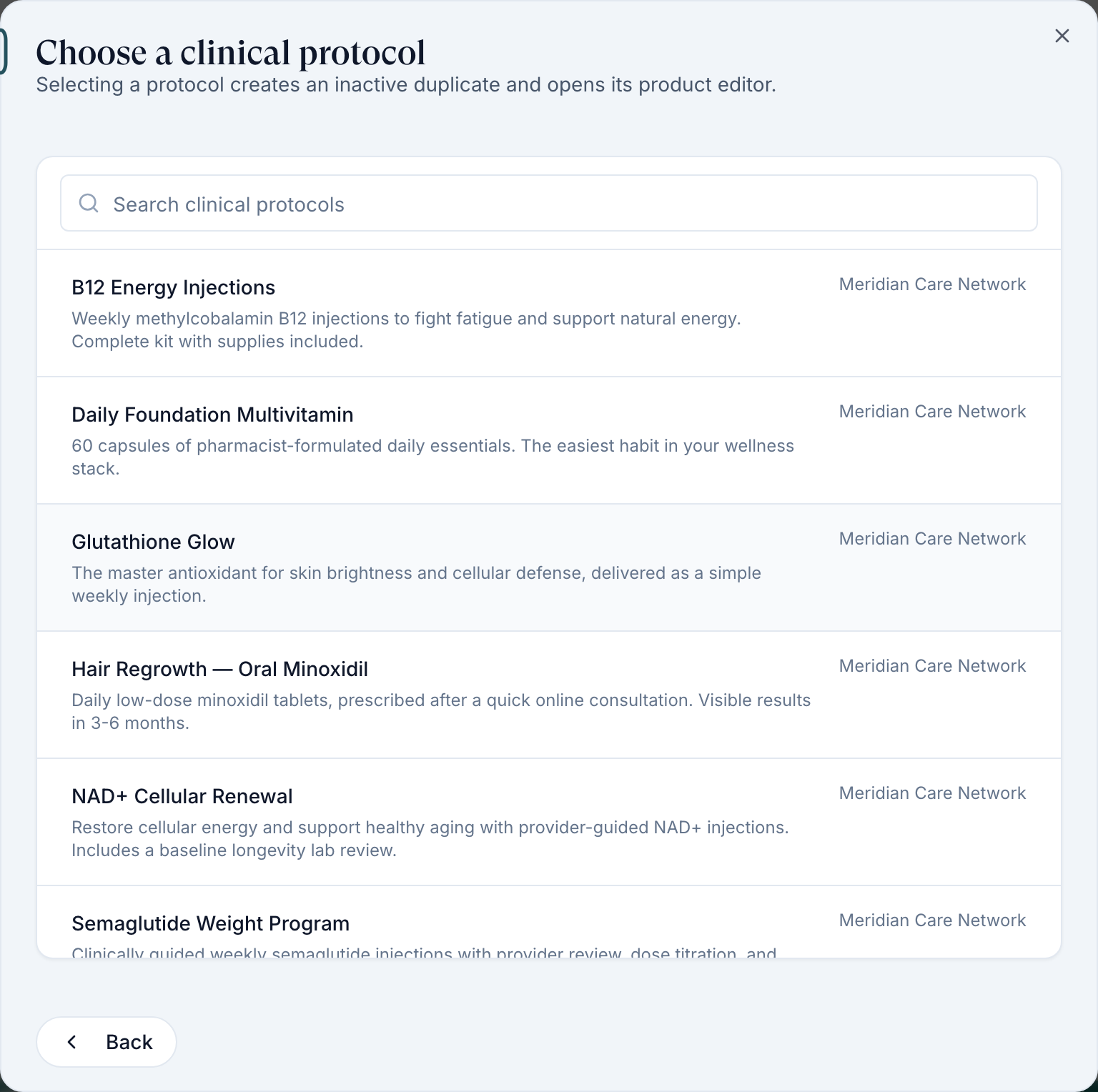
No. Create → Product opens Choose a clinical protocol, and the only thing you can pick is one of your provider network's protocols. A protocol is your network's approved clinical template for a treatment. Selecting one creates an inactive copy that belongs to you, which you then price and brand. Package is the other card: it bundles products, labs, and visits you already have under one price.
I picked a protocol by accident and clicked Cancel. Did that undo it?
No. The copy is written the moment you pick the protocol — the dialog says so: "Selecting a protocol creates an inactive duplicate and opens its product editor." Cancel only closes the editor. The copy stays in your list as {Product name} (Copy 1) with an Inactive sub-line. It is inactive and hidden, so no patient can see it, but you have to clear it up yourself.
Every row shows "Payment processor missing". What is that?
A red warning icon in the Payment column, with the tooltip "Set up a payment processor before patients can purchase this product." It means no card processor is connected yet, so nothing on this page can actually be bought. Fix it on Billing. The badge clears on every row at once.
My product is Active but patients cannot see it.
Check three things in order. Show on storefront must be on. The product must have a Price — a network product with no price is silently kept off the patient storefront and there is no badge telling you so. And the patient's state must not be in Unavailable states.
What is the difference between Price, Assessment price, and Shipping price?
Price is what the patient pays for the product itself. Assessment price is the separate charge for the visit or assessment, and it is not refunded if the patient is denied. Shipping price is added on top. All three are set per product on the Overview tab.
Where is the checkout link I can put in an email?
The link icon at the end of each row, Checkout links for {product}. It offers three links — Product-first, Assessment-first, and Intake-first — each with a Copy and an Open action. They only work once the product is Active.
Where to find it
Left menu → Products. Direct link: /products. Visible to: Client Admin (full control) and Client Staff (read-only pricing, no Create). Review-only clients do not have this page at all — the route is removed, so the link 404s rather than being greyed out.
Heading Products, subtitle "Manage patient product access and intake forms. Both public and signed-in access are enabled by default."
Who owns what
This is the model the whole page rests on, and nothing on screen explains it.
| Thing | Who owns it | What you control |
|---|---|---|
| Protocol | Your provider network | Nothing. It is their approved clinical template — what may be prescribed, and under what rules. |
| Your product row | You | A copy of the protocol that carries your Display name, description, image, categories, and Price. The Owner column shows whose it is, and the row's sub-line reads "Catalog name: {network's own name}" when yours differs. |
| Clinical rules | Your provider network | Read-only. The tab shows what the network set; you cannot loosen it. |
| Access to a protocol | Your provider network | Nothing. When they switch a protocol on for you it arrives inactive and hidden — there is no request or approval step at your end. You activate it and price it. |
What is on this page
| What you see | What it does |
|---|---|
| Create | Opens the wizard What would you like to create? Client Admin only. |
| Smart upload | Opens Smart product upload — match spreadsheet rows to products and apply price or name changes in bulk. Client Admin only. |
| Categories | Opens Manage categories, the groups patients browse by. |
| Storefront / Table | Swaps the table for the card grid patients see. Useful for checking images. |
| Promo Codes | Opens Promo Codes — "Create and manage checkout discounts." Three tabs: Promo Codes, Global, Patient Codes. This is what other places call coupons. |
| Export CSV | Downloads the rows currently shown. |
| Bulk | Adds a tick box to every row and opens the bulk action bar. |
| Config view / Normal view | Replaces the middle columns with nine inline settings editors. Half of the product surface is only visible here. |
| Columns (Normal view) | Image · Name · Description · Category · Owner · Type · Price · Actions. A Paired formulary column also appears once a pharmacy integration is connected. |
| Filters | Always there: All statuses (a click-to-cycle button: All statuses → Active only → Inactive only) · Categories · Owner · Price · Images · Payment. Two more appear only when they apply: Type once your catalogue holds more than one kind of item (a package as well as products), and Formulary once a pharmacy integration is connected. |
| Row link icon | Checkout links for {product} — the three shareable checkout links. |
| Row ⋯ menu | Open actions for {product}: Edit details, Copy ID, Preview, Send to Patient, Duplicate, Deactivate / Activate, and Delete this duplicate on a copy. Right-clicking the row opens the same menu. |
How to add a product
Open the page
In the left menu, click Products. Rows your network has already switched on for you are here, showing the network's name in the Owner column.
Start the wizard
Click Create at the top right. The dialog What would you like to create? opens with two cards: Product ("Create a product from an approved provider-network clinical protocol.") and Package ("Choose products, labs, and visits to bundle under one price.").
Pick the protocol
Click Product. The next step is Choose a clinical protocol, listing your network's protocols with the network's name under each. Click the one you want.
Fill in what patients see
The editor opens, titled Edit product. On the Overview tab set Display name and Display description — the network's own wording is shown underneath as "Provider network name: …" — click Upload image to add a picture, and tick the Categories patients browse by.
Set the three prices
Type the Price, then Assessment price and Shipping price if they apply. Work them out before you type: see How to price it below.
Set the supply details
Supply takes a Months or Weeks figure, plus Quantity (the pharmacy fill quantity, such as tablets) and Refills. These prefill the prescription; the provider can still change them.
Set the requirements
Switch on Requires sync visit ("Require a live assessment before this product can be completed.") or Requires labs ("Select accepted labs and patient prices.") if the patient must do one of those first.
Turn it on
Switch on Active, then Show on storefront. Show on storefront has no effect while the product is inactive.
Save
Click Save. The row updates in the list.
Attach the forms
Reopen the product and click the Forms tab. It lists every form that applies to this product. If it says "No required forms apply to this product.", go to Forms, open the form's row menu, click Manage Targeting, and select this product.
Picking a protocol creates the product immediately. The copy exists before you have typed anything, and Cancel in the editor does not remove it — you are left with {Product name} (Copy 1), inactive and hidden. It cannot reach a patient in that state, but tidy it up from the row's ⋯ menu with Delete this duplicate. That asks for confirmation in a plain browser box — Delete "{name}" and its formulary mappings? This cannot be undone. — not an in-app dialog. Verify the row is gone; if it is not, leave it Inactive so it stays out of the storefront.
How to price it
The Price you type is the entire amount the patient pays for the product. It has to cover the medication, your margin, and the fees taken out of it. Work out the medication cost first: it is on the Formulary page, which only exists once a pharmacy integration is connected (see Formulary and medication pairings).
| Line | Example |
|---|---|
| What the pharmacy charges you (Formulary) | $200 |
| Shipping you are charged | $20 |
| Your margin | $130 |
| Price the patient pays | $350 |
Payment-processor fees and the GEN Health platform fee come out of your margin, so leave room for them. Assessment price is charged separately for the visit and is not refunded if the provider denies the request.
Every setting in Config view
Click Config view to edit these straight in the table, one column each, for every product at once.
| Column | What it controls | Locked when |
|---|---|---|
| Storefront | "Controls only whether an active product appears in the patient storefront. Direct checkout links stay available." | The product is inactive. |
| Price | What the patient pays for the product. | You are Client Staff. |
| Assessment | "Price for the visit or assessment. This charge is not refunded if the patient is denied." | You are Client Staff. |
| Shipping | Shipping added at checkout. | — |
| Months | "Month supply metadata that helps providers understand the intended duration of therapy when prescribing." | Packages and client-owned products. |
| Quantity | "Pharmacy fill quantity, such as capsules or tablets. It helps prefill prescriptions, but providers can edit it." | Packages and client-owned products. |
| Included visits | "Adds included visit redemptions to the product purchase." Set a count and an expiry in days. | — |
| Requires sync | "Requires a live sync visit or assessment before this product can be completed." | The network locked it; Client Staff. |
| Requires labs | "Requires labs before completion. Enabling this checks that eligible lab options exist and applies approved labs." | The network locked it; Client Staff. |
Every tab in the product editor
| Tab | What is on it |
|---|---|
| Overview | Upload image, Image background, Active, Show on storefront, Show supply details on storefront, Display name, Display description, Price, Assessment price, Shipping price, Supply (Months / Weeks), Quantity, Refills, Categories, Subscription product ("Refill this product automatically on a recurring cadence."), Offer included visits, Requires sync visit, Requires labs, the manual-send choice "When I send this product to a patient manually, I want them to…" (Pay for the product first / Complete intake forms first), and Unavailable states. |
| Forms | Every intake and consent form that applies to this product, each labelled Intake form or Consent form. Read-only here — targeting is set on the Forms page. |
| Refill reminders | The reminder cadence and its Message template. |
| Clinical rules | The care rules the network set, and a Rule prices table (When / Care / Rule price). Read-only: the rules come from the network's protocol. |
| Prescribing | Only appears once a pharmacy integration is connected. Holds the Paired formulary table and Directions for use. |
| Products | Only on a package. The list of items inside it, with a Products / Package / Difference price summary. |
The manual-send choice on Overview quietly overrides your tenant-wide checkout order (Settings → Portal experience → Checkout) for this one product. If a product behaves differently from the rest, look here first.
The three checkout links
Click the link icon on a row (Checkout links for {product}). Each entry has Copy and Open.
| Link | What the patient does |
|---|---|
| Product-first | "Patient pays for the product first, then enters the app to finish onboarding, intake forms, and visit scheduling when applicable." |
| Assessment-first | "Patient completes the product intake form and required forms first, then pays for the visit only. Product payment is not collected in this flow." |
| Intake-first | "Patient completes the product intake form and required forms first, then checks out to pay for the product." |
While a product is inactive the menu is disabled with the tooltip "Activate this product before sharing checkout links." Copying one shows "{Product-first} URL copied to clipboard".
Statuses you will see here
| Status | What it means | What to do |
|---|---|---|
| No badge at all | The product is active. There is no green "Active" badge in the client table — an unmarked row is a live one. | Nothing. |
| Inactive | Plain grey text under the name, not a badge. Off sale. Deactivating also forces Show on storefront off. | Row menu → Activate. |
| Hidden from storefront | Sub-line under the name. Active, but not shown when patients browse. Direct checkout links still work. | Tick Storefront in Config view, or Show on storefront in the editor. |
| Telehealth visit required | Badge on the name. The patient must complete a visit before this can be fulfilled. | Nothing — it is a setting, not a problem. |
| Payment processor missing | Red icon in the Payment column: "Set up a payment processor before patients can purchase this product." | Connect a processor on Billing. |
| {n} medications / Needs pairing / No pharmacy / Client-owned / Not eligible | The Paired formulary cell, once a pharmacy is connected. Needs pairing means the product can be paired but is not. | See Formulary and medication pairings. |
| Partial state coverage | Filter value and tooltip: the paired pharmacies do not ship to all 50 states, and patients elsewhere get routed to another pharmacy. | Pair another pharmacy, or accept the routing. |
There is no stock or inventory concept anywhere in the product. Nothing ever reads "Out of stock". The only availability control is Unavailable states.
What can go wrong
| What you see | Why | Fix |
|---|---|---|
| A row called {Product} (Copy 1) you did not mean to make. | You opened Create → Product and clicked a protocol to look at it. The copy is created on that click. | Row menu → Delete this duplicate, then accept the browser confirm box. If the row survives, leave it Inactive — it cannot reach a patient. |
| The product is Active and on the storefront but patients never see it. | It has no Price. A network product with no price is filtered out of the patient storefront, and nothing on the row says so. | Set a Price. Use the Price filter → No price to find them all. |
| Nothing can be bought, on any product. | No payment processor is connected — every row shows Payment processor missing and Billing reads Active: None, Test mode — no real charges. | Connect a processor on Billing. |
| You cannot find a Subscriptions button. | There is not one. Subscriptions are a per-product switch, not a separate manager. | Open the product → Overview → Subscription product. |
| Half the settings you were told about are missing. | You are in Normal view. | Click Config view. |
| There is no Prescribing tab and no Paired formulary column. | No pharmacy integration is connected for this client. | Integrations and pharmacy first, then Formulary and medication pairings. |
| You are Client Staff and the Price cell will not open. | Pricing, creating, duplicating, and state exclusions are Client Admin only. Staff see plain text. | Ask a Client Admin. |
| The product ships nothing after a patient buys. | Pharmacies do not deliver to PO boxes, and a product with no medication pairing cannot reach a pharmacy at all. | Check the shipping address, then the Paired formulary cell. |
Next
Was this helpful?