Orders
The /orders page: every order status defined, plus requesting payment, issuing a refund, and reviewing a held lab order.
Orders is every purchase your patients have made — products, labs, visits and payment requests — with the status of each one and the actions that move it forward.
Questions people ask about this page
An order says "Pending". Pending on what?
Two different things wear that word. Plain Pending means the order exists and nothing has happened yet. But a lab order can also show Pending when it is really held because your account owes GEN Health a lab processing fee. Tell them apart with the status filter: the held ones sit under Pending (Processing), and an amber banner appears above the table reading "N orders on hold — a $X processing fee is due."
Why does the Review button mean something different on every row?
Because five unrelated reviews land in the same column. Review lab = approve sending a lab order out. Review Results = mark returned lab results as read. Review uploaded result = accept or decline a PDF the patient uploaded. Review = authorise a queued prescription's price. Pending Review / Under Review in the status column = a provider is doing clinical work and you cannot act on it at all.
The patient says their order says something different from mine.
It does. Patients get a softer vocabulary on purpose. Pending Payment reads as "Ordered". Purchase Complete reads as "Paid". Denied reads as "Not Approved". Deferred reads as "More Info Needed". Delivered reads as "Shipped". Every failure — Pharmacy Order Failed, Error — reads as "Processing". The table further down maps all of them.
Where is the button to invoice a patient?
It is called Create order, top right of the page, Client Admin only. It creates an order of type Request Payment — a manual invoice the patient pays from their portal. The field named Order title pre-fills with the words "Request Payment".
I cannot change an order's status to Approved.
Correct, and deliberate. Client roles can only set Pending, Pending Payment, Shipped, Delivered, Error, Pharmacy Order Failed and your own custom statuses. Clinical and money statuses belong to the provider and to the payment system. The picker says it plainly: "Status changes may require confirmation. Labels do not mark orders paid or send to pharmacy or lab."
Where is the refund button?
Click the status pill in the Status column. A popover opens with the statuses you can set, and at the bottom, in red, Issue Refund. It only appears when the order is genuinely refundable — paid, not already refunded or voided, and taken through a processor that supports refunds.
What is the difference between a refund and a void?
A refund returns money that already settled. A void cancels a charge that has not settled yet. You do not choose — the system does. If you click Issue Refund on an unsettled Authorize.Net charge, the dialog switches itself to Cancel unsettled payment? and the button becomes Void payment.
Does cancelling an order refund the patient?
No. Cancel order stops fulfilment and nothing else — "The order will be marked as cancelled and stop moving through fulfillment." If money moved, issue the refund separately, before or after. The one exception is cancelling from the Review lab order dialog, which refunds by design.
Where to find it
Left menu → Orders. Direct link: /orders. Visible to: Client Admin and Client Staff. The page is removed entirely for review-only (Good Faith Exam) clients, who have no commerce.
What is on this page
| What you see | What it does |
|---|---|
| Heading Orders | Sub-line View and manage all orders for your client. |
| Tiles | Total Orders, Total amount received (sub-line Excludes unpaid), an Approved dollar total, and Awaiting Rx review. |
| Awaiting Rx review tile | Click it to filter the table to queued prescriptions waiting on your team. Click again to clear. |
| Export CSV | Downloads what the table is currently showing. Both Client roles get it. |
| Bulk | Client Admin only. Turns on row checkboxes. The button becomes Cancel bulk. |
| Create order | Client Admin only. Opens the payment-request builder. |
| Search | Placeholder Search orders by ID, patient, or product... |
| Columns | Patient · Product · Type · Date · Amount · Status · Action |
| Status pill | Click it to change the status or reach Issue Refund. |
| Action column | A contextual button (Review lab, Review Results, Review) plus a kebab. |
| Row kebab | View order · View patient · Send email (Client Admin) · Refund (Client Admin, and only when the order is refundable) · Cancel order. A Client Staff kebab is usually just View order, View patient and Cancel order. |
| Right-click a row | Adds the contextual review actions: Review lab, Review uploaded result, Review results, Send product link, Review prescription. |
| Bulk bar | Select all unpaid (n) · Send email · Send reminder · Clear. |
| Amber banner | "N orders on hold — a $X processing fee is due." with Pay $X now and Manage card. |
Filters
| Filter | Default label | Options |
|---|---|---|
| Type | All types | Product, My Product, Request Payment, Lab, Visit |
| Patient | All patients | Searchable, multi-select. |
| Medication | All medications | Searchable, multi-select. |
| Pharmacy | All pharmacies | Searchable, multi-select. |
| Action | Action needed | Review lab, Review results, Review uploaded result, Review prescription, Held fee. This is your daily work queue. |
| Amount | Amount | Price buckets. |
| Payment | Payment | Unpaid, Paid |
| Status | All statuses | The chips listed below, plus any custom statuses you created at Settings → Orders. |
| Order date | Order date | Date range. |
A filter with nothing behind it is not rendered. On an account with no pharmacy-fulfilled orders there is no All pharmacies button at all, and Action needed disappears entirely when nothing needs action.
Statuses you will see here
Two lists matter: the status filter chips (14 of them) and the wider set of badge labels rows can actually show. Not every badge has a chip, which is why filtering can hide an order you can see.
Every order status, what it means, what unblocks it
| Badge on the row | Filter chip | What it means | What moves it | Patient sees |
|---|---|---|---|---|
| Pending | — | The order exists and nothing has happened yet. Also the resting state of a paid lab before dispatch. | Wait, or check the payment. | Paid |
| Pending Payment | — | The patient has not paid. | Patient pays, or you send a reminder from the bulk bar. | Ordered |
| Pending (held fee) | Pending (Processing) | The patient paid, but the lab is held because a GEN Health lab processing fee is unpaid. | Pay it in the amber banner: Pay $X now, or fix the card with Manage card. | Pending |
| Pending Forms | — | Paid, but required intake or consent forms are unfinished. | The patient completes the forms. Resend from the patient profile. | Forms Needed |
| Pending Labs | — | Paid and forms done, but a required lab result is missing. | The patient orders or uploads a lab. A matching result releases this order. | Labs Needed |
| Awaiting Lab Purchase | — | A required lab has not been bought yet. | The patient buys the lab. | No status word — a Labs needed step on their roadmap |
| Awaiting Lab Review | Lab Review | A paid lab is parked for your sign-off before it goes to the lab, because your account turned on lab-order review. | Client Admin clicks Review lab. Client Staff sees the words Awaiting review and cannot act. | Nothing — their roadmap does not move while it is held |
| Results Awaiting Review | Result Review | The patient uploaded their own result PDF; staff must accept or decline it. | Click Review uploaded result and choose Accept result or decline with a reason. | Results under review |
| Pending Review | Pending Review | Every gate cleared; waiting for a provider to pick it up. | A provider claims it. You cannot. | Evaluation |
| Under Review | Under Review | A provider has it open right now. | The provider finishes the chart. | Evaluation |
| Approved | Approved | The provider approved it. | The prescription dispatches, or the patient pays for the medication. | Approved |
| Denied | Denied | The provider declined. Terminal. | Nothing. | Not Approved |
| Deferred | Deferred | The provider wants more information or a live visit. | The patient books a visit or answers follow-ups. | More Info Needed |
| Sent to Lab | Sent to Lab | Accepted by the lab. It stays here for the whole kit journey. | Wait for the results. | No status word — the roadmap step reads Labs ordered |
| Results Received | Results Received | Results are back and filed on the patient. | Client Admin clicks Review Results then Mark as Reviewed. | No status word — the roadmap step reads Results under review |
| Lab Results Reviewed | — | An admin attested they read the results. Terminal for the lab. | Nothing. | Reviewed |
| Sent to Pharmacy | — | The prescription was transmitted. | Wait for tracking. | Sent to pharmacy |
| Processing | — | The pharmacy is filling it. | Wait. | Sent to pharmacy |
| Pending at Pharmacy | — | Display only, never stored. The pharmacy answered with a bare "pending" and no error, so the screen stops claiming Sent to Pharmacy. | Wait, or refresh the pharmacy status on the order. | Sent to pharmacy |
| Shipped | — | On its way. | Track it. | Shipped |
| Delivered | — | Arrived. | Nothing. | Shipped (yes, still "Shipped") |
| Purchase Complete | Purchase Complete | Money settled and the order's job is done. | Nothing. | Paid |
| Preparing your order | — | A queued prescription is waiting for your team to price and authorise it, so the patient has not been asked to pay. | Click Review in the Action column. Both Client roles can do this one. | Preparing your order |
| Pay for product | — | Assessment-first: the assessment is paid and approved, the medication is not. | The patient pays the second half. | Pay for product |
| Pharmacy Order Failed | — | The pharmacy rejected the script or never got it. | Open the prescription, read the error tooltip, fix and resubmit. | Processing (the failure is hidden) |
| Error | — | Something failed and there is no better word for it. | Raise a support ticket with the order ID. | Processing (hidden) |
| Cancelled | — | Cancelled. Never auto-refunds. | Refund separately if money moved. | Cancelled |
| Refunded | Refunded | Fully refunded. | Nothing. | Refunded |
| Partially Refunded | Partially Refunded | Part of the money went back. | Nothing. | Partially Refunded |
| Voided | Voided | The charge was cancelled before it settled. | Nothing. | Voided |
| Your own labels | they appear in the chip list | Custom statuses you created at Settings → Orders. Display only. | Nothing — no logic reads them. | The same words |
Payment status is a separate column of truth
An order's Status and its payment state are different fields and can disagree on purpose. The payment value shown is Paid, Unpaid, Partially Paid, Partially Refunded, Refunded or Voided. A captured payment always wins: once money is taken the order never renders as awaiting payment, even if the status field lags.
Type badges (not statuses)
Product · My product (a product your client owns) · Lab · Visit · Package · Bundle · Form Request · Request payment (a manual invoice). These sit next to the status pill and are easy to misread as statuses.
How to work the queue each morning
Open the page
In the left menu, click Orders.
Deal with the banner first
If an amber banner reads "N orders on hold — a $X processing fee is due," those labs are not moving. Click Pay $X now, or Manage card if the card needs replacing.
Filter to work that is yours
Open the Action needed filter. It only lists categories that have rows, so whatever appears is real work: Review lab, Review results, Review uploaded result, Review prescription, Held fee.
Chase the money
Set Payment to Unpaid, click Bulk, then Select all unpaid (n) and Send reminder. That queues the branded payment-reminder email.
Leave clinical rows alone
Pending Review and Under Review belong to a provider. Nothing you do on this page speeds them up.
Turn bulk mode off
Click Cancel bulk so the checkboxes stop covering the rows.
How to request payment from a patient
This replaces what used to be called a manual invoice.
Start it
Click Create order in the top right. The modal opens on the Patient step — Choose which patient this order is for.
Pick the patient
Search under Search by name or email. using the Search patients... box, and select them.
Set the money
On the Summary and Details sections, fill Order date, Order status, Payment status, Type, Total and Shipping.
Title it so the patient understands
Order title pre-fills with "Request Payment". Replace it with something the patient will recognise on their statement.
Add the lines
Use Line items for catalogue products, or Custom line items for anything not in your catalogue — each needs a description and an Amount.
Tell them how to pay
Fill Patient note (optional): the placeholder is Add payment instructions for the patient.
Check the preview
Read Patient charge preview. That number is what their card will be charged.
Save it
The order appears in the table with type Request payment and status Pending Payment.
When a patient pays you outside the platform, set the invoice's status to Purchase Complete. A confirmation appears: Record this payment? — "If you mark this completed, the patient will not be asked to pay." Manual invoices are the only orders where a client role may set Purchase Complete.
How to change an order's status
Click the status pill
In the Status column, click the pill on the row. A popover opens grouped as Payment, Delivery, Other and Custom.
Pick from what you are allowed
Payment: Pending, Pending Payment. Delivery: Shipped, Delivered. Other: Error, Pharmacy Order Failed. Custom: your own labels. Anything else is blocked. On a manual invoice the groups change to Payment (Pending Payment, Purchase Complete) and Other (Error).
Read the warning
"Status changes may require confirmation. Labels do not mark orders paid or send to pharmacy or lab." Setting Shipped does not ship anything — it is a label for your team.
Confirm
Shipped, Delivered, Error, Pharmacy Order Failed and custom labels open a confirmation titled Change this order label? before they apply.
How to issue a refund or void a charge
Open the status popover
Click the status pill on the row. At the bottom of the popover, in red, click Issue Refund. It is also in the row kebab as Refund.
Set the amount
The Issue refund dialog opens — Choose the amount to return and provide a reason. Type into Refund Amount ($). The hint under it reads Max refundable: $X; you cannot exceed it.
Give a reason
Reason is required, up to 2,000 characters (placeholder Enter reason for refund). It is kept on the order record, so write what a colleague would need in three months.
Submit
Click Issue Refund. The status moves to Refunded or Partially Refunded.
If it offers a void instead
When the Authorize.Net charge has not settled, the dialog becomes Cancel unsettled payment? — "A refund cannot be issued right now. You can cancel the payment instead, which voids the charge before settlement." Click Void payment. The order becomes Voided.
If it is an installment plan
The dialog reads Manage installment payments — Refund collected payments or cancel future installments. Refund what has been collected, and use Cancel remaining payments to stop the rest.
How to review a held lab order
Only when your account has lab-order review switched on. Client Admin only — Client Staff sees the words Awaiting review and no button.
Find the row
Filter Action needed → Review lab, or look for the badge Awaiting Lab Review.
Open the review
Click Review lab. The dialog Review lab order opens — "This lab is held for your review before it is sent to the lab. Release it to dispatch, change it to a different lab, or cancel and refund the patient."
Send it, if it is right
Click Release to lab. A toast confirms "Lab order released — sending to the lab."
Swap it, if the wrong lab was ordered
Click Change order, search with Search labs by name…, pick the right one, and click Place lab order. The old lab is voided without a refund, the payment carries over, and completed intake forms are not requested again.
Stop it, if it should not happen
Click Cancel lab, add an optional note, then Confirm cancel & refund. "The patient is refunded for this lab, and any product orders linked to it return to awaiting a lab."
Need more context first?
Click View full order to open the order detail without leaving the decision behind.
While an order sits in Awaiting Lab Review, every other status edit on it is rejected and it cannot be cancelled from the row kebab. Use this dialog.
How to handle lab results
Connector results — mark them read
A lab order at Results Received shows Review Results (Client Admin) or the read-only words Awaiting review (Client Staff). Click it. The dialog Mark lab results as reviewed opens — Confirm that you have reviewed the lab results for this order. Click Mark as Reviewed. The status becomes Lab Results Reviewed.
Then sell the follow-up, if there is one
Once results are reviewed, the right-click menu also offers Send product link for that patient.
Patient-uploaded results — accept or decline
An order at Results Awaiting Review opens Review uploaded lab result — Confirm the result the patient uploaded satisfies this request. Choose the file under Uploaded result (placeholder Choose the result to accept) and click Accept result.
Declining sends the reason to the patient
Switch to the reject view and fill Reason (shown to the patient) — the hint is "e.g. These results are from 2023 — we need labs drawn in the last 90 days." Write it for the patient, not for your notes. Declining returns the parent order to awaiting a lab purchase.
How to read one order
Open it
Click the row, or use the kebab and pick View order.
Find who is blocking it
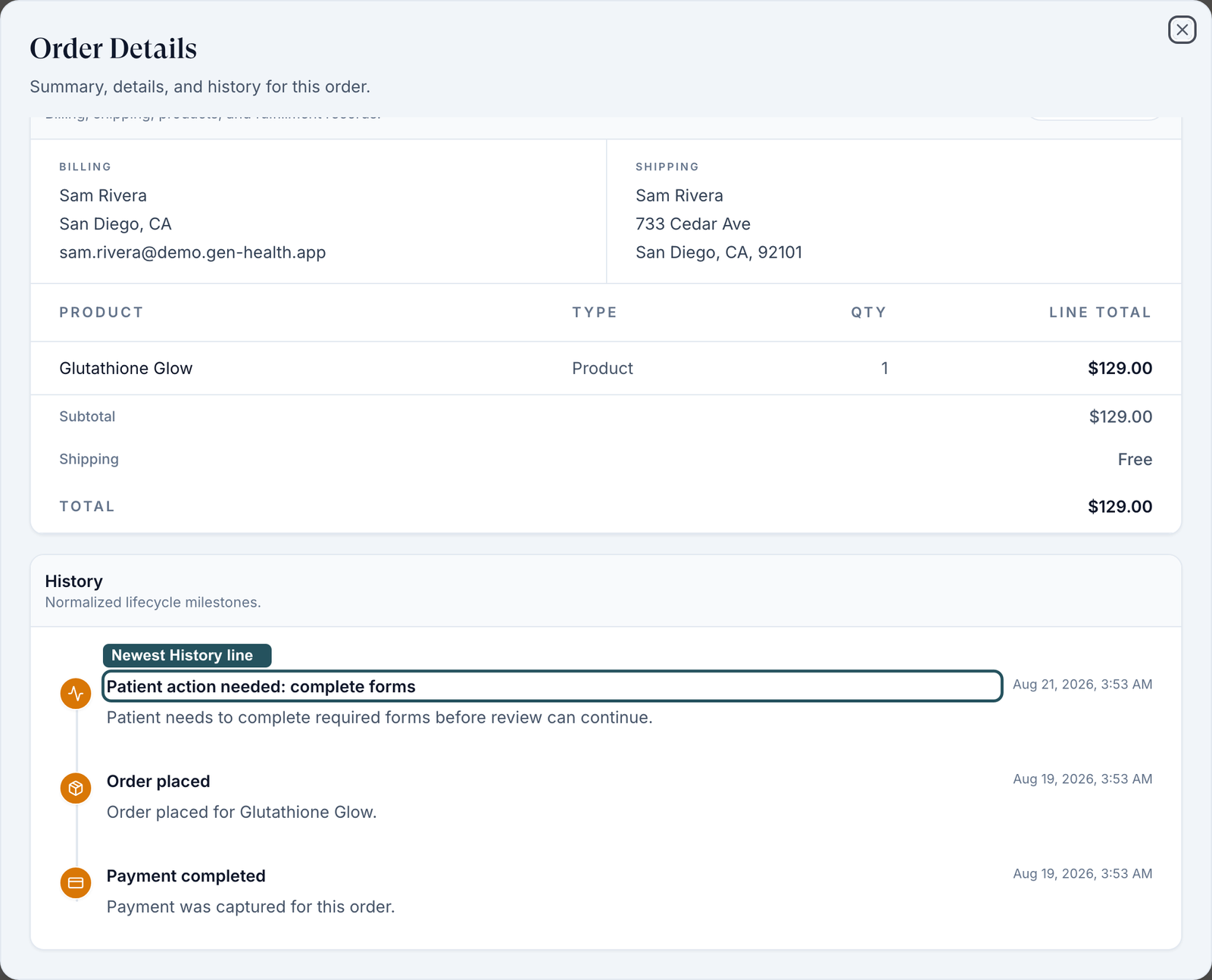
The dialog is titled Order Details — Summary, details, and history for this order. Scroll to History at the bottom: the newest milestone names exactly who is blocking, for example Patient action needed: complete payment or Client action needed: review lab order. That sentence is the answer to "why is this stuck".
The three sections
Summary carries the order number and whichever of these apply: Product, Order date, Order status (with an Update status button when you may change it), Payment status, Promo code, Patient, Client, Provider network, Provider, Pharmacy, Fulfillment, Last updated and Payment instructions. Details — Billing, shipping, products, and fulfillment records. — holds billing, shipping, the line items and, when there is one, the prescription (Quantity, Pharmacy, Instructions, Carrier, Tracking #). History — Normalized lifecycle milestones. — is the timeline.
Update tracking
On an order that has a prescription, use Update Prescription — Update pharmacy status and shipping tracking fields. Product-only and lab orders have no such button.
What can go wrong
| What you see | Why | Fix |
|---|---|---|
| No Create order or Bulk button | You are Client Staff. Both are Client Admin only. | Ask a Client Admin. |
| Issue Refund is missing from the popover | The order is unpaid, already refunded or voided, has no recorded payment gateway, or was paid through Whop or the Client API — none of which support in-app refunds. | Refund in the processor's own dashboard, then leave a note on the order. |
| Cancel order is greyed out | The order is Shipped, Delivered, Cancelled, Refunded, Voided, or held at Awaiting Lab Review. | For a lab hold use Review lab → Cancel lab. For the rest, refund instead. |
| Rows say Awaiting review with no button | You are Client Staff and the review is Client-Admin-only. | Escalate to a Client Admin. |
| Labs paid but never sent | Held on an unpaid GEN Health lab processing fee. | Filter Action needed → Held fee and clear the banner. |
| You marked an order Shipped and nothing shipped | Client statuses are labels only. | Real fulfilment is driven by the pharmacy and lab connectors. Use the label for your team's own tracking. |
| An order is invisible under a filter but you can see it unfiltered | Several badges have no matching filter chip — Pending Payment, Pending Forms, Sent to Pharmacy, Processing, Shipped, Delivered and Cancelled among them. | Clear the status filter and search by patient or order ID instead. |
| You cannot find per-item statuses | There are none. An order has one status; items are billing lines only. | Read the Prescriptions section of the order detail for the medication's own state. |
| Refunding gave the money back but the order still reads oddly | Status and payment status are separate fields. | Read the payment value, not the status pill, when you are confirming money. |
| The order detail shows a different status word from the table | The Order status line in Order Details renders the patient-facing wording, not the internal one — a row badged Pending Payment reads Ordered inside the dialog. | Trust the table badge and the status popover for the internal status. Use the dialog when you want to know what the patient is being told. |
| Your filters vanish when you refresh the page | The Orders filters are not remembered between page loads, unlike the ones on Visits. | Re-apply them. If you work one filter all day, keep the tab open rather than refreshing. |
Next
Was this helpful?