
Visits
Check visit history, book or reschedule a visit for a patient, find out why no times are offered, and sell visit options with forms attached.
Visits shows every visit (consult) your patients have had on the History tab, and the visits you sell on the Visit Options tab. Left menu → Visits. Client Admin; Client Staff see both tabs, can reschedule and send visits, and can book visits once given Create visits in Settings → Staff permissions.
What you can do here
- Check where a patient's visit stands
- Book a visit for a patient, or ask them to schedule
- Reschedule, cancel or void a visit
- Find out why no times are offered
- Sell a visit
- Send a visit or copy its link
- Ask a provider to approve a product
Check where a patient's visit stands
Use this when a patient asks about their consult.
Find it
On History, search Search patient, visit reason, status… or filter All statuses and Visit type (Sync or Async).
Open it
Click the row to open the patient's record.
You'll know it worked when the Status tells you who acts next (see Statuses).
Who can do this: Client Admin and Client Staff.
Book a visit for a patient, or ask them to schedule
Use this when a patient calls to book, or needs a video visit before treatment.
Open the patient's visits
Open the patient (from History or Patients), click the Visits tab, then Schedule.
Choose how
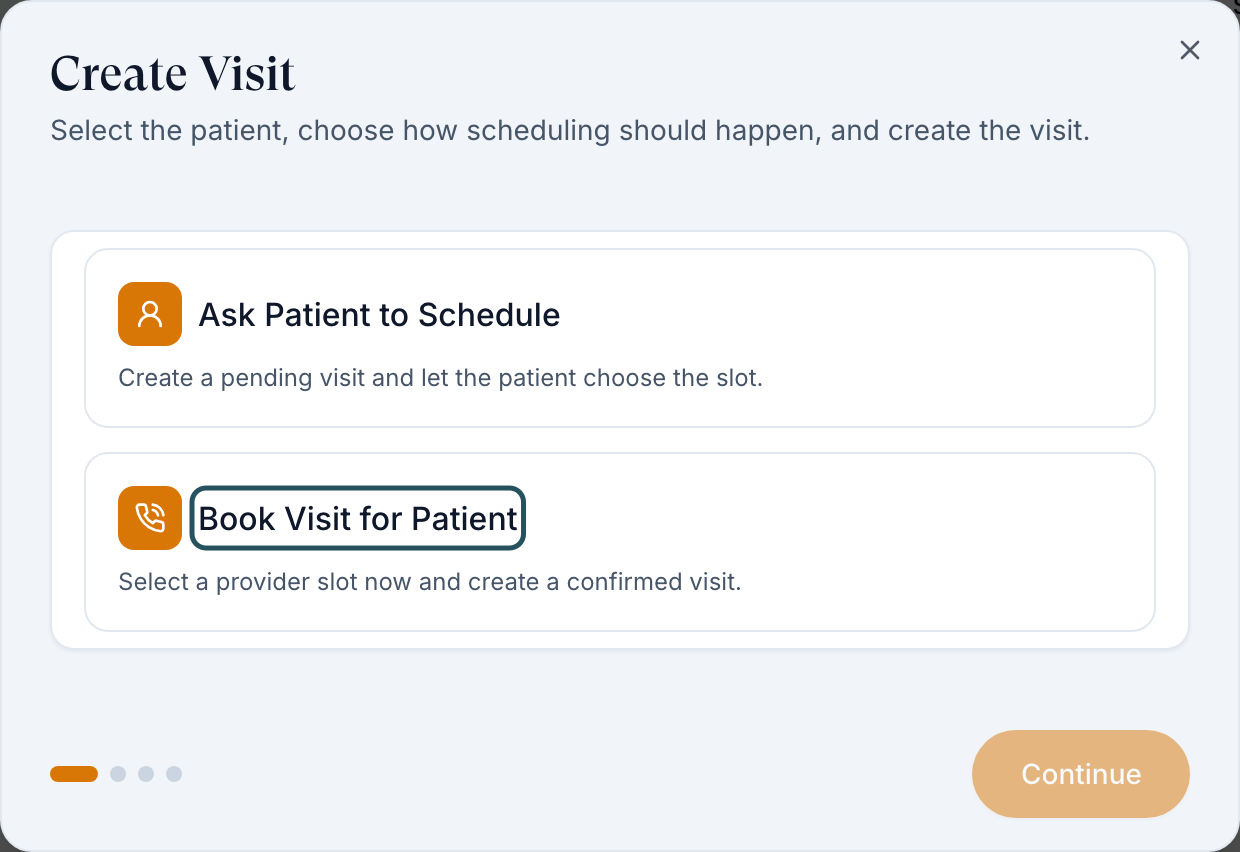
In Create Visit, pick Book Visit for Patient (you choose the slot) or Ask Patient to Schedule (they choose).
Pick the visit and time
Select the visit type, click Continue, then choose a day and time.
Finish
Check the Details step, then click Create Visit (Create Request when the patient chooses).
You'll know it worked when the toast reads Visit created successfully. or Visit request created. Patient can choose the appointment time.
Who can do this: Client Admin; Client Staff with Create visits.
Reschedule, cancel or void a visit
Use this when a booked time no longer works, or a visit is a duplicate.
Open the row menu
On History, click ⋮ on the visit.
Choose
Reschedule opens Edit Visit Schedule: pick a new time and click Save reschedule. Cancel visit cancels a booked video visit; Void visit removes a duplicate or test visit.
You'll know it worked when the toast reads Visit rescheduled successfully. or Visit cancelled successfully. Cancelling doesn't refund; refund on Orders.
Who can do this: Reschedule: Client Admin and Client Staff, on confirmed video visits. Cancel visit and Void visit: Client Admin.
Find out why no times are offered
Use this when every day is greyed out, or a patient says no provider available.
Check availability
Click Provider availability (top right). It shows open video slots from all eligible providers for the next 21 days.
Ask your network
If it reads No bookable slots are available in the next 21 days., message your provider network: they set provider hours, licensed states and booking notice.
You'll know it worked when slots appear in the list, and in the patient's booking screen.
Who can do this: Client Admin and Client Staff. Some networks require a notice period (for example 24 hours), so same-day times may never show.
Sell a visit
Use this to sell a consult, for example a paid video visit or a chart review.
Start
On Visit Options, click Add Visit Option.
Describe it
Fill Visit name, Visit reason / description, Duration and Patient price.
Choose the mode
SYNC: live video, booked after payment. ASYNC: provider chart review, no call.
Attach forms
Under Attached forms, tick the intake and consent forms (Draft forms never reach patients).
Publish
Leave Active and Show on storefront on, then Save.
You'll know it worked when the row reads On storefront.
Who can do this: Client Admin. Row menu → Edit details, Hide from storefront or Deactivate change it later.
In a clinic: visits run as video or chart review by your network's providers; there is no in-person visit type or day calendar. Filter History by Confirmed to see who is booked.
Send a visit or copy its link
Use this to invite a patient to book, or add a "Book a consult" button to your website.
Send it
On Visit Options, row menu → Send to Patient.
Or copy a link
Click the link icon, then Copy next to Visit checkout, Assessment-first or Intake-first.
You'll know it worked when the toast confirms it. Hidden visits still work by link while active.
Who can do this: Client Admin and Client Staff.
Ask a provider to approve a product
Use this after seeing a patient in person, so a provider can approve treatment before they buy.
Start
Click Request product approval (top right) and choose the patient, then Continue.
Choose products
Tick the products for the provider to review, then click Send for review.
You'll know it worked when the toast reads Approval request sent for provider review (or says the patient must complete forms first).
Who can do this: Client Admin and Client Staff.
Statuses you'll see here
| Status | What it means | Who acts next | What you do |
|---|---|---|---|
| Pending Patient Scheduling | Video visit paid, no time booked | Patient | Remind them, or book for them |
| Confirmed | Time booked | Patient and provider | Nothing |
| Pending Review / Under Review | Waiting for, or with, a provider | Provider network | Message them if it sits |
| Completed | Visit done or decision made | — | Nothing |
| Cancelled / Voided | Stopped by the patient or your team | — | Book again if needed |
| On storefront / Hidden from storefront / Inactive (Visit Options) | Whether patients can browse or buy it | You | Row menu to change |
What can go wrong
| What you see | Why | Fix |
|---|---|---|
| No Schedule button for staff | No Create visits permission. | A Client Admin ticks it in Staff permissions. |
| No provider availability is open right now | No licensed provider has open hours in the patient's state, or the notice period hides them. | Check Provider availability, then message your network. |
| After a cancel and rebook, the new visit also reads Cancelled | Known problem: a cancellation can carry over to later visits on the same order. | Send Support the patient's name and visit time. |
| The patient paid twice or has two visits | A duplicate was created. | Void visit on the extra one; refund on Orders. |
| Forms shows 0 and providers see no answers | No forms attached. | Edit the visit option and tick Attached forms. |
Questions people ask
Can I reschedule without refunding them?
Yes: Reschedule keeps the visit, its order and payment. Cancelling doesn't refund automatically; refund the order on Orders.
Can a patient choose their clinician?
No, only the time. Your network assigns the provider.
Why did checkout offer the patient a video call?
The patient's state or the protocol requires one, or the offer is switched on in Settings → Portal experience. Your network decides which states need video.
Related
Was this helpful?