
Patients
Find a patient, add or import patients, send a magic link when someone can't log in, remove test patients and export the list.
Patients lists everyone registered with your organisation: find a patient, add or import patients, and help them sign in. Left menu → Patients (your account may call them Members or Clients). Client Admin and Client Staff, with the same controls.
What you can do here
- Find a patient
- Add a patient
- Import a list of patients
- Help a patient sign in (magic link)
- Remove test patients
- Export the list
Find a patient
Use this when a patient calls or writes and you need their record.
Search or filter
Type a name, email or phone in Search by name, email, phone, or client…. Narrow with All statuses, Created date, Sex at Birth or All sources. Needs attention appears only when someone is stuck: Onboarding required, Forms required or Telehealth visit required.
Open the record
Click the row. The patient profile opens over the page.
You'll know it worked when the profile opens with the patient's name at the top.
Who can do this: Client Admin and Client Staff.
Add a patient
Use this to invite someone who hasn't signed up at checkout.
Click Add Patient
Top right.
Type the email
In Emails, type the address and press space, comma or Enter so it turns into a chip. Add as many as you need.
Send the invite
Click Send Invitation (Send Invitations for several).
You'll know it worked when the toast reads Patient invite sent and the patient appears with the status Pending.
Who can do this: Client Admin and Client Staff.

Only the email is required. The patient adds their name, date of birth, address and ID when they accept.
Selling online: most patients create their account at checkout. Use Add Patient for referrals, test accounts and patients from another system.
Import a list of patients
Use this to move patients onto GEN Health.
Click Bulk Upload
Top right. Click Download sample CSV to get the column layout.
Add the file or emails
Click Choose File for a CSV (email required; a 10-digit US phone; the address split into Street Address, City, State and Zip), or paste addresses into Email Addresses, one per line.
Upload
Click Upload (for example Upload 2 Patients). It runs in the background.
You'll know it worked when the toast reads Bulk patient upload queued. and patients appear as processing finishes.
Who can do this: Client Admin and Client Staff.
Help a patient sign in (magic link)
Use this when a patient's link didn't work or never arrived.
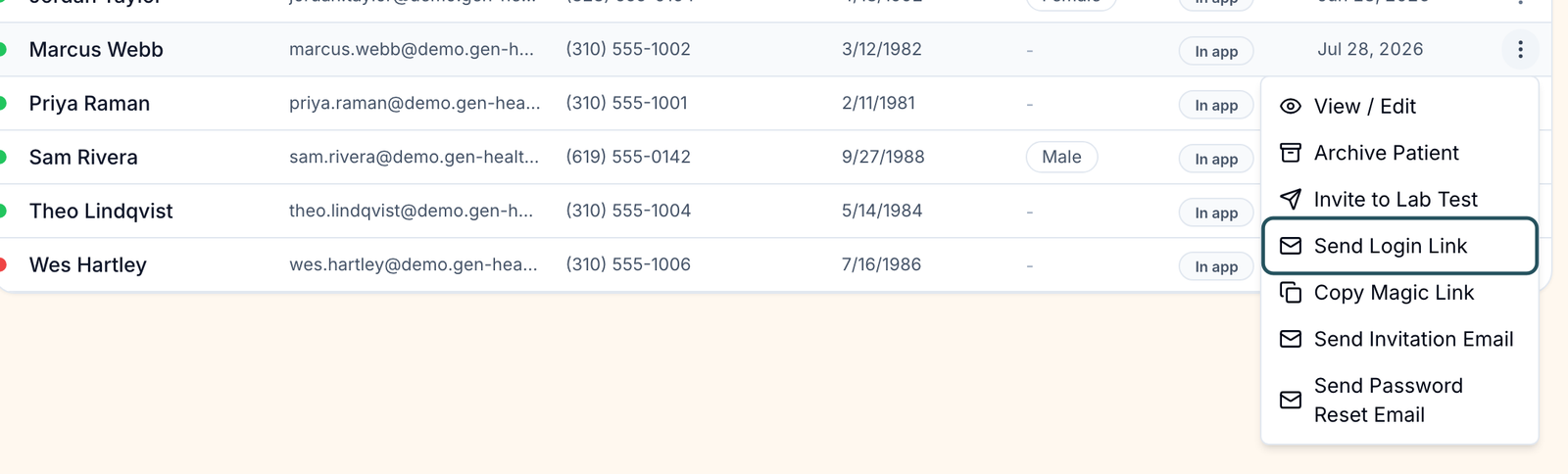
Open the row menu
Click ⋮ at the end of the patient's row (or right-click the row).
Pick the right email
Send Login Link: a one-tap sign-in for an existing account. Send Invitation Email: the first invite again, for a Pending patient. Send Password Reset Email: for password users. Copy Magic Link: copies the link to paste into a chat.
Several patients at once
Tick their rows. The bar that appears offers Send Login Links, Send Invitation Emails and Send Password Reset Emails.
You'll know it worked when the toast reads Magic link sent to and the patient's email.
Who can do this: Client Admin and Client Staff. Copy Magic Link is missing when it is switched off for your account.
A magic link signs in whoever holds it. Paste it only into the patient's own conversation.
Remove test patients
Use this to clear test accounts or patients who left before go-live.
Archive the patient
Row menu → Archive Patient, then confirm Archive Patient?. The patient disappears from this list.
If Archive Patient is missing
The patient is still in sign-up. Open the record, then Patient actions (⋮, top right) → Deactivate.
You'll know it worked when the patient no longer shows in the list.
Who can do this: Client Admin and Client Staff. Only GEN Health can delete a patient; ask in Support.
Export the list
Click Export CSV
Top right.
Choose what
Export what's in the table keeps your search and filters. Export all data exports everyone.
You'll know it worked when the CSV downloads, or the toast reads Exported with the count.
Who can do this: Client Admin and Client Staff.
Statuses you'll see here
| Status | What it means | Who acts next | What you do |
|---|---|---|---|
| Active | A working account | Nobody | Nothing. Check Needs attention for open steps. |
| Pending | Invited, invite not accepted yet | Patient | Send Invitation Email |
| Deactive or Inactive | Switched off; the patient can't sign in | You | Profile → Patient actions → Activate |
| Onboarding required | Sign-up not finished | Patient | Send Login Link |
| Forms required | A form request is open | Patient | Profile → Forms; message them |
| Telehealth visit required | The provider wants a video visit | Patient | Remind them to book, or book it from the profile's Visits tab |
What can go wrong
| What you see | Why | Fix |
|---|---|---|
| The patient says the link is expired or something went wrong | Links last 3 hours, or the patient opened it in a browser where a staff account is signed in | Send a new link; ask them to open it at once in a private window. If it still fails, raise a ticket in Support. |
| This account is archived or disabled. Reactivate it before sending a magic link. | The patient is archived or deactivated | Activate them first (see Statuses). |
| The email never arrives | Spam folder, a typo in the email, or patient emails turned off in Settings → Notifications | Check the email on the profile, then send the Copy Magic Link link in Messages. |
| A patient with this email already exists | They are already on your list | Search for them and send a login link. |
| The row menu closes by itself | Known problem: the list refreshes every 15 seconds | Open the menu again and pick the action straight away. |
| Two accounts for one person | A typo in the email at checkout created a second account | Raise a ticket in Support; GEN Health merges them. |
| A patient is missing from the list | They are archived (hidden), or a filter is on | Clear filters. For an archived patient, open them from an order (View patient) and click Restore under Status, or ask Support. |
Questions people ask
Can we log in as our patients to walk them through an issue?
No; Login as User is for GEN Health staff only. Use Copy Magic Link and open it in a private window to see what the patient sees, then close the window.
I need to add patients and I only see the option to send them an invite.
That is how it works: you type emails, the patient fills in the rest. To bring over full records, use Bulk Upload with a CSV.
Where do I see the patient's unique ID?
In the profile header, after the date of birth; click it to copy.
Related
Was this helpful?