Settings — Orders
Add up to 20 of your own order labels so your team can mark a fulfillment stage the built-in statuses do not cover.
This settings tab lets you add your own order labels — up to 20 of them — so your team can mark a stage of fulfillment that the built-in statuses do not describe.
Questions people ask about this page
Does a custom status do anything?
No. It is a sticker. Applying one never marks an order paid, never sends anything to a pharmacy or lab, never triggers an email, and no automation reads it. The status dialog on /orders says so out loud: "Status changes may require confirmation. Labels do not mark orders paid or send to pharmacy or lab."
Where do my custom statuses show up?
Two places on /orders: as an extra group called Custom at the bottom of the order status picker, and as extra options in the status filter at the top of the table.
Why was my status name rejected?
Three reasons, each with its own message. "‘X’ is already a standard order status" means you tried to reuse a built-in name such as Shipped or Delivered. "That custom status already exists." means you already have one with that name, ignoring case. "Status names must be 40 characters or fewer." is the length limit.
How many can I have?
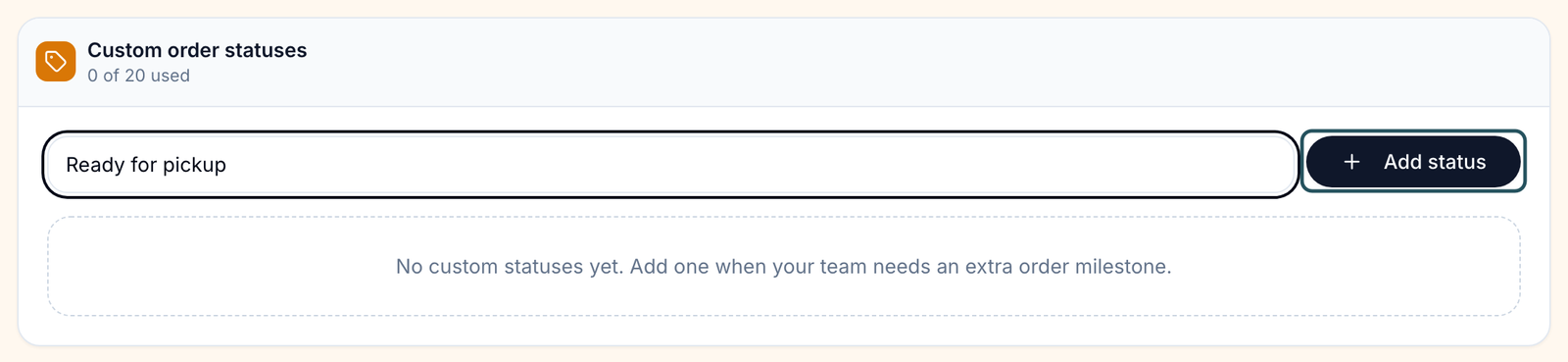
Twenty. The card header counts them for you — 0 of 20 used — and adding a twenty-first fails with "You can create up to 20 custom statuses."
What happens to orders already carrying a status I delete?
The status name disappears from the list of choices. The order keeps whatever value was written on it, and the table renders it by title-casing the stored value. Nothing breaks, but nobody can set it again. Rename by adding the new one and re-labelling those orders.
Can Client Staff add these?
No. This is a Client Admin settings tab. Client Staff can apply a custom status on an order, but not create one. Client Staff have only one settings page — Notifications.
Can I hide the built-in statuses instead?
No. The card description is precise: "Standard statuses remain available." Custom statuses are added to the list, never a replacement for it.
Where to find it
Left menu → Settings → the Orders card. Direct link: /settings/orders. Visible to: Client Admin only. The tab does not exist on a Review Only (gfe_only) account, because that model has no Orders page.
What is on this page
| What you see | What it does |
|---|---|
| Page heading Orders | Sub-line reads "Create optional order statuses for your team to use during fulfillment." |
| Card Custom order statuses | "Add optional statuses for your team to use on client orders. Standard statuses remain available." |
| Count label {n} of 20 used | How many you have created out of the hard limit of 20. |
| Text box, placeholder e.g. Ready for pickup | Where you type the new name. Its label for screen readers is New custom order status. |
| Button Add status | Saves the name. Pressing Enter in the box does the same thing. |
| Empty state | "No custom statuses yet. Add one when your team needs an extra order milestone." |
| Each saved row | The name, plus a small outline badge reading Custom, plus a bin icon whose label is Remove {status name}. |
How to add a custom status
Open the tab
In the left menu, click Settings. On the Account settings grid, click the Orders card.
Type the name
Click the box with the placeholder e.g. Ready for pickup and type the label your team will read on the order row. Keep it short — 40 characters is the hard ceiling, and long names crowd the table.
Save it
Click Add status. A toast reads Custom order status added and the row appears immediately with a Custom badge.
Check it in the picker
Go to /orders, open any order's status control, and scroll to the group headed Custom. Your new label is there.
How to remove one
Find the row
On /settings/orders, locate the status in the list.
Click the bin icon
The icon button at the end of the row is labelled Remove {status name} for screen readers. There is no confirmation dialog — one click removes it.
Confirm
A toast reads Custom order status removed and the count in the card header drops by one.
Removing a status does not touch orders that already carry it. Those rows keep showing the old label, but nobody can apply it again. If you meant to rename, add the new name first, re-label the affected orders on /orders, and only then remove the old one.
Every setting on this page
| Setting | What it controls | Default |
|---|---|---|
| New custom order status (text box) | The visible label. Leading, trailing, and repeated spaces are collapsed before saving. Maximum 40 characters. | Empty |
| Add status (button) | Saves the typed name to your account. | — |
| Remove {status name} (bin icon, one per row) | Deletes that status from the list of choices. No confirmation step. | — |
| Limit | 20 custom statuses per client account. Not configurable. | 20 |
That is the entire tab. There is no ordering control, no colour picker, no per-status description, and no way to restrict which team members may apply a given status.
Names you cannot use
These are reserved because they are built-in order statuses, and the check ignores case: Pending, Pending fee, Pending payment, Pending forms, Pending review, Under review, Approved, Denied, Deferred, Completed, Sent to lab, Results received, Sent to pharmacy, Processing, Shipped, Delivered, Pharmacy order failed, Error, Refunded, Partially refunded, Voided, Cancelled, Canceled.
Statuses you will see here
The only badge on this tab is the outline chip Custom beside each name you created. It exists to tell you the row is yours rather than built in.
The statuses your custom labels sit alongside on /orders are defined in Words and statuses. Worth knowing before you invent labels: as a Client Admin or Client Staff you can only set Pending, Pending Payment, Shipped, Delivered, Error, Pharmacy Order Failed and your own custom labels by hand, plus Purchase Complete on a Request-payment invoice. Everything else is written by the system, which is exactly the gap custom statuses are meant to fill.
What can go wrong
| What you see | Why | Fix |
|---|---|---|
| "‘X’ is already a standard order status" | You used a built-in name. | Pick a different word — "Packed locally" instead of "Shipped". |
| "That custom status already exists." | A status with the same name, ignoring case, is already saved. | Check the list; rename the new one. |
| "You can create up to 20 custom statuses." | You are at the limit. | Remove one you no longer use. |
| "Status names must be 40 characters or fewer." | The name is too long. | Shorten it. Long names also truncate in the Orders table. |
| Applying the status on an order pops a confirmation dialog | Custom labels are in the group that requires a typed confirmation, under the heading Change this order label? | Expected. Confirm and continue. |
| A teammate says the status did nothing | It genuinely does nothing beyond displaying. | Use it for internal tracking only. To actually move an order, fix the underlying blocker. |
| The Orders card is missing from Settings | Your account runs the Review Only model, which has no Orders page. | Nothing to do — the feature does not apply to that model. |
Next
Was this helpful?