Support and tickets
Raise a ticket and track the reply — starting with the step that decides everything, choosing who the ticket is for.
Support is where you raise a ticket and track the reply — and the first thing it asks is not what went wrong, but who the ticket is for.
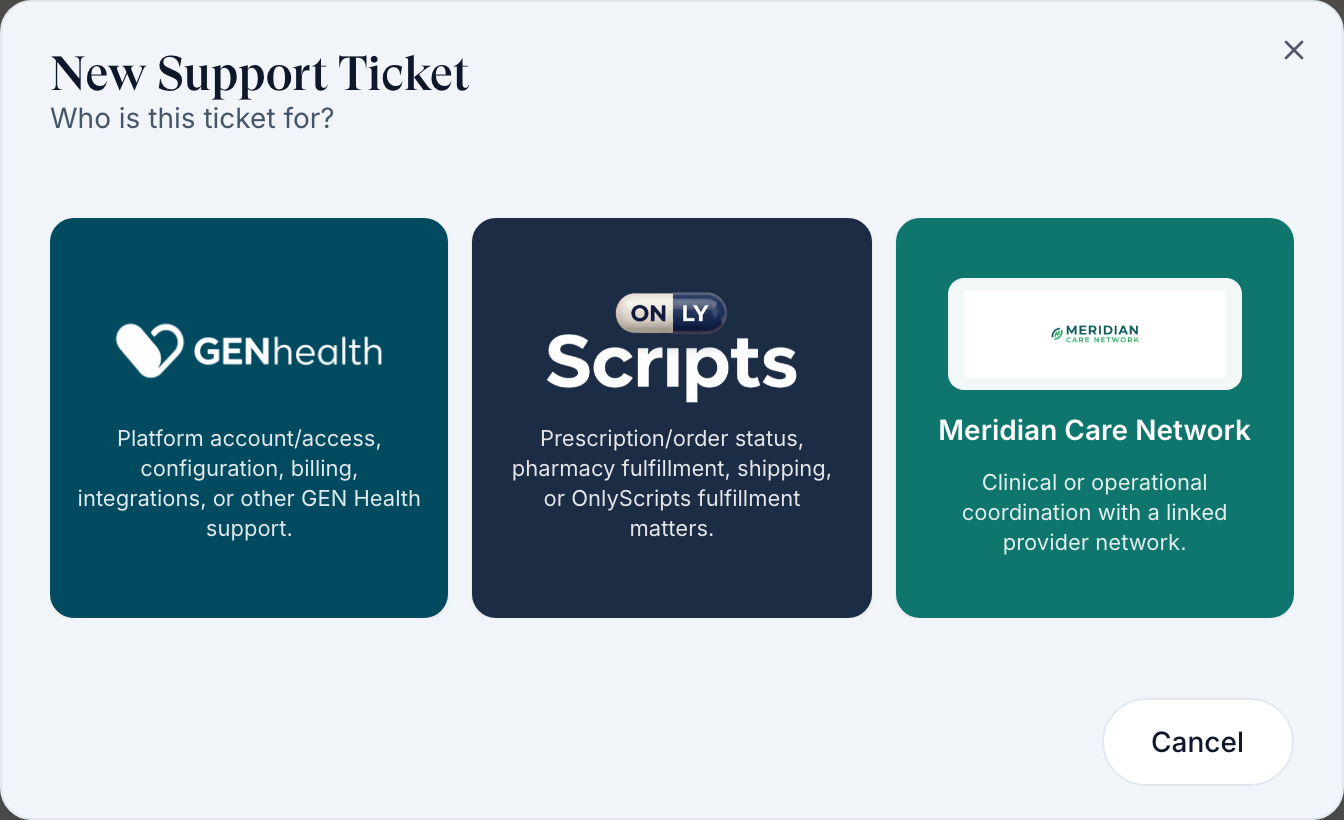
Read this before you file anything. The very first screen of a new ticket asks "Who is this ticket for?" and gives you three cards: GEN Health, OnlyScripts, and one card per provider network you are linked to. Pick the wrong one and your ticket lands in a queue that cannot fix it. A late shipment or a stuck prescription is OnlyScripts, not GEN Health. A clinical question or a slow review is your provider network, not GEN Health. GEN Health handles the platform itself.
Questions people ask about this page
Who should receive this ticket?
Match the card to the problem. GEN Health — "Platform account/access, configuration, billing, integrations, or other GEN Health support." OnlyScripts — "Prescription/order status, pharmacy fulfillment, shipping, or OnlyScripts fulfillment matters." {Your network} — "Clinical or operational coordination with a linked provider network."
Why send a shipping problem to OnlyScripts and not GEN Health?
Because OnlyScripts is the pharmacy service that actually fills and ships. GEN Health can see the order but cannot reprint a label, chase a carrier, or re-dispense. A shipping ticket sent to GEN Health has to be re-routed by hand, and you wait for nothing in the meantime.
The topic I want is not in the list.
Topics are filtered by recipient, so the missing topic almost always means you picked the wrong recipient. Only OnlyScripts and your provider network offer Prescriptions; only OnlyScripts offers Pharmacy & formulary; only your network offers Visits & clinical care; only GEN Health offers Technical issue / bug and Billing & payments. Click Back and change the recipient.
What are the two tabs on the Support page?
Incoming Requests holds tickets your own patients sent to you. Your Support Tickets holds the ones you sent out. Each tab shows a count. The page opens on Incoming Requests, so if your own ticket seems to be missing, switch tabs.
How much patient detail should I type in?
As little as possible in free text. Use the structured pickers instead: an OnlyScripts prescription ticket makes you select the patient and then the exact prescription or order, and the pharmacy and patient details are derived from that record on the server rather than re-typed. Reference the record, not the person's medical history.
Why is my ticket asking for a pharmacy?
Because you chose the Prescriptions topic with your provider network as recipient. That path asks for a pharmacy first — pick the specific one, or General — not specific to one pharmacy.
How fast is a reply?
There is no published service level in the app. Set Priority honestly — it is optional for a client account, and the three levels are Informational / Request, Standard / Normal and Critical / Blocker. Watch the ticket's status; when it turns Response Requested, the ball is with you.
Who can see my tickets?
Your team and the recipient you chose. Other brands on the platform cannot see them.
Where to find it
Left menu → Support. Direct link: /support. Visible to: Client Admin and Client Staff. The page heading is Support, with the sub-line "Submit support requests and track updates from the GEN Health team."
What is on this page
| What you see | What it does |
|---|---|
| Tab Incoming Requests | Tickets routed to your team, with a count. This is the tab the page opens on. |
| Tab Your Support Tickets | Tickets you sent, with a count. |
| Button Create Support Ticket | Opens the New Support Ticket dialog. On a narrow screen the same button reads New ticket. |
| Search box | Placeholder "Search by subject, requester, account, topic, or patient...". |
| Columns | Priority · Subject · Requester · From or Sent to (depending on the tab) · Topic · Status · Assigned · Created · Updated. |
| Status filter | Opens pre-set to the open statuses — Submitted, Processing, Response Requested — so completed tickets are hidden until you clear it. |
| Created date filter | Narrows by when the ticket was raised. |
| Export CSV | Downloads the visible queue. |
| Empty states | Incoming: "No requests yet. Requests routed to your team will appear here." Sent: "No support tickets yet. Create one to get started." Filtered: "No tickets match these filters." |
| Opening a ticket | A thread view with the original request, every reply, attachments, and a reply box with the placeholder "Reply to support...". |
How to raise a ticket
Open the page
In the left menu, click Support.
Start a ticket
Click Create Support Ticket. The dialog opens headed New Support Ticket with the question "Who is this ticket for?"
Choose the recipient — this is the step that decides everything
Click one card. GEN Health for the platform. OnlyScripts for anything the pharmacy owns. Your network's card — for example Meridian Care Network — for clinical and operational coordination. The heading changes to "What do you need help with? Pick a topic to get started."
Pick a topic
Only the topics that recipient handles are shown. If yours is missing, click Back in the top left and change the recipient.
Fill any record pickers the topic adds
An OnlyScripts ticket asks for PATIENT — "Select the patient this request concerns." — and then the prescription or order, which stays disabled until a patient is chosen ("Select the patient above first to choose their prescription or order."). A network Prescriptions ticket asks for PHARMACY instead, with General — not specific to one pharmacy as the catch-all, plus an optional patient.
Write the subject and description
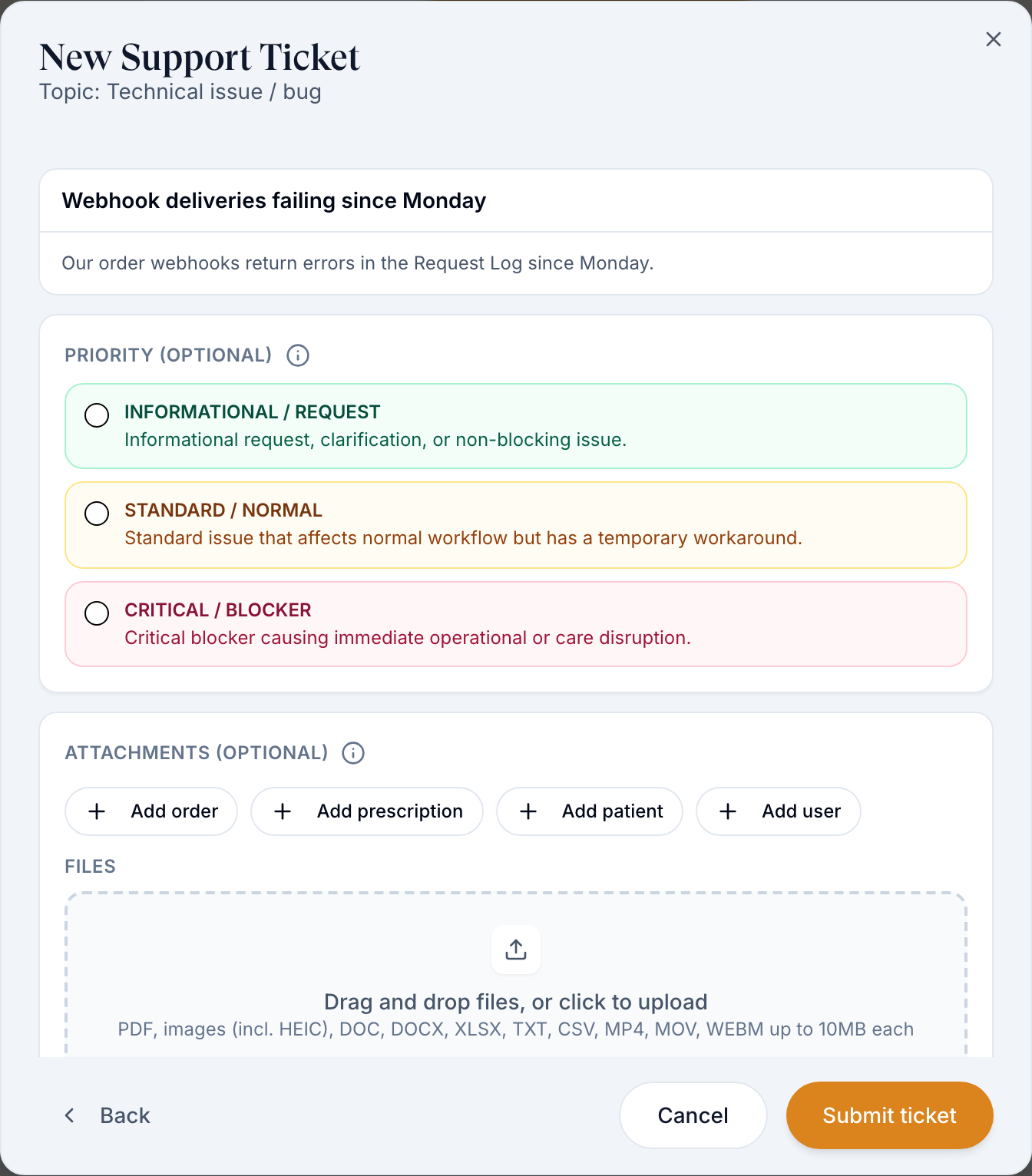
SUBJECT is required, up to 180 characters, placeholder "Brief summary of the issue". DESCRIPTION is required, up to 5000 characters, with the instruction "Include clear steps, expected behavior, and what actually happened."
Set a priority if it matters
PRIORITY (OPTIONAL) offers INFORMATIONAL / REQUEST, STANDARD / NORMAL, and CRITICAL / BLOCKER, each with a one-line definition.
Attach evidence
ATTACHMENTS (OPTIONAL) takes drag-and-drop or Choose files. Accepted: PDF, images including HEIC, DOC, DOCX, XLSX, TXT, CSV, MP4, MOV, WEBM — up to 10MB each.
Send it
Click Submit Ticket. The button reads Uploading… then Submitting… while it works. The dialog closes and the ticket appears under Your Support Tickets.
Which recipient handles what
| Recipient | Topics it offers | Send it here when |
|---|---|---|
| GEN Health | Labs & results · Billing & payments · Account & access · Technical issue / bug · Other | A page will not load; an integration or API is misbehaving; your GEN Health invoice or plan is wrong; someone cannot sign in; a feature needs enabling. |
| OnlyScripts | Orders & fulfillment · Prescriptions · Pharmacy & formulary · Other | A shipment is late, wrong, or missing; a prescription failed at the pharmacy; a medication is unavailable; a formulary mapping is wrong. |
| {Your provider network} | Orders & fulfillment · Prescriptions · Visits & clinical care · Labs & results · Account & access · Other | Reviews are sitting unclaimed; a decision looks wrong; there are no visit times; a protocol or lab requirement needs changing. |
Notice what GEN Health cannot be sent: Prescriptions, Pharmacy & formulary and Visits & clinical care are absent from its topic list on purpose. If that is your problem, the recipient is wrong.
Try this before you file
| Situation | Faster route than a ticket |
|---|---|
| One patient is stuck | Open their row on /patients and read the status — most blocks are self-explanatory. See Patients list. |
| An order is not moving | Open the order on /orders and read the timeline. See Orders. |
| A prescription failed | Hover the warning triangle on /prescriptions. The tooltip names the cause and the fix. |
| A badge makes no sense | Look it up in Words and statuses. |
| A patient has a medical question | Message the care team from /messages rather than opening a ticket. |
| An email did not arrive | Check Settings → Logs for the delivery record first. See Settings — Logs. |
Every setting on this page
Support has no saved settings. These are the fields and controls.
| Field or control | What it does | Required |
|---|---|---|
| Recipient cards | GEN Health, OnlyScripts, and one card per linked provider network. | Yes. Skipping it gives "Choose who this ticket is for first." |
| Topic cards | Filtered by recipient, from the nine-topic catalog. | Yes. Skipping it gives "Choose a topic first." |
| PATIENT (OnlyScripts path) | Structured patient selector. The record selector below stays disabled until one is chosen. | Yes. Error: "Select the patient this OnlyScripts request concerns." |
| Prescription or order selector (OnlyScripts path) | The exact record the request is about. Pharmacy and patient details are derived from it server-side. | Yes. Error: "Select the prescription or order this request concerns." |
| PHARMACY (network Prescriptions path) | "Choose the pharmacy this issue concerns, or General if it isn't tied to one pharmacy." | Yes. Error: "Select the pharmacy this issue concerns." |
| PATIENT (OPTIONAL) (network Prescriptions path) | "Link the patient this issue concerns. Leave blank if it does not apply to a specific patient." | No |
| SUBJECT | Placeholder "Brief summary of the issue". Maximum 180 characters. | Yes |
| DESCRIPTION | Placeholder "Describe what happened, what you expected, and steps to reproduce." Maximum 5000 characters. | Yes |
| PRIORITY | Three cards: INFORMATIONAL / REQUEST, STANDARD / NORMAL, CRITICAL / BLOCKER. | Optional for Client Admin and Client Staff |
| ATTACHMENTS | PDF, images including HEIC, DOC, DOCX, XLSX, TXT, CSV, MP4, MOV, WEBM, up to 10MB each. | No |
| Back | Top-left control that returns to the topic step, then to the recipient step. | — |
| Cancel / Submit Ticket | Dialog footer. | — |
| Row controls on the queue | Set priority and Update status, in-cell editors on the Priority and Status columns. They appear on Incoming Requests rows only — the tickets your own patients sent you. Your own outbound tickets are read-only; only the recipient can change their status. | — |
What to write so you get a fast answer
- One problem per ticket. Two problems in one ticket get one slow answer.
- Use the pickers to attach the patient, prescription, or order. That is the reference the other side needs.
- Say what you did, what you expected, and what happened — in that order.
- Say when it started, and whether anything changed: a new product, a new form, a new team member, a new integration.
- Attach a screenshot. It is almost always faster than a paragraph.
- Keep clinical detail out of free text. Reference the record instead.
Nothing in the ticket dialog warns you about patient health information, and nothing redacts it for you. The DESCRIPTION box accepts 5000 characters of anything you type, and attachments are uploaded as-is. Treat the structured pickers as the safe way to identify a case, and free text as something a wider audience may read.
Statuses you will see here
| Status | What it means | What to do |
|---|---|---|
| Submitted | Raised, not yet picked up. | Wait. |
| Processing | The recipient is working on it. | Wait, and watch for a reply. |
| Response Requested | They need an answer from you. The ticket is blocked until you reply. | Open it and reply in the thread. |
| Complete | Resolved. | Nothing. Reopen by replying if it is not actually fixed. |
| Cancelled | Withdrawn. | Nothing. |
| Action Required | A legacy stored value on older tickets. The screen relabels it to Response Requested, so the badge and an API export can disagree. | Treat it as Response Requested. |
Priority appears in two forms. In the ticket form and the filter list it reads Informational / Request, Standard / Normal, Critical / Blocker. In the queue's Priority column it is compact — Low, Medium, High. Same three values.
What can go wrong
| What you see | Why | Fix |
|---|---|---|
| Silence on a ticket you were sure was urgent | It went to the wrong recipient and is waiting to be re-routed by hand. | Check the Sent to column. Raise it again against the right recipient and reference the first ticket. |
| Your ticket is not in the list | The page opens on Incoming Requests, which holds tickets sent to you. | Switch to Your Support Tickets. |
| A closed ticket is missing | The status filter opens pre-set to the three open statuses. | Clear the status filter. |
| Toast: "Choose who this ticket is for first." | You tried to submit without a recipient. | Pick a card on the first screen. |
| Toast: "Select the prescription or order this request concerns." | An OnlyScripts ticket needs the exact record, not a description of it. | Choose the patient, then the record. |
| The record dropdown is empty after choosing a patient | That patient has no prescriptions or orders that OnlyScripts can act on. | Check you have the right patient, or send it to your provider network instead. |
| A patient tells you they cannot raise a ticket — "You already have an active support ticket." | The one-open-ticket rule is patients only. It never applies to Client Admin or Client Staff, so you can open as many as you need. | Tell the patient to reply on their existing ticket. Their Create Support Ticket button stays disabled until it closes. |
| You want to delete a ticket | There is no delete. | Set it to Cancelled if you can, or reply saying it is resolved. |
Next
Was this helpful?