Activity timeline
The hidden /activity page: an audited record of who did what to which order, patient or prescription.
Activity is an audited record of who did what inside your account — every order status change, patient edit, prescription event and staff login, in one searchable table.
Questions people ask about this page
Why is Activity not in my left menu?
Because it is deliberately hidden. The route is registered for Client Admin but is flagged hidden, so it never renders a sidebar item. Type /activity after your portal address to open it. Bookmark it — there is no button anywhere that takes you here.
I typed the address and got "Activity is not available". What now?
You are signed in as Client Staff, not Client Admin. The page reads: "Activity is limited to administrator accounts. Use your dashboard and workflow pages instead." Only a Client Admin at your client can open it. Ask an admin, or use the Activity tab inside the patient profile, which every Client Staff member can open.
Who changed this order status?
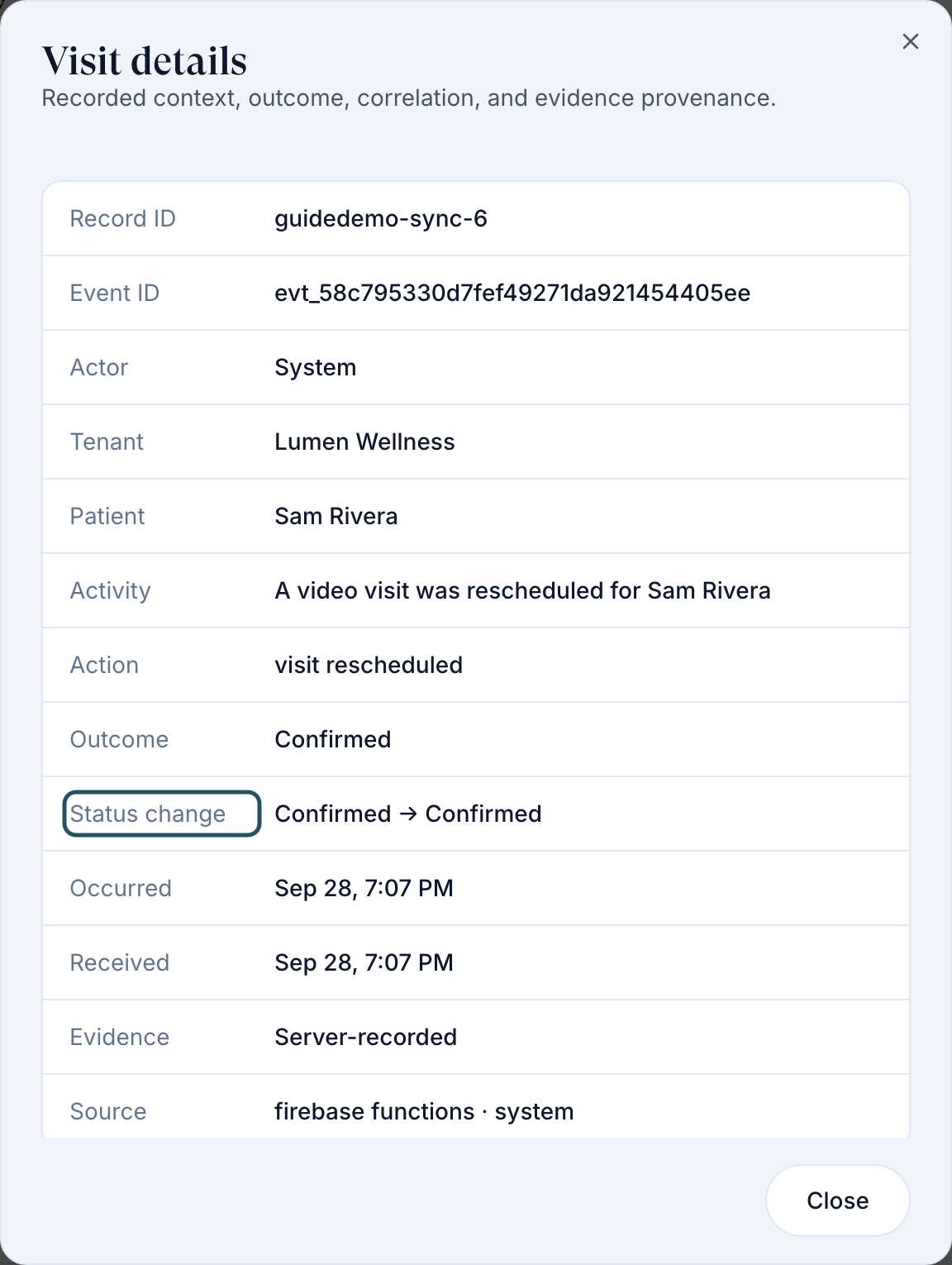
Copy the order ID from the Orders table, open /activity, paste the ID into the Record ID box, and read the Actor and Status columns. For the full event, right-click the row and choose View order, or click the value in the Record column. The dialog shows a Status change line in the form old → new. Clicking the row itself does nothing on this page.
Can I see everything one staff member did?
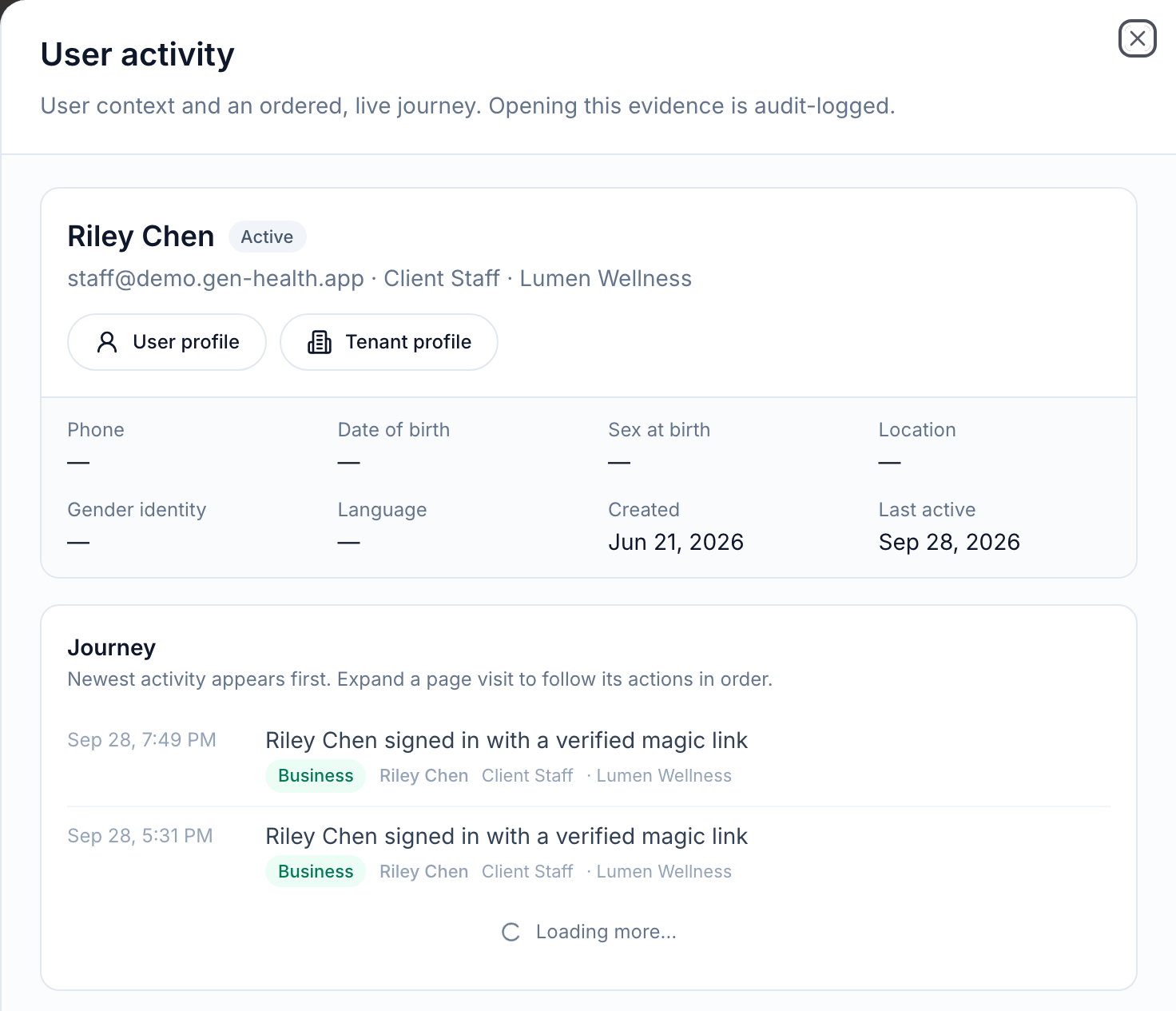
Yes. Click the person's name in the Actor column — that opens a right-hand panel titled User activity with their ordered journey. Right-clicking the row and choosing View user timeline does the same thing. When you are not allowed to see that person's timeline the label reads View user details instead and you get the single-event dialog. Opening the panel is itself audit-logged, so use it for real investigations only.
Is this the same as the Activity tab on a patient?
No. The patient profile's Activity tab shows one patient and is open to Client Admin and Client Staff. This page shows your whole organisation — patients, orders, prescriptions, products and staff — and is Client Admin only.
How far back does it go, and can I export it?
Use the Date range filter to pick the window. The table loads more rows as you scroll — there are no page buttons. There is no export button on this page. To keep evidence, open the row and copy the fields out of the details dialog.
Some rows have no link on the record. Why?
Client Admin only gets deep links for two record types: patients (opens the patient profile) and orders (opens the order). Visits, chart reviews and prescriptions show the record but do not link anywhere from here. Open those from their own pages.
Where to find it
There is no menu item. Type the route into the address bar: /activity. Visible to: Client Admin only. Client Staff has no /activity route at all — the address returns the unavailable page.
Everything on this page is audit evidence about real people. Open a user timeline only when you have a reason; the system records that you looked.
What is on this page
| What you see | What it does |
|---|---|
| Page heading Activity | Sub-line reads Activity across your organization's patients, orders, and staff. |
| Search box | Placeholder Search activity by person, product, tenant, or event... Free text across the whole feed. |
| Record ID box | A text box whose placeholder reads Record ID (screen-reader name Filter by record ID). Paste an exact order, visit or prescription ID to pull only that record's history. |
| Filter pills | Up to ten, plus a free-text Record ID box — see the table below. A pill with nothing behind it is not rendered, so a quiet account shows fewer. |
| Table Activity | Eight columns, newest first, loading more as you scroll. No page numbers. The count beside the title reads {n} of {total}. |
| Record cell | Where the details dialog actually opens. If the record is a patient or an order the cell is a link and takes you to that record instead. |
| Clicking a row | Does nothing. The row itself is not clickable — use the Record cell, the Actor cell, or right-click. |
| Right-click a row | Offers View user timeline (or View user details) and a link to the record itself. |
| Empty state | No activity for the selected range and filters. |
The eight columns
| Column | What it holds |
|---|---|
| Time | When the event happened. |
| Actor | Who did it. Click to open their timeline. |
| Role | The actor's role at the time — Client Admin, Client Staff, Patient, Provider, and so on. |
| Patient | The patient the event touched, if any. |
| Event | What happened, in plain words. |
| Record | The order, visit, prescription or form the event belongs to. |
| Status | The status the record ended up in. |
| Summary | A one-line sentence describing the event. |
Every filter
| Filter | Default label | Options |
|---|---|---|
| Category | All categories | Business, Navigation, Interaction, System |
| Role | All roles | Built from the roles present in your feed. |
| Actor | All users | Searchable list of people at your client. |
| Patient | All patients | Searchable list of your patients. |
| Record type | All records | Orders, Visits, Chart reviews, Prescriptions, Form submissions, Products, Patients, Providers, Users |
| Record ID | placeholder Record ID | Free text. Exact match. |
| Event | All events | Built from the event types present in your feed. |
| Status | All statuses | Built from the statuses present in your feed. |
| Source | All sources | Where the event came from — the app, the Client API, a webhook. |
| Page | All pages | Which screen the actor was on. |
| Date | Date range | Calendar range picker. |
Filters that would have no rows are not rendered, so your list of pills is shorter than this table on a quiet account.
How to trace one record
Get the ID
On Orders, right-click the row and choose View order. The order ID is in the details modal header and in the search hint Search orders by ID, patient, or product.... Copy it.
Open Activity
Replace the path in your address bar with /activity and press Enter.
Paste the ID
Click the Record ID box and paste. The table narrows to that record's events only.
Widen the dates if the list is empty
Open Date range and pick a window that covers when you think the change happened.
Read the row
Left to right: Time, Actor, Role, Patient, Event, Record, Status, Summary. That is the answer to "who changed this".
Open the detail
Right-click the row and choose View order. A dialog titled Order details (or Activity details when the record type is unknown) opens, described as Recorded context, outcome, correlation, and evidence provenance. It lists whichever of these the event actually carries: Record ID, Event ID, Actor, Tenant, Patient, Activity, Action, Duration, Outcome, Status change, Changes, Occurred, Received, Evidence, Sentence rules, Source, Audit target, Audit range, Session, Interaction, Page view, Request and Trace. Empty fields are dropped, so a short dialog means a thin event, not a bug. Click Close when you are done.
How to see everything one person did
Find a row they touched
Use the All users filter and pick their name, or search for it.
Open their timeline
Click their name in the Actor column, or right-click the row and choose View user timeline. A panel titled User activity slides in from the right, described as User context and an ordered, live journey. Opening this evidence is audit-logged.
Read it top to bottom
The panel is live — new events appear as they happen. If the person has no recorded events it reads No recorded activity for this user.
Close it
Close the panel to return to the feed. The address bar keeps an activityUser value while the panel is open, so you can send that URL to another admin.
Statuses you will see here
The Status column repeats whatever status the underlying record landed in, so it can show order, visit, prescription or form vocabulary in the same table. Look at the Record column to know which vocabulary you are reading, then use the matching guide.
| Record type in the row | Where the status words are defined |
|---|---|
| Orders | Orders — the full order status list. |
| Prescriptions | Prescriptions and refills. |
| Patients | Patients list — Active, Pending, Deactive, Archived. |
| Visits, Chart reviews, Form submissions, Products, Providers, Users | Their own pages. This table does not relabel them. |
What can go wrong
| What you see | Why | Fix |
|---|---|---|
| Activity is not available | You are Client Staff, a Provider, or a Provider Delegate. Only Client Admin, Provider Network Admin, Practice Admin and Super Admin have a surface here. | Ask a Client Admin to look, or use the patient profile's own Activity tab. |
| No Activity item in the left menu, even as Client Admin | Correct behaviour — the route is marked hidden on purpose. | Type /activity and bookmark it. |
| Empty table with filters set | The date range excludes the event, or a pill is narrowing you out. | Click the clear-filters control, then reapply one filter at a time. |
| Clicking a row does nothing | Rows are not clickable on this page, unlike every other table in the product. | Click the value in the Record or Actor column, or right-click the row. |
| The record you want is not clickable | Client Admin only has deep links for patients and orders. Visits, chart reviews and prescriptions open the event dialog instead of the record. | Copy the ID from the details dialog and open the record from its own page. |
| No Tenant column, though a colleague at your provider network has one | The Tenant column only renders for roles that can see more than one tenant. A Client Admin only ever sees their own. | Nothing to fix. |
| You cannot see another client's activity | By design. A Client Admin only sees rows whose client is their own. | Nothing to fix. Cross-tenant history is a Super Admin surface. |
| You expected an export button | There is no CSV export on this page. | Open each row and copy the fields, or ask support for an export. |
Next
Was this helpful?