Settings — Logs
The delivery record for every email and text the platform exchanged with your patients and team, with the exact message body.
This settings tab is the delivery record for every email and text message the platform exchanged with your patients and your team — what was sent, to whom, whether it arrived, and the exact message body.
Questions people ask about this page
A patient says they never got the email. How do I check?
Search their address or name in Search recipient or subject…, then read the Status column. Delivered means the mail server accepted it — check their spam folder. Undelivered or Failed means it did not arrive, and opening the row shows a red error line with the reason.
Can I see the exact email they received?
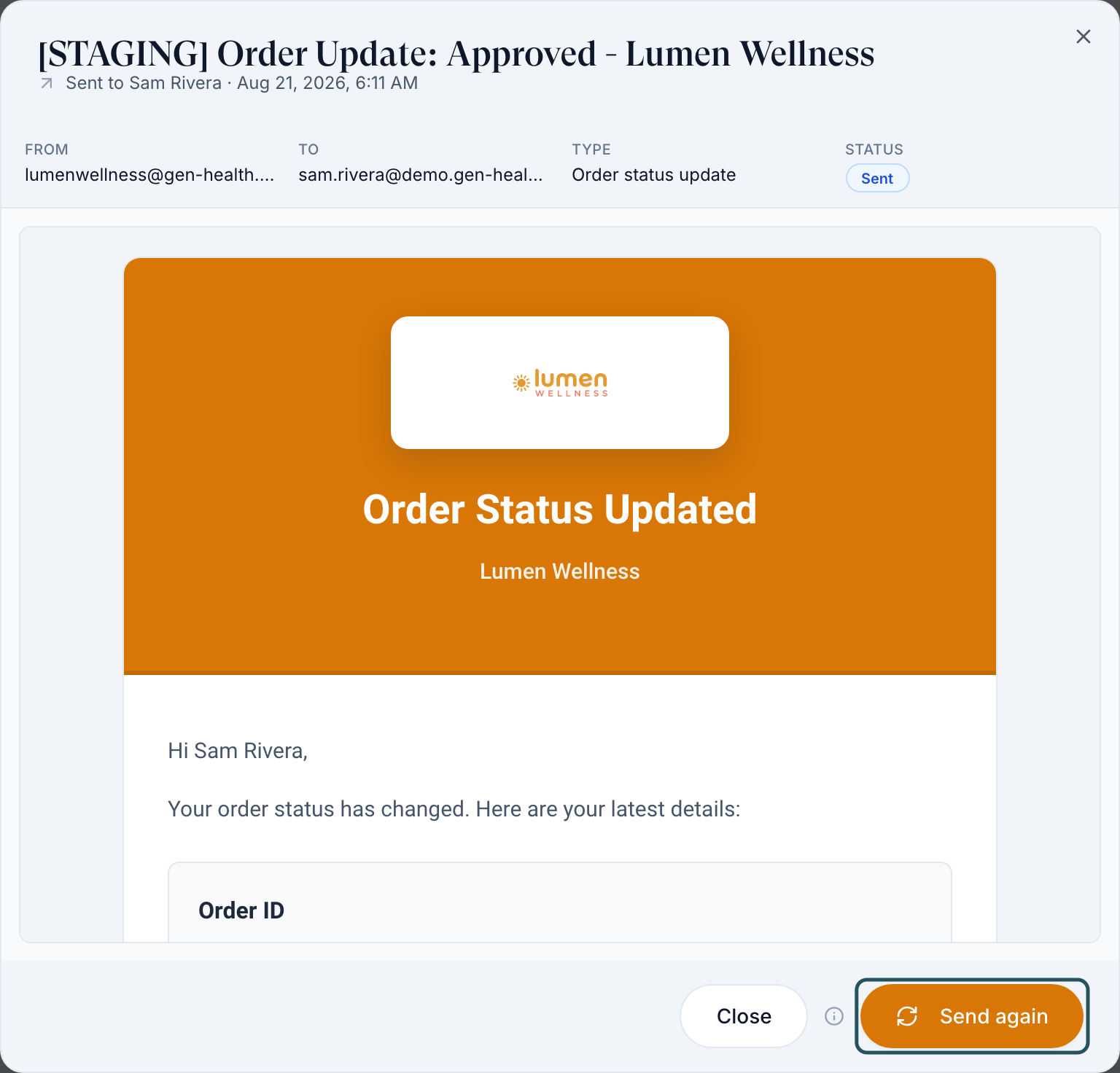
Yes. Click the row. The dialog renders the real message inside a preview frame — the same HTML that was delivered, not a re-render. For SMS you see the plain text body.
Why is Send again missing on some rows?
Two reasons. Text messages can never be re-sent — there is no re-deliver primitive, and re-texting someone who already got it is a nuisance. Emails still in flight (status Pending or Processing) have no outcome to repeat yet, so the action is hidden rather than offered and then refused.
Does Send again refresh the content?
No, and the page says so: "Sends this exact message again to the same address. Nothing is re-rendered, so the recipient gets a copy of what is shown here." If an order status or a price has changed since, the re-send still shows the old wording.
Are inbound patient texts here?
Yes. An inbound SMS gets a small green arrow in the Channel column, labelled Received from patient, and its detail dialog reads "Received from" instead of "Sent to". Inbound rows never offer Send again.
Why do the status words look like a different product?
Because they are the email and SMS vendors' own words, shown verbatim with the first letter capitalised. Queued, Accepted, Sending and Undelivered are the text provider’s words. Pending, Scheduled, Processing, Sent, Failed and Cancelled are the six values the platform itself stores on an email.
Does the CSV export include the message body?
No, by design. The export is the delivery record only — When, Channel, Recipient, Subject, Type, Status. Bodies stay behind the detail view rather than landing in a spreadsheet that leaves your control.
Where to find it
Left menu → Settings → the Logs card. Direct link: /settings/logs. The URL /settings/communications also resolves here. Visible to: Client Admin only. This tab exists on every client model, including Review Only.
What is on this page
| What you see | What it does |
|---|---|
| Page heading Logs | Sub-line reads "Email and SMS history for your patients and team." |
| Table card Communications | Hover the info icon: "Newest first. Open a row to see the message exactly as it was delivered, and to send an email again." |
| Count chip {filtered} of {total} | How many rows the filters left, out of the rows loaded so far. |
| Export CSV | Downloads the delivery record. The only choice offered is Export what's in the table. |
| Refresh | Reloads from the first page. Use it after you re-send something. |
| Search box, placeholder Search recipient or subject… | Matches recipient name, email address, phone number, subject, and type across the rows already loaded. |
| Channel filter | Email and SMS (default) · Email only · SMS only. This one is a server-side choice, so switching it reloads the list from the top. |
| All statuses filter | Appears only once the loaded rows contain more than one status. Each option shows a count. |
| All types filter | Same rule, and searchable. Types are the platform's message categories, shown with underscores turned into spaces. |
| Columns | When · Channel · Recipient · Subject · Type · Status. When, Channel, Type and Status are sortable; the default sort is newest first. |
| Empty states | "No messages yet." with no filters, or "No messages match these filters." with filters on. |
| Right-click a row | A menu with View message and, when it is allowed, Send again. |
The table pages 50 rows at a time and loads more as you scroll. Because search, status, and type filter what is already loaded, a search that finds nothing may simply need more scrolling first.
How to check whether a message arrived
Open the tab
In the left menu, click Settings. On the Account settings grid, click the Logs card.
Narrow to one channel
If you know it was an email, set the channel filter to Email only. This reloads the list from the server.
Search for the person
Type their email address, phone number, or name into Search recipient or subject….
Read the Status column
Delivered or Sent means it left successfully. Undelivered or Failed means it did not.
Open the row for the detail
Click the row. The dialog header is the subject line; underneath it reads "Sent to {recipient} · {timestamp}". The From, To, Type and Status fields sit above the message. A failure shows a red error line here.
How to send an email again
Find the row
Search for the recipient, then click the row to open it.
Read the warning first
Beside the button is an info hint labelled About sending again. It says the exact message is repeated with nothing re-rendered.
Click Send again
A toast reads Email queued to send again. The button is also available without opening the row, from the right-click menu.
Refresh to see the new row
Click Refresh in the card header. The re-send appears as its own row with its own status.
Send again repeats stale content. If the message quoted an order status, a price, or an appointment time that has since changed, the patient receives the old wording. When the content matters, message the patient from /messages instead.
Every setting on this page
This tab has no saved settings. Everything on it is a view control, and none of it persists between visits.
| Control | What it does | Default |
|---|---|---|
| Channel filter | Chooses which collections are queried on the server. Changing it resets paging. | Email and SMS |
| All statuses | Multi-select over the statuses present in the loaded rows. | None selected |
| All types | Searchable multi-select over the message types present in the loaded rows. | None selected |
| Search | Free text over recipient name, email, phone, subject, and type. | Empty |
| Column sort | Click When, Channel, Type, or Status to sort. | When, newest first |
| Clear filters | Appears beside the filters once any is active. One click resets search, status, type, and channel. | — |
| Export CSV | Delivery record only, matching the rows on screen. | — |
What you cannot do here: change who receives a message, edit a template, resend a text message, delete a log row, or set a retention period. Message content and which patient notifications exist are configured on Settings → Portal experience; who on your team gets alerted is on Settings → Notifications.
Statuses you will see here
These come from the email provider and from the SMS provider, so the vocabulary is theirs. The badge is coloured by mapping each word to the nearest platform tone, which is why an unfamiliar word can still look green or red.
| Status | What it means | What to do |
|---|---|---|
| Pending | Accepted by GEN Health, not yet handed to the provider. | Wait, then Refresh. Send again is hidden while a message is in this state. |
| Processing | Being handed over now. | Same — wait and refresh. |
| Queued | The provider has it and will send shortly. | Wait. |
| Accepted | The provider accepted the message for delivery. | Wait. |
| Sending | In flight. | Wait. |
| Sent | Handed to the recipient's mail or carrier network. | Nothing. Not a guarantee it reached the inbox. |
| Delivered | The receiving system accepted it. | Nothing. If the patient still cannot find it, ask them to check spam. |
| Received | An inbound message from a patient. Look for the green arrow labelled Received from patient. | Reply from /messages, not here. |
| Undelivered | The provider tried and gave up — a bad address, a blocked number, or a hard bounce. | Open the row and read the red error line. Fix the contact detail on the patient profile, then send again. |
| Failed | The send itself errored. | Open the row for the error, fix the cause, then Send again. |
| Scheduled | Email only. The message is stored with a future send time and has not been handed over yet. | Wait for the send time, then Refresh. |
| Cancelled | Email only, and the one to look for when patients say they got nothing. The platform stopped the send before it reached the provider — almost always because Disable patient emails is on, or because the recipient opted out of a marketing series. | Check Settings → Notifications. Nothing is re-sent automatically once you turn the switch back off. |
Any other word you see is the provider's own status, title-cased. Treat it literally, and open the row for the error text.
What can go wrong
| What you see | Why | Fix |
|---|---|---|
| An empty table on a busy account | Rows are scoped strictly to your client. Messages sent by the provider network or by GEN Health's platform team are not yours to see. | Nothing. Ask the network for their side. |
| Search finds nothing you know exists | Search filters the rows already loaded, and the list pages 50 at a time. | Scroll to load more, narrow the channel first, or sort by When and page back. |
| The All statuses filter is missing | It only renders when the loaded rows contain more than one status. | Load more rows. |
| No Send again anywhere | You are looking at SMS rows, or at emails still in flight. | Texts cannot be re-sent. For in-flight emails, refresh and try once the status settles. |
| Lots of Cancelled rows | The master patient-email switch is on, so every patient email is stopped before it is sent. | Turn off Disable patient emails in Settings → Notifications. Messages already cancelled are not re-sent. |
| A re-sent email still shows the old content | Re-send repeats the stored message byte for byte. | Use /messages when the content needs to be current. |
| You want to delete a log entry | There is no delete. The log is a record. | Nothing. |
Next
Was this helpful?